Customer Ledgers
Every customer's balance from the books in one list, and each customer's statement (khata) with or without the items sold.
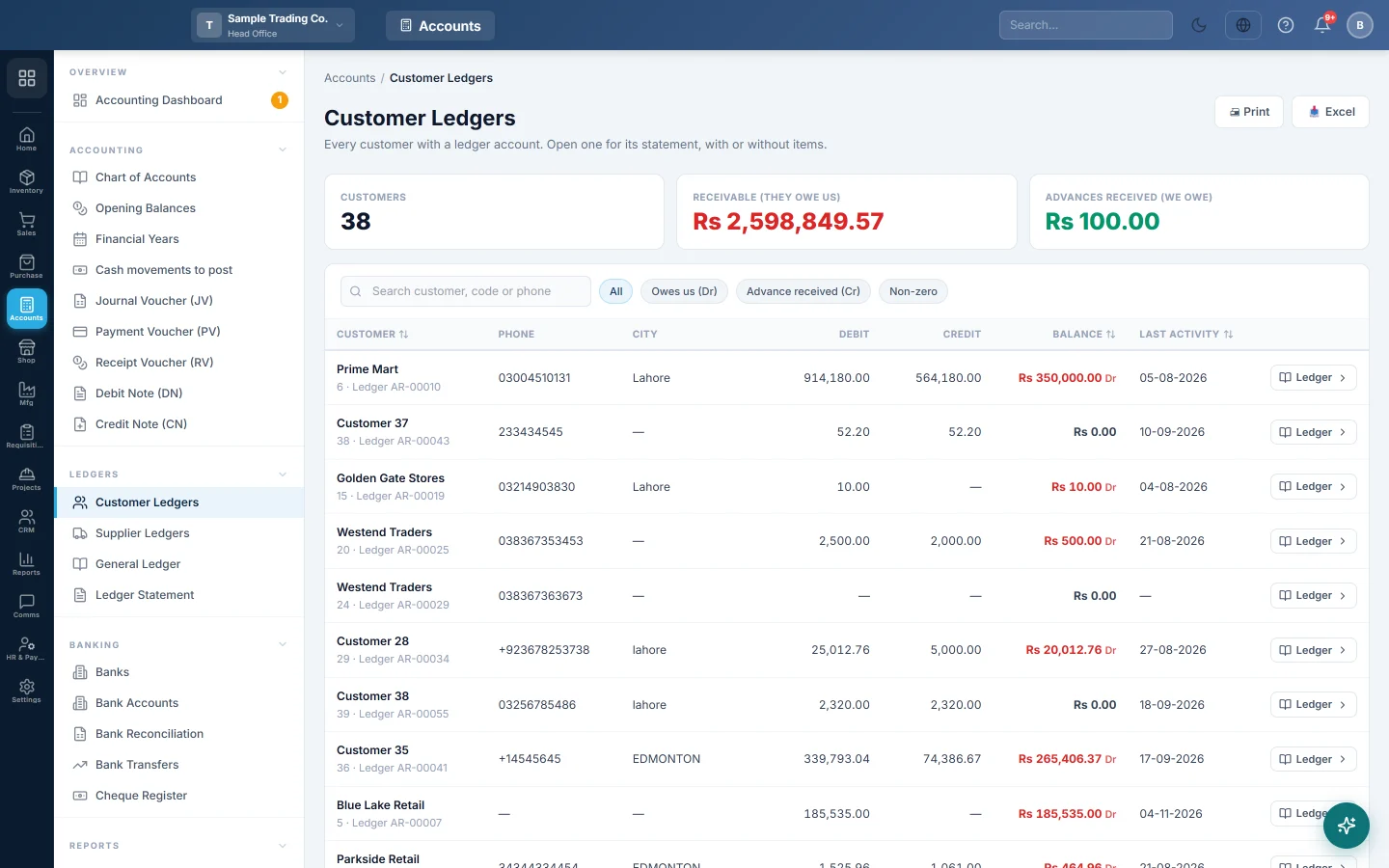
Customer Ledgers lists every customer that has a ledger account, with the balance the books hold for them today. Open a customer to see their statement (khata): every invoice, return, receipt and journal, with a running balance.
Before you begin
- Your role needs permission to view customers. Ask your administrator under Users & Roles.
- A customer appears here only once it has a ledger account. In All Customers, turn on Create Ledger in Accounts under Ledger Settings when you save the customer; the switch starts off. Credit sales and installments need it.
- If your role is limited to certain account groups, you only see the customers whose ledgers are in those groups.
Where to find it
Open Accounting → Ledgers → Customer Ledgers.
The older address under Sales forwards here when your company has the Accounting module. Without it, use Customer Ledgers in Sales.
Find a customer's balance
- Type part of the name, customer code or phone number in Search customer, code or phone.
- Click a filter to narrow the list:
- Owes us (Dr): customers with money to collect.
- Advance received (Cr): customers who paid more than they owe.
- Non-zero: everyone whose balance is not zero.
- All: the whole list again.
- Click the Customer, Balance or Last activity heading to sort by it. Click again to reverse the order.
The three cards at the top cover the whole filtered list, not just the page you see: Customers (how many), Receivable (they owe us) and Advances received (we owe).
Open a customer's statement
- Click the customer's row, or its Ledger button.
- The statement opens in your company's default report range. The first line, Balance brought forward, is everything before the From: date.
- Change From: and To: and click Apply. Click Clear to see the whole history.
- Choose Summary for one line per document, or Detailed (items) to list the items under each invoice and return. The page remembers your choice.
- Click [View] on a line to open the invoice, receipt or journal behind it.
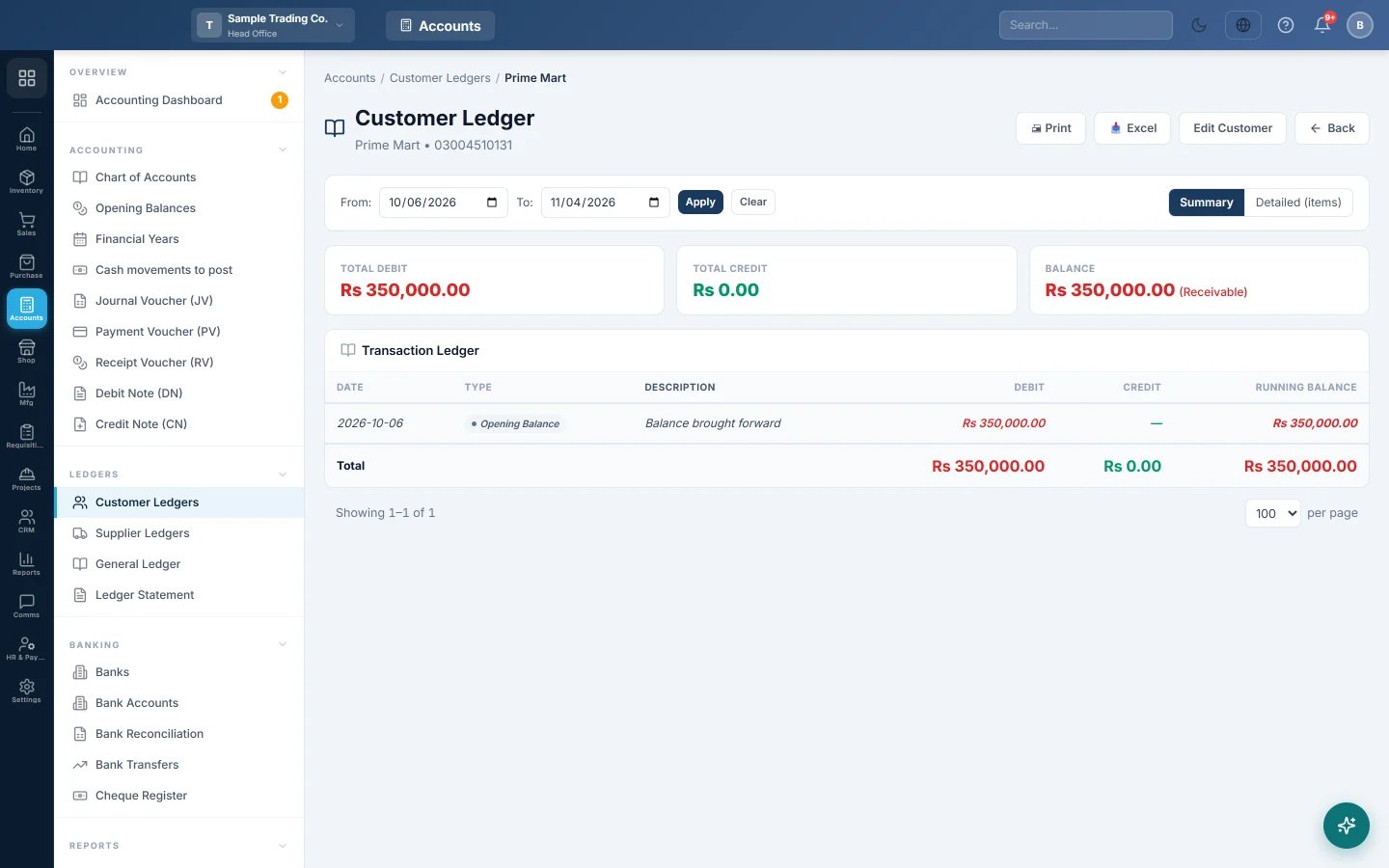
The statement's columns are Date, Type, Description, Debit, Credit and Running Balance. At head office a Branch column shows where each entry was made, and the heading shows All Branches.
Send the statement to the customer
- Print prints the whole statement, every page of it.
- Excel downloads it as a spreadsheet, with the items when Detailed (items) is on.
- WhatsApp makes a PDF on your letterhead and opens WhatsApp for the customer's mobile number. The button shows only when sharing is switched on in Print Settings.
- Send statement link makes a private link to the customer's live statement, which they open without signing in. It shows only when your company has the customer portal. See Send a customer their statement link.
How to read the balance
A customer's ledger is an asset account: what they owe you is a debit.
| Entry | Debit | Credit | Running Balance |
|---|---|---|---|
| Balance brought forward | 2,000 | Rs 2,000 | |
| Sale Invoice | 15,000 | Rs 17,000 | |
| Receipt | 10,000 | Rs 7,000 | |
| Sale Return | 1,500 | Rs 5,500 |
Here Ali Traders owes Rs 5,500, shown in red as (Receivable). A green balance marked (Credit) means the customer has paid in advance and you owe them.
The balance is read from the journal, so it always matches the customer's ledger in the Ledger Statement, the Trial Balance and Account Receivable (AR).
Common questions
A customer is missing from the list. The customer has no ledger account yet, or your role is limited to account groups that do not include it. Open the customer in All Customers and save it once to create the account.
The Debit and Credit columns do not add up to the Balance. Debit and Credit count the posted entries only. An opening balance typed on an old ledger without an opening voucher is added to the balance but not to those two columns.
The customer is also my supplier. A Combined statement banner appears. Sales, receipts, purchases and payments all post to one account, so the running balance is the net. Use Set off invoices against bills to settle one against the other.
A cancelled invoice still shows. It depends on how your company corrects documents, set in Accounting Preferences. In delete mode the invoice's entries leave the books. In reverse mode a reversal line dated the day of the cancel cancels it out, and both stay on the statement.
The opening balance looks wrong. Check the From: date. Everything before it is rolled into Balance brought forward. Click Clear to see each entry from the first one.
Where do I record money the customer paid? Use a Receipt Voucher (RV), or take the payment on the invoice. It appears on the statement straight away.
Спасибо. Если помощь всё ещё нужна, напишите на info@eloerp.net.