Opening Balances
One register of every opening entry for customers, suppliers, employees, banks, accounts and opening stock, with the offset account each one used.
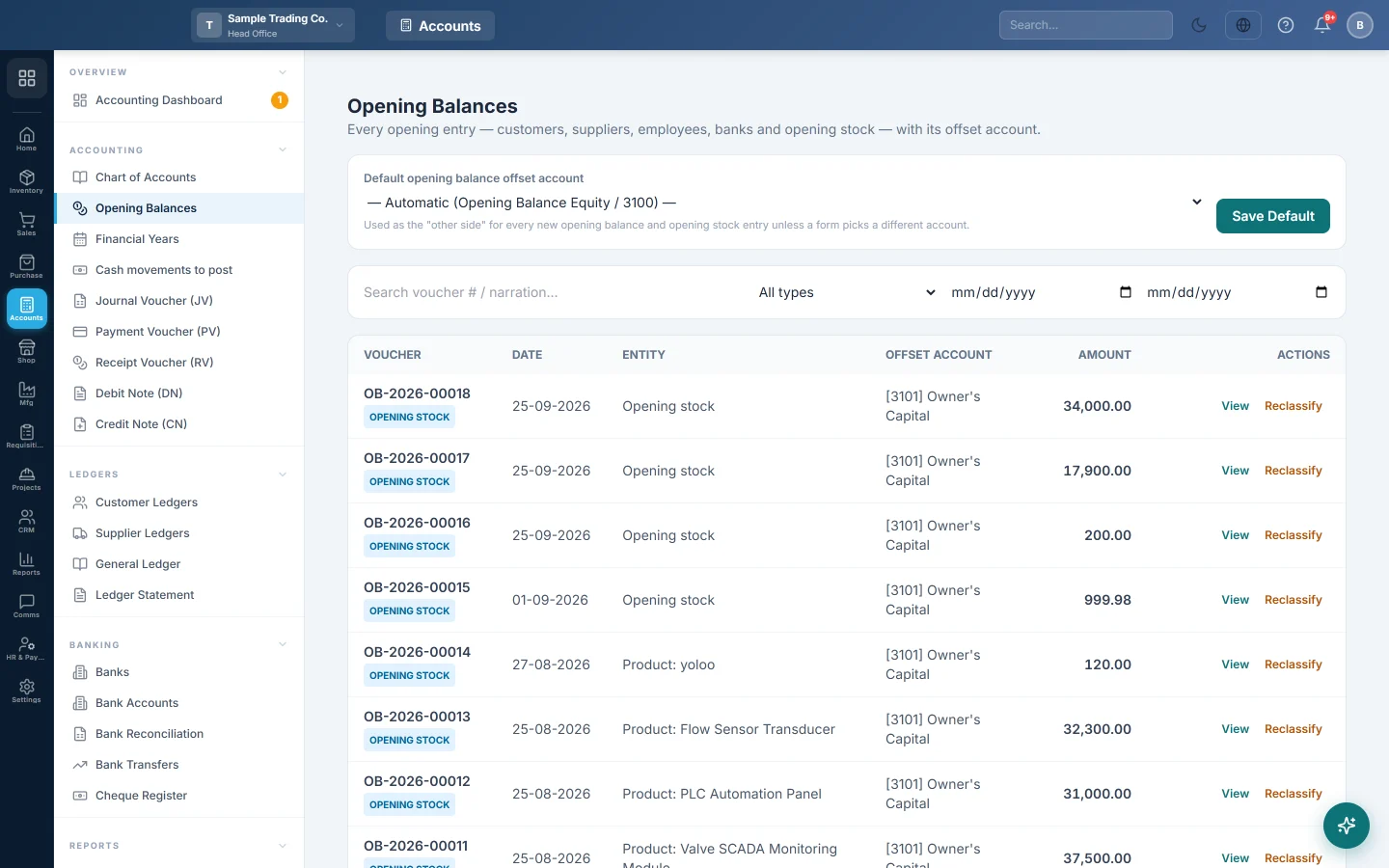
When you start using EloERP, your customers, suppliers, employees and banks already have balances, and your shelves already hold stock. Opening Balances lists every one of those opening entries in one place, with the account that took the other side.
Before you begin
- You do not enter opening balances on this screen. Enter each one where the record lives:
- a customer's on its form in All Customers;
- a supplier's in All Suppliers;
- an employee's in Employees;
- a bank's in Bank Accounts;
- any other account's in the Chart of Accounts;
- stock on Opening Stock.
- Changing the default, reclassifying and deleting need the opening balances manage right. See Users & Roles.
Where to find it
Open Accounting → Accounting → Opening Balances.
Choose the default offset account
Every opening entry has two sides. One is the customer, supplier, bank or stock. The other is the offset account, usually Opening Balance Equity.
- Open Default opening balance offset account.
- Pick the account, for example Owner's Capital. Leave Automatic (Opening Balance Equity / 3100) to let EloERP choose.
- Click Save Default.
New opening entries use this account unless their own form picks another. Entries already posted do not change; use Reclassify for those.
Find an opening entry
- Type a voucher number or words from the narration in Search voucher # / narration… and press Enter.
- Pick Opening Balance or Opening Stock in All types to show one kind.
- Set the two dates to show a date range.
Each row shows the Voucher, Date, Entity (for example Customer: Ali Traders), Offset Account and Amount.
See the entries behind it
- Click View on the row.
- The window lists each account with its Debit and Credit. The record's own side is marked SUBJECT.
Move an entry to a different offset account
- Click Reclassify on the row.
- Pick the new account in Select target account….
- Click Move Entry.
Only the offset side moves. The customer, supplier, bank or stock side stays as it was.
Delete an opening balance
- Click Delete on the row and confirm.
- The voucher and its entries are removed, and the record's opening balance field is set back to zero.
You can delete an opening balance only while that customer, supplier or bank has no other transactions. Opening stock has no Delete here: reverse it on the Opening Stock screen, because the stock itself must go back too.
What happens in the books
Each opening balance is posted as an opening balance voucher. For a customer who owed you Rs 20,000 when you started:
| Account | Debit | Credit |
|---|---|---|
| Ali Traders (customer) | Rs 20,000 | |
| Opening Balance Equity | Rs 20,000 |
A supplier you owed is the other way round: the supplier is credited and the offset account debited. Opening stock (OS) debits Inventory and credits the offset account.
Once every opening balance is in, the offset account holds the net worth you brought into the books. Many accountants then move it to Owner's Capital with a Journal Voucher.
Common questions
Why does my Trial Balance not balance after entering openings? Each opening voucher is balanced by itself, so openings do not unbalance it. Check the Trial Balance for other causes and make sure you are not comparing one branch with all branches.
My openings went to Owner's Capital but I wanted Opening Balance Equity. Choose the account you want as the default, then Reclassify each entry that already went to the wrong account.
Why is Delete missing on some rows? Opening stock is reversed on the Opening Stock screen. Rows without Reclassify are stock reversals, which follow the original entry.
It says the account already has other transactions. Once a customer, supplier or bank has invoices or payments, its opening balance stays. Correct it with a Journal Voucher instead.
What does Entity show for an account from the Chart of Accounts? It shows the reference, such as COA- and a number, rather than the account name. Use View to see the account. Change such an opening from the account itself in the Chart of Accounts.
Спасибо. Если помощь всё ещё нужна, напишите на info@eloerp.net.