Payment Voucher (PV)
Record money paid out in cash, by bank transfer or by cheque, to a supplier, an expense or any other account, and settle supplier bills.
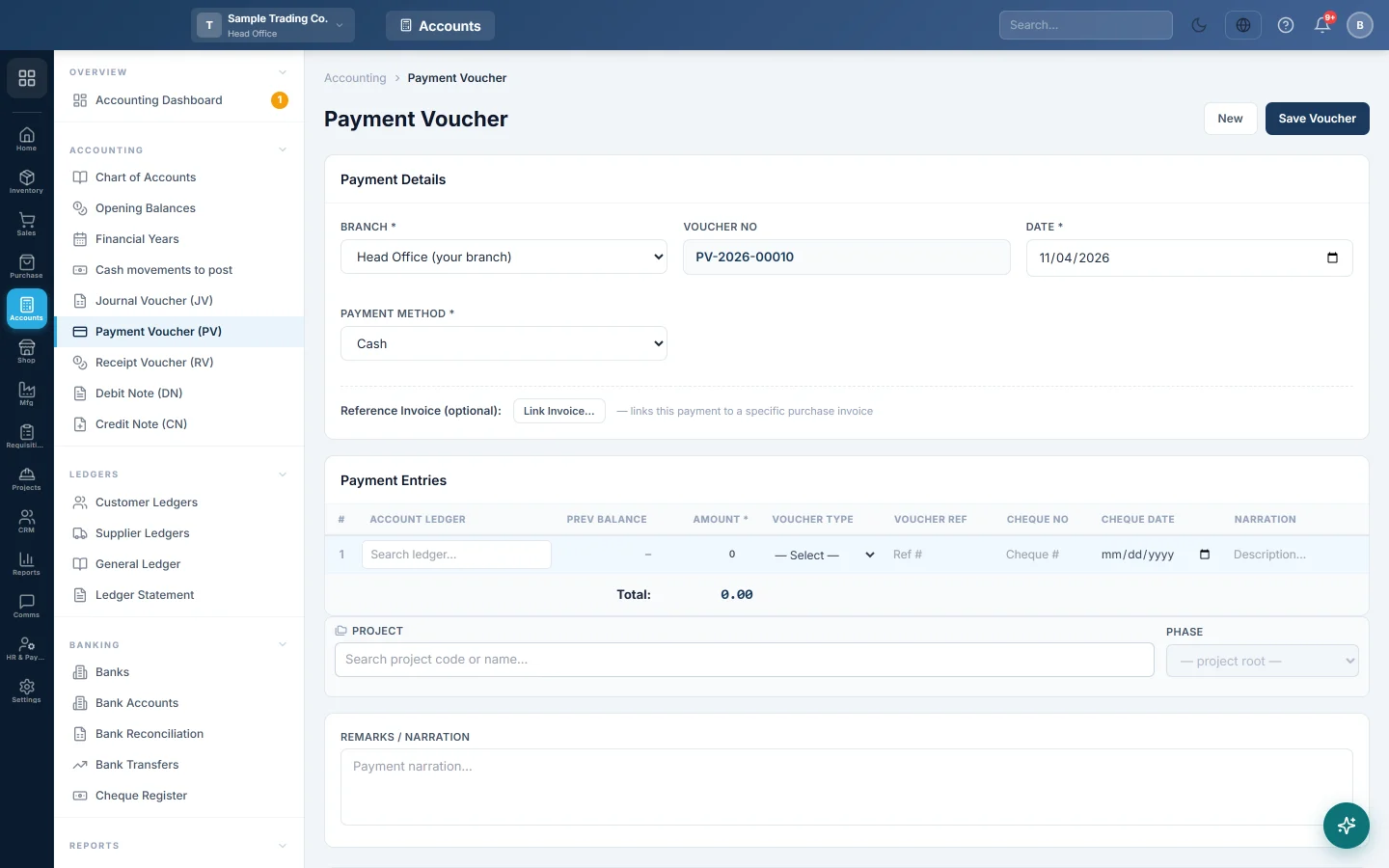
A payment voucher records money leaving your cash or bank: a supplier paid, rent, salaries, utility bills or any other expense. You pick what the money was paid for; EloERP adds the cash or bank side from the payment method.
Before you begin
- Your role needs permission to create vouchers. See Users & Roles.
- At least one payment method must exist and be linked to a cash or bank account. See Payment Methods. If your user has a list of allowed payment methods, only those appear.
- The supplier or expense account must exist. Each supplier has its own account, made when you add the supplier.
- The voucher date must fall in an open financial year. See Financial Years.
Where to find it
Open Accounting → Accounting → Payment Voucher (PV). The quick action New PV opens the same screen.
Record a payment
- Check the Voucher No. It is filled in for you and runs per branch (for example PV-2026-00034).
- Set the Date.
- Choose the Payment Method: the cash drawer, a bank account and so on. Your default method is picked for you.
- In Payment Entries, click Account Ledger and search for who or what you paid: a supplier, or an expense such as Rent or Electricity.
- Enter the Amount. Prev Balance shows that account's balance before this payment.
- Add a Narration for the line if it needs one.
- Press Enter to move along the row. On the last row, Enter adds a new line, so one voucher can pay several accounts.
- Type the Remarks / Narration for the whole voucher.
- Click Save Voucher.
Pay a supplier's bill
Set the line's type so the payment clears a real purchase invoice:
- On the line, pick the supplier's account in Account Ledger.
- Set Voucher Type to Purchase Invoice.
- Open Voucher Ref. It now lists that supplier's unpaid bills with the balance of each. Pick one.
- The Amount fills with the bill's balance if it was empty. Lower it for a part payment.
- To pay several bills, add a line for each bill.
- Click Save Voucher. Each bill's paid amount and balance update straight away.
You can also link the whole voucher to one bill with Reference Invoice (optional): and Link Invoice… above the grid.
Pay by cheque or bank transfer
When the payment method is a bank or cheque method, a cheque panel appears next to it.
- For a bank method, choose Paid by: Online transfer or Cheque.
- For a cheque, enter the Cheque No and Cheque Date. Both are required.
- Optionally enter the Amount (leave blank to use the full amount), the Bank of Cheque and Notes.
The cheque number goes onto the bank line, so you can tick it off in Bank Reconciliation. When Cheque Management is on, under Settings → Accounting Preferences, the cheque is also added to the Cheque Register as a cheque issued.
Post a payment for another branch
Head office sees a Branch field when the branch topology is One unified company. See Branch Topology.
- Choose the Branch the payment belongs to.
- The voucher number switches to that branch's series, and invoice lines list that branch's open bills.
- Save as usual. The voucher posts to that branch's books.
Find, print, edit or delete a voucher
The Payment Vouchers list shows the last 30 days. Change the dates, pick a branch, or search by voucher number or narration.
- Print opens the voucher with signature lines.
- Edit loads it into the form after you confirm. Click Update Voucher. It keeps its number unless you move it to another branch, which gives it the next number there.
- Delete opens Delete permanently, which shows the ledger changes and asks for a reason and your password. Any bill it paid gets its balance back.
What happens in the books
Each line is debited with its amount. The cash or bank account linked to the payment method is credited with the total.
Example: you pay Ali Traders Rs 5,000 from the cash drawer against their bill, and Rs 1,200 for electricity, on one voucher.
| Account | Debit | Credit |
|---|---|---|
| Ali Traders (supplier) | Rs 5,000 | |
| Electricity Expense | Rs 1,200 | |
| Cash in Hand | Rs 6,200 |
What you owe Ali Traders falls by Rs 5,000, the expense rises by Rs 1,200 and cash falls by Rs 6,200. The linked bill's balance falls by Rs 5,000.
Common questions
My voucher was saved as "pending approval". Payment vouchers at or above the limit in Settings → Accounting Preferences → Approval Workflow wait for approval. Someone with approval rights approves it in the Voucher Register. Until then nothing is posted.
The Payment Method list is empty. No active payment method is available to your user. Ask your administrator to add one in Payment Methods or to allow one for your user.
Voucher Ref says "No unpaid invoices" or "Not a party ledger". The account on that line has no open bills, or it is not a supplier's account. Pick the supplier's own account first.
Can a payment voucher refund a customer against a sale invoice? No. A payment voucher only settles purchase invoices. Record the refund without linking it, or use a Sales Return.
I paid a bill from the purchase invoice itself. Do I also need a PV? No. A payment added on the invoice already posts its own voucher. Entering a PV too would pay the bill twice. See Purchase Invoices.
Where do I see what I owe each supplier now? Open Supplier Ledgers or the Account Payable (AP) report.
谢谢。 如果仍需帮助,请发邮件至 info@eloerp.net。