Journal Voucher (JV)
Post an entry with any debits and credits you choose, such as an accrual, a write-off, a correction or a transfer between two accounts.
A journal voucher records an entry where you choose every account and every amount yourself. Use it for entries no other screen makes: accruals, depreciation, write-offs, corrections and moving a balance from one account to another.
Before you begin
- Your role needs permission to create vouchers (and to edit or delete them, if you will). See Users & Roles.
- The accounts you will post to must exist in the Chart of Accounts. Customers and suppliers each have their own account there.
- The voucher date must fall in an open financial year. See Financial Years.
- For money paid out or received, use a Payment Voucher or a Receipt Voucher instead. They add the cash or bank side for you.
Where to find it
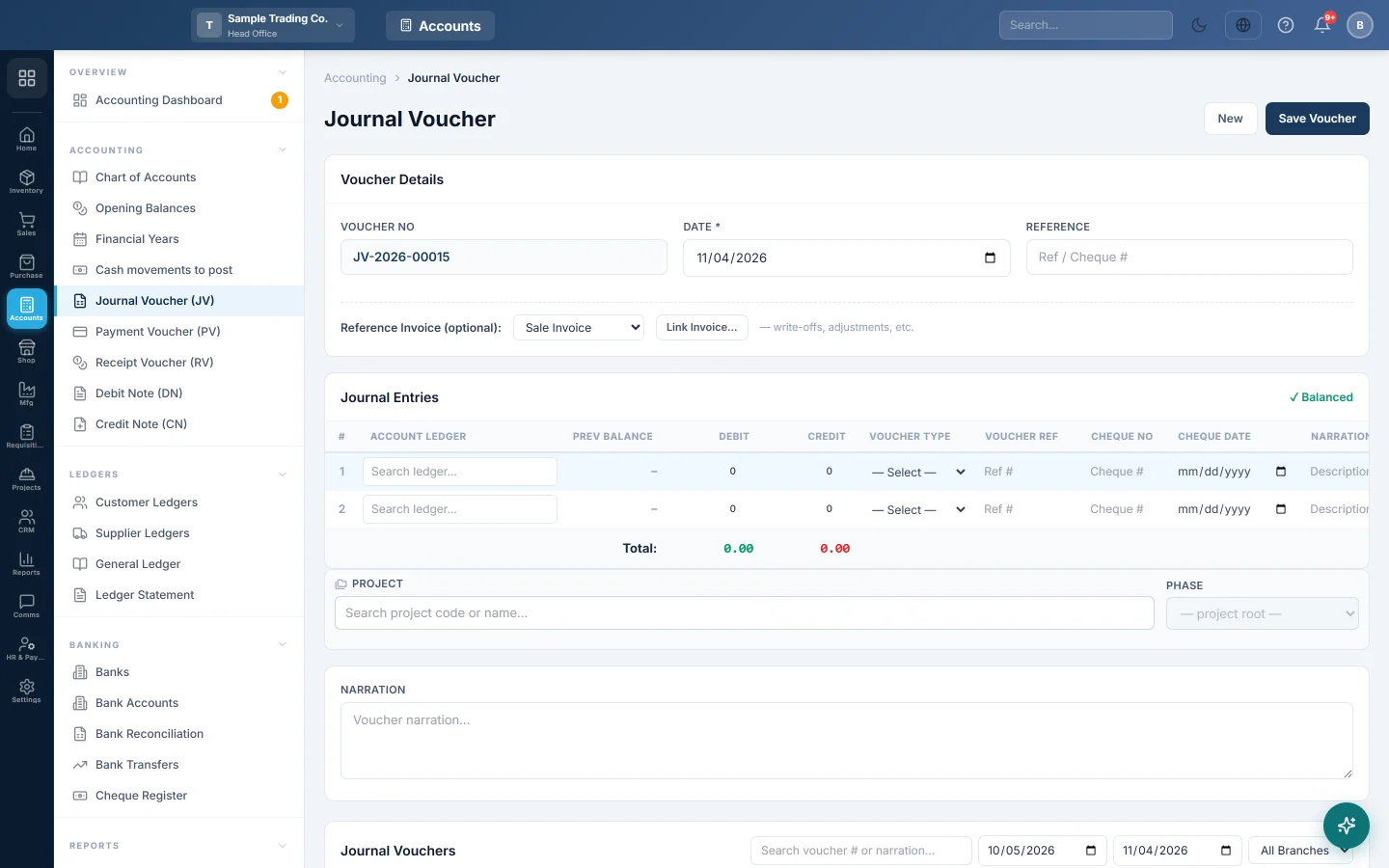
Open Accounting → Accounting → Journal Voucher (JV). The quick action New JV at the bottom of the side menu opens the same screen.
Enter a journal voucher
- Check the Voucher No. It is filled in for you, with numbers running per branch (for example JV-2026-00012).
- Set the Date.
- Type a Reference if you have one, such as a bill or cheque number.
- In the Journal Entries grid, click Account Ledger on the first row and search for the account by name or code.
- Enter the amount in Debit or in Credit. Prev Balance shows the account's balance before this voucher.
- Fill in Narration for the line if it needs its own description. Voucher Type, Voucher Ref, Cheque No and Cheque Date are optional notes for the line.
- Press Enter to move to the next cell. On the last row, Enter adds a new row. Click × to remove a row.
- Repeat until the badge at the top of the grid shows Balanced. While debits and credits differ, it shows Not Balanced and the difference.
- Type the Narration for the whole voucher in the box below the grid.
- Click Save Voucher.
The voucher appears in the Journal Vouchers list at the bottom of the screen, and the form clears for the next one.
Settle an invoice with a journal voucher
A journal voucher can reduce what is left to pay on one invoice, for example when you write off a small balance a customer will never pay.
- Under Reference Invoice (optional):, choose Sale Invoice or Purchase Invoice.
- Click Link Invoice… and pick the invoice. Only unpaid and part-paid invoices are listed, with their balance.
- Enter the lines as usual. For a customer write-off, credit the customer's account.
- Click Save Voucher. The invoice's paid amount and balance update straight away.
The voucher total cannot be more than the invoice still owes, and the invoice cannot be a draft or cancelled.
Other options on the form
- Currency: shown under the date when your company works in more than one currency. See Currencies.
- Project: shown when the Project Management add-on is on. It tags the voucher to a project as a cost.
- Attachments: shown when document attachments are switched on for your company. Files you pick before saving are uploaded when you save.
Find, print, edit or delete a voucher
The Journal Vouchers list shows the last 30 days. Change the two dates, pick a branch, or search by voucher number or narration.
- Print opens the voucher with Prepared By, Checked By and Authorized By signature lines.
- Edit asks you to confirm, then loads the voucher into the form. Click Update Voucher to save it, or Cancel Edit to leave it. The voucher keeps its number, and what it said before is kept in the audit log.
- Delete opens Delete permanently. It shows which ledger balances change, and asks for a reason and your password. A copy is kept in Deleted entries.
Older vouchers that were replaced by an edit are marked superseded. They are hidden until you tick Show superseded.
What happens in the books
The voucher posts each line exactly as you entered it: every debit to its account and every credit to its account. Nothing else is added.
Example: you write off Rs 500 that Ali Traders still owes on an old invoice.
| Account | Debit | Credit |
|---|---|---|
| Bad Debts (expense) | Rs 500 | |
| Ali Traders (customer) | Rs 500 |
The expense rises by Rs 500 and Ali Traders' balance falls by Rs 500. If you linked the invoice, its balance falls by Rs 500 too.
If your company holds large vouchers for approval, a voucher at or above the limit is saved as pending and posts nothing until it is approved. See the common questions below.
Common questions
Why can I not save? It says the voucher must be balanced. Total debit and total credit must be equal to the paisa. Check the badge above the grid for the difference.
My voucher was saved as "pending approval". What now? Your company requires approval for journal vouchers at or above a set amount, under Settings → Accounting Preferences → Approval Workflow. Someone with approval rights approves it in the Voucher Register. Until then it does not touch any ledger, and it cannot be edited.
It says I am not permitted to post to one of the selected ledgers. Your role is limited to certain account groups. Ask your administrator to widen it, or to post the voucher for you.
It says the account belongs to a customer or supplier that has been deleted. Restore the customer or supplier first, or choose a different account. Money posted there would not show on any statement.
Should I use a JV to record a supplier payment? No. Use a Payment Voucher. It takes the cash or bank account from the payment method and can settle the supplier's bills line by line.
Where can I see the voucher's effect? Open the account in the Ledger Statement, or see the day's entries in the Day Book.
谢谢。 如果仍需帮助,请发邮件至 info@eloerp.net。