GRN
Record goods as they arrive, against a purchase order, against an invoice already entered, or on their own, so stock goes up before or after the bill.
A GRN (Goods Receipt Note) records what physically arrived from a supplier. Confirming it adds the goods to stock, whether the bill came before the goods, after them or not yet.
Before you begin
- The supplier and products exist, and you have a warehouse to receive into. See All Suppliers and Warehouses.
- Batch-tracked products need a Batch # and Expiry on each line, see Batch & Expiry.
- Your role needs the GRN permissions. Confirming and approving are separate permissions. See Users & Roles.
Where to find it
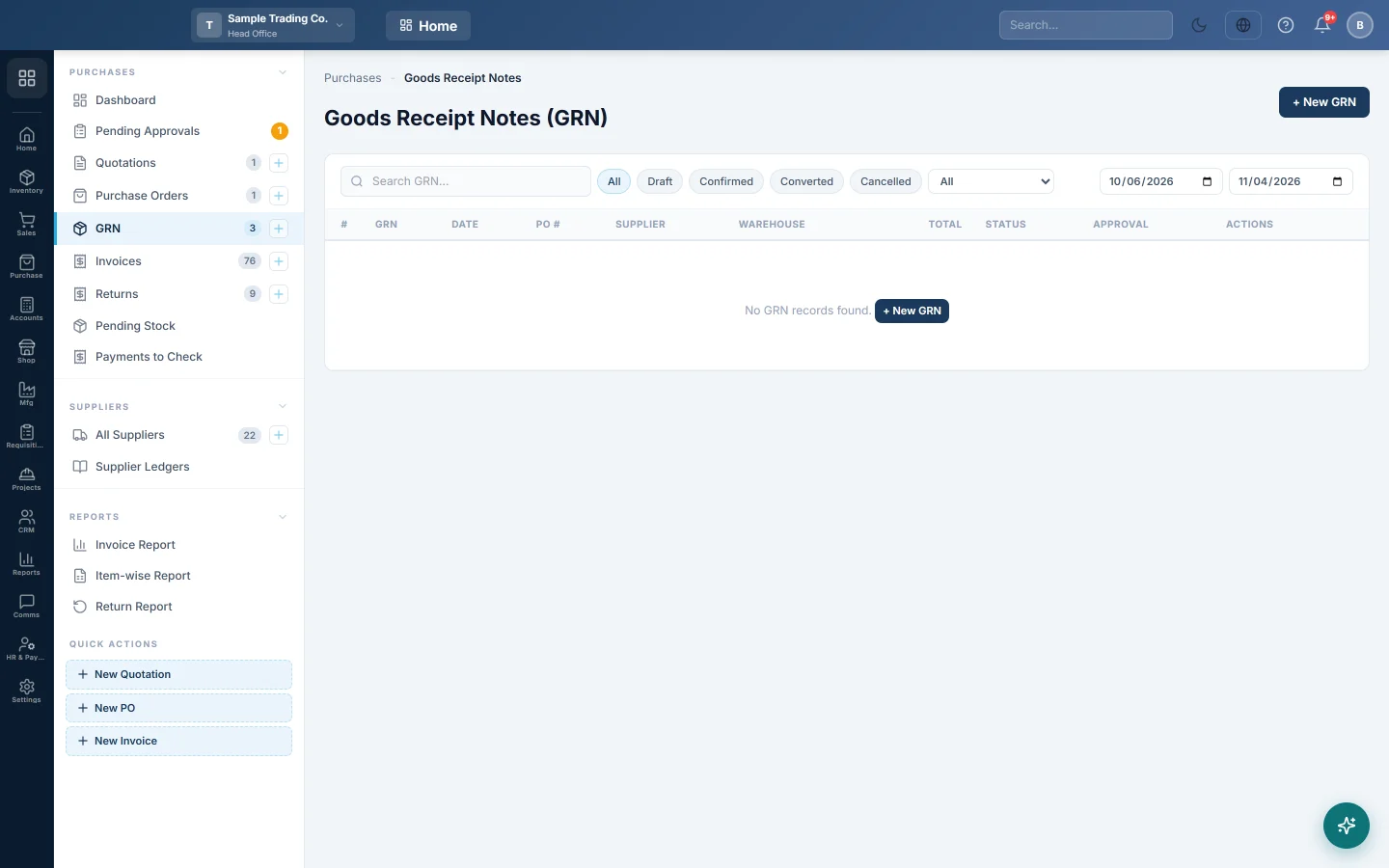
Open Purchases → Purchases → GRN. The Purchases dashboard also has a New GRN button.
When to use a GRN
| Situation | What to do |
|---|---|
| You sent a purchase order and the goods arrived | Create the GRN from the order, then make the invoice from the GRN. |
| The bill came first and the goods later | Enter the invoice with RECEIVE STOCK off, then receive the goods on a GRN against that invoice. |
| Goods arrived with no order and no bill yet | Make a GRN on its own, then make the invoice from it with → Inv when the bill comes. |
| Goods and bill arrive together | Skip the GRN. Enter the invoice with RECEIVE STOCK on. |
Receive goods from a purchase order
- Open the approved order in Purchase Orders.
- Click 📦 Create GRN. A draft GRN opens with each line's remaining quantity.
- Change Receive Qty on any line that arrived short.
- Click Update to save the changes.
- Click Confirm. Stock goes up and the order shows Partially Received or Received.
When the rest of the order arrives, create another GRN from the same order.
Receive goods against an invoice
- Click + New GRN.
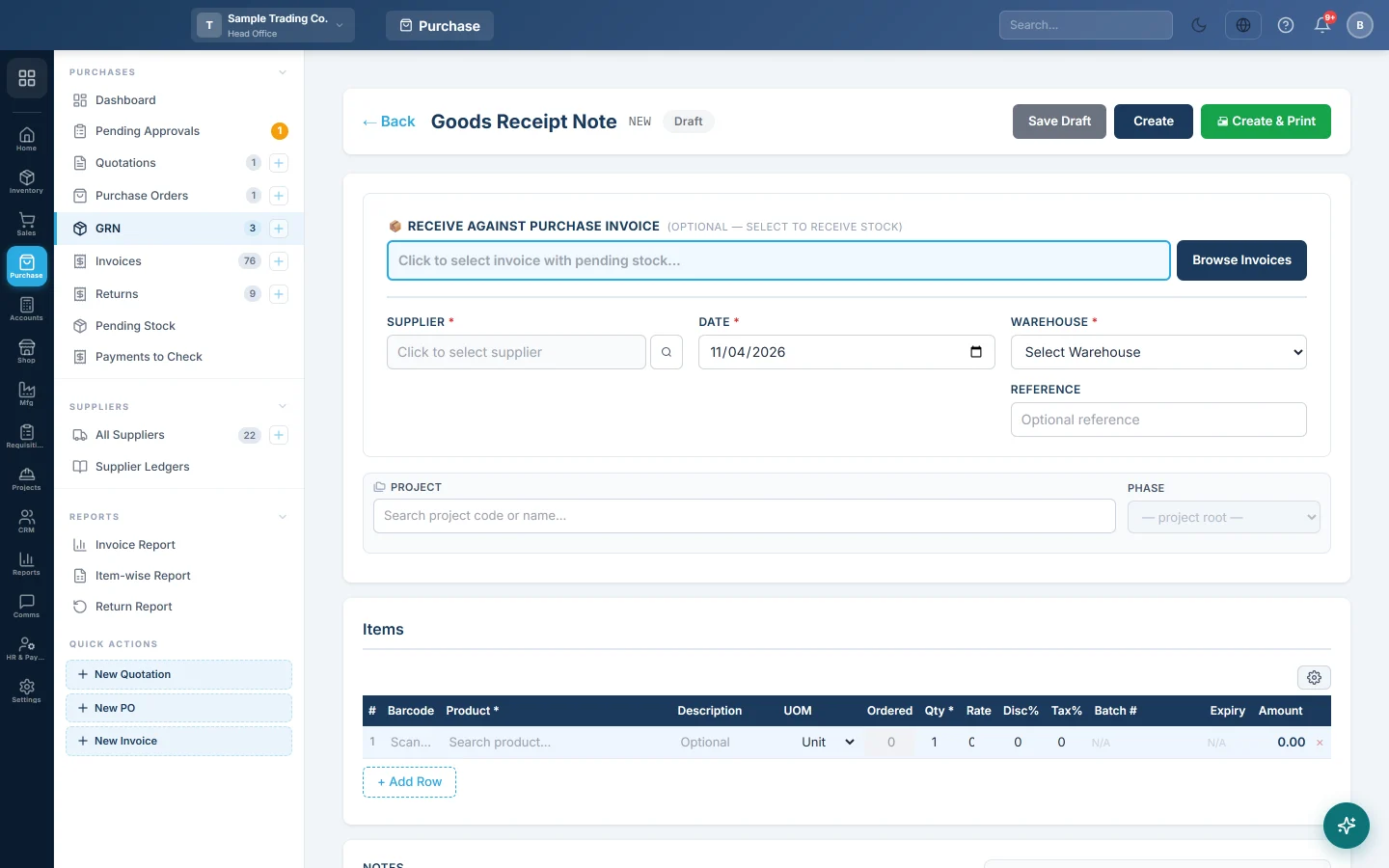
- Under Receive Against Purchase Invoice, click Browse Invoices. The list shows confirmed invoices whose stock is not yet fully received.
- Pick the invoice. The supplier, warehouse and lines fill in, and only Receive Qty can be changed.
- Enter what arrived on each line. It cannot be more than the Remaining quantity.
- Click Create. The GRN is saved as a draft and you return to the list.
- Click the tick (Confirm) on its row and confirm the message.
Receive goods on their own
- Click + New GRN and leave Receive Against Purchase Invoice empty.
- Pick the Supplier, Date and Warehouse. You can add a Reference such as the delivery note number.
- Add each product with its quantity and rate.
- Click Create, then confirm it from the list.
- When the supplier's bill arrives, click → Inv on the GRN's row. A draft invoice opens with the GRN's lines. Check it and click Confirm Invoice.
Cancel or delete a GRN
- A draft GRN can be deleted with the bin button.
- A confirmed GRN can be cancelled with the red button on its row. This takes the goods back out of stock. You can type a reason.
- If the GRN was already turned into an invoice, cancel that invoice first.
What happens in the books
Confirming a GRN posts one voucher at the line rates: Inventory is debited and Goods Received Not Invoiced is credited.
The invoice for those goods debits Goods Received Not Invoiced instead of Inventory and credits the supplier. So the clearing account goes back to zero once the goods are both received and billed. A balance left on it means goods received but not billed, or billed but not received.
Cancelling a GRN reverses its voucher and its stock.
Common questions
Converting the order to an invoice says the goods were received on a GRN. Once a GRN exists for an order, bill it from the GRN with → Inv. This stops the same goods being received twice.
Why is there no → Inv button on my GRN? It shows only on confirmed GRNs that are not linked to an invoice. A GRN made against an invoice is already billed.
Can I edit a confirmed GRN? No. Only drafts can be edited. Cancel the confirmed GRN and make a new one.
The supplier sent more than the invoice says. A GRN against an invoice cannot receive more than the invoice's remaining quantity. Receive the extra on a separate GRN, or ask the supplier for a corrected bill.
Can one order have several GRNs? Yes. Each delivery gets its own GRN, and each GRN becomes its own invoice.
Спасибо. Если помощь всё ещё нужна, напишите на info@eloerp.net.