Purchase Orders
Send suppliers a priced order, approve it, then receive the goods on a GRN or turn it straight into the invoice.
A purchase order (PO) is what you ask a supplier to deliver, at agreed rates. It changes nothing in stock or the books. It is the starting point for the GRN and the invoice.
Before you begin
- The supplier and products exist, see All Suppliers and All Products.
- Your role needs the purchase order permissions. Approving an order is a separate permission, see Users & Roles.
- If your company uses requisitions, approved requests can be pulled into an order, see All Requisitions.
Where to find it
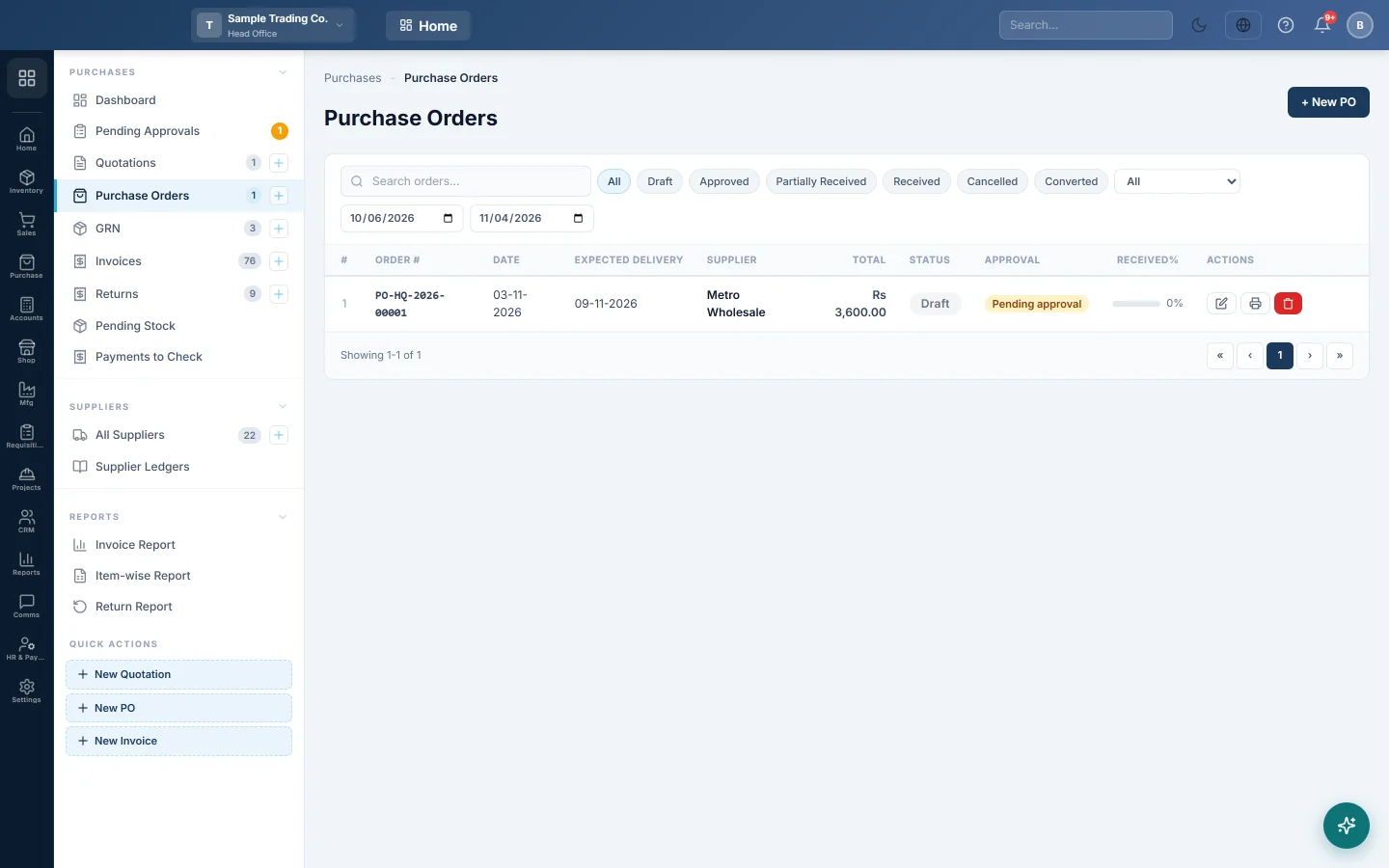
Open Purchases → Purchases → Purchase Orders. The side menu also has a New PO quick action.
How an order moves on
- Draft: you are still preparing it.
- Approved: it can be printed for the supplier, received and billed.
- Partially Received or Received: GRNs have brought in some or all of the goods.
- Converted: it was turned straight into an invoice.
- Cancelled: it will not be used.
The Received% column shows how much of the order has arrived.
Create an order
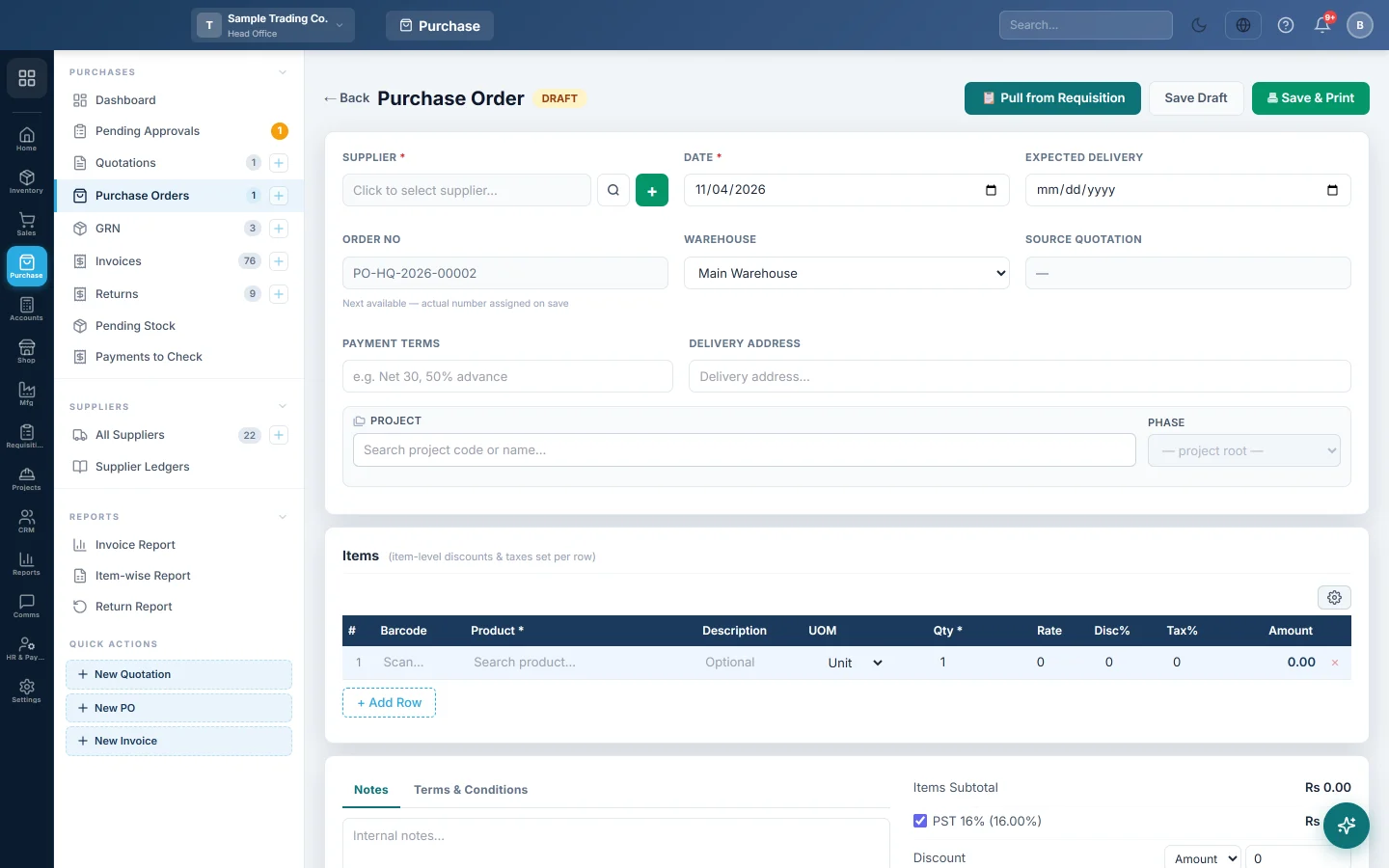
- Click + New PO.
- Click the SUPPLIER box and pick the supplier. The + button adds a new one.
- Check the DATE and set EXPECTED DELIVERY if you know it.
- Pick the WAREHOUSE the goods should go to.
- Fill in PAYMENT TERMS and DELIVERY ADDRESS if the supplier needs them on the order.
- Add the products, quantities and rates under Items.
- Add any Discount, Freight / Shipping and bill taxes in the totals.
- Click Save Draft, or Save & Print to save and print it at once.
To fill the lines from an approved requisition, click Pull from Requisition before you add items.
Approve an order
- Open the draft order.
- If you changed anything, click Update first.
- Click ✔ Approve.
Every order must be approved before goods can be received or it can be billed. If maker-checker is on in Purchase Preferences, the person who created the order cannot approve it.
Receive the goods or bill the order
Once the order is approved, open it and choose one:
- 📦 Create GRN when the goods arrive and you want to check them in first. A draft GRN opens with the quantities still to come. See GRN.
- 📄 Convert to Invoice when the bill and the goods arrive together. A draft invoice opens with the whole order. See Invoices.
The list has the same actions as small buttons on each row: the box icon for a GRN and → Inv for an invoice.
Cancel or delete an order
- A draft order can be deleted from the list with the bin button.
- An approved order can be cancelled with ✗ Cancel Order. A fully received order cannot be cancelled.
Common questions
Does a purchase order change my stock or the supplier's balance? No. Stock moves when a GRN or an invoice is confirmed. The supplier is owed money only when the invoice is confirmed.
Why is there no Create GRN button? It appears only on approved or partly received orders. Approve the order first.
What does the Approval column mean? When an order's total is at or above the Purchase Order approval threshold, it waits for an approver. It also appears on Pending Approvals.
Can I change an approved order? No. Only drafts can be edited. Cancel it and make a new one.
Where did the SOURCE QUOTATION come from? The order was made from a supplier quotation, see Quotations.
Vielen Dank. Wenn Sie weitere Hilfe brauchen, schreiben Sie an info@eloerp.net.