Live Map
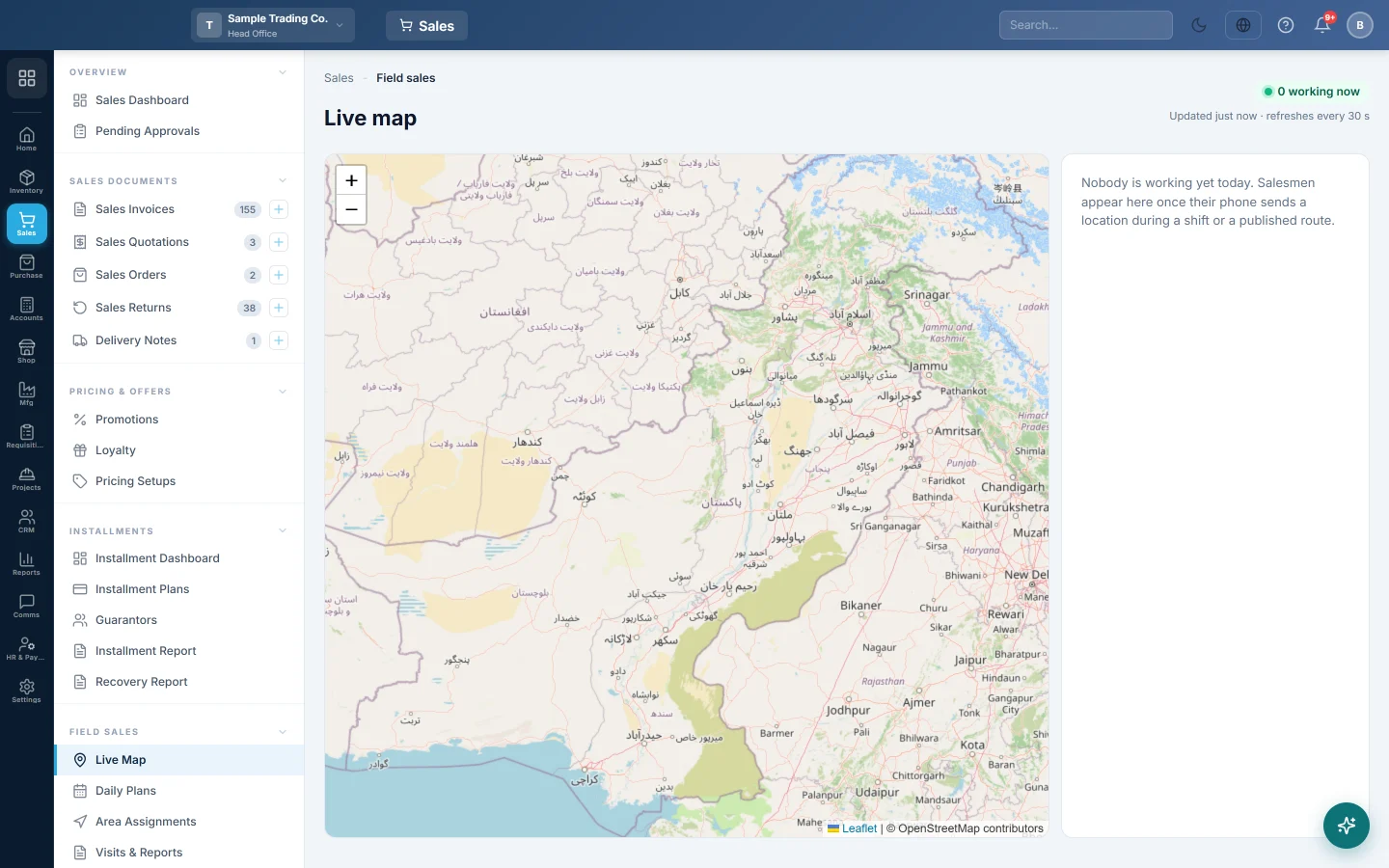
See every salesman in the field today on a map: where they are, how many planned visits they have done, their next stop, cash in hand and phone battery, and send them a message.
The Live map shows where your salesmen are right now, taken from the EloERP app on their phones. Each one shows how far through their day's route they are, so head office can see who is on track without phoning anyone.
Before you begin
- Field sales must be switched on for your company. Setup shows whether it is, and what else is missing.
- Each salesman needs Allow mobile app login ticked on their user, and a phone paired in POS Devices.
- Your role needs the View Field Sales Live Map permission, see Users & Roles.
Where to find it
Open Sales → Field Sales → Live Map.
Read the map
A salesman appears once their phone sends a location during a shift or a published route, or once they have a route for today.
- A teal marker is a salesman with an open cash register shift, a blue one is working without a shift.
- A grey marker means the last location is more than 10 minutes old: the phone may be off, out of signal or out of battery.
- The pill at the top counts how many are working now. The page refreshes every 30 seconds by itself.
Click a marker for the salesman's next stop, visits done out of planned, cash in hand, battery and when the last location came in.
Use the list
The list on the right has one row per salesman, in name order.
- Click a row to zoom the map to that salesman.
- Read visits (done / planned), the next customer, Cash in hand and Battery.
- Click Day view to see their planned route, the trail they actually travelled and each visit with its invoice, order or receipt.
Send a message to a salesman
- Click Message on the salesman's row.
- Type your note, up to 500 characters. It shows on their phone's Home screen.
- Click Send.
When push notifications are set up the phone shows it at once. Otherwise the phone picks it up within about a minute while the salesman is on duty, or when the app next opens.
Common questions
A salesman is missing from the map. They have no route for today and their phone has sent no location today. Check that they signed in on the paired phone and started their day. See Setup.
Why is the cash in hand blank? It shows only while the salesman has an open cash register shift on the phone.
Can I see yesterday's route? Yes. Open Visits & Reports and click Day view on that day's row.
How do I plan where they go? Make the day's route in Daily Plans, from the areas set in Area Assignments.
Teşekkür ederiz. Hâlâ yardıma ihtiyacınız varsa info@eloerp.net adresine yazın.