Print Barcodes
Print barcode labels for your products, with the size, quantity and details you choose, on an A4 sheet.
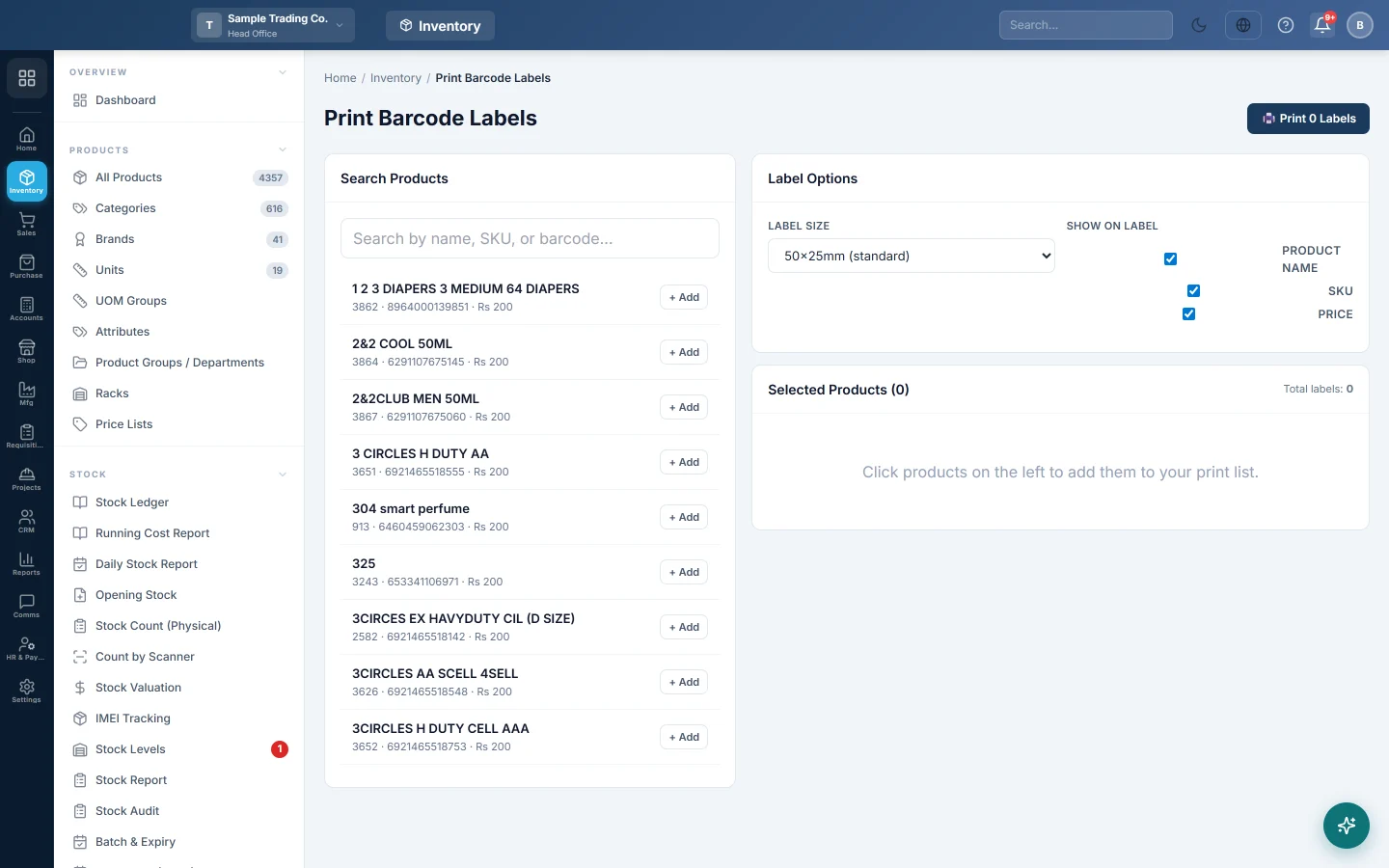
Print Barcode Labels makes price and barcode stickers for your products. Pick the products, say how many labels each needs, choose a label size and print.
Before you begin
- Give each product a Barcode on the product form. A product without one prints its SKU as the barcode. See All Products.
- Your browser must allow pop-ups for EloERP, because the labels open in a new window.
- Your role needs the barcode printing permission. See Users & Roles.
Where to find it
Open Inventory → Tools → Print Barcodes. The Print Barcodes quick action at the bottom of the Inventory side menu opens the same screen.
Print labels
- In Search Products, type a name, SKU or barcode.
- Click a product, or its + Add button, to put it in Selected Products. Click it again to add one more label.
- In the Qty column, type how many labels you need for each product, up to 1,000.
- Under Label Options, choose the Label Size: 38×25mm, 50×25mm, 58×40mm or 80×60mm.
- Under Show on Label, tick Product Name, SKU and Price as needed.
- Click Print n Labels. The labels open in a new window.
- Click Print in that window, choose your printer and print.
Clear the list
- Click × on a row to remove one product.
- Click Clear All and confirm to start again.
What is printed
Each label shows your company name and the barcode, plus the name, SKU and price if you ticked them. The price is the product's Sale Price.
A 13-digit barcode prints as EAN-13; anything else prints as Code 128. If a product has no barcode, its SKU is used.
Labels are laid out in rows on an A4 page, as many across as fit the label width.
Common questions
Nothing happens when I click Print. Your browser blocked the pop-up. Allow pop-ups for this site and click again.
The price on the label is wrong. Labels use the product's Sale Price. Change it on the product, then print again.
Can I print labels for a variant, such as each size? This screen prints the main product only. Give each variant its own barcode on the product form so it can be scanned at the till.
Can I print labels from the product list? Yes. Tick products in All Products and click Print Barcodes there. Use this screen when you need more than one label per product or a set label size.
The scanner does not read my labels. Use a larger size such as 50×25mm, and print at full quality.
Vielen Dank. Wenn Sie weitere Hilfe brauchen, schreiben Sie an info@eloerp.net.