Categories
Build the category tree (main categories and sub-categories) that sorts your products for the product list, reports, the till and the online store.
Categories sort your products into a tree, such as Beverages → Soft Drinks. You pick a category on every product, then filter the product list and the stock and sales reports by it.
Before you begin
- Your role needs permission to view categories, and to create, edit or delete them. See Users & Roles.
- Plan two or three levels at most. A short tree is easier to pick from on the product form.
Where to find it
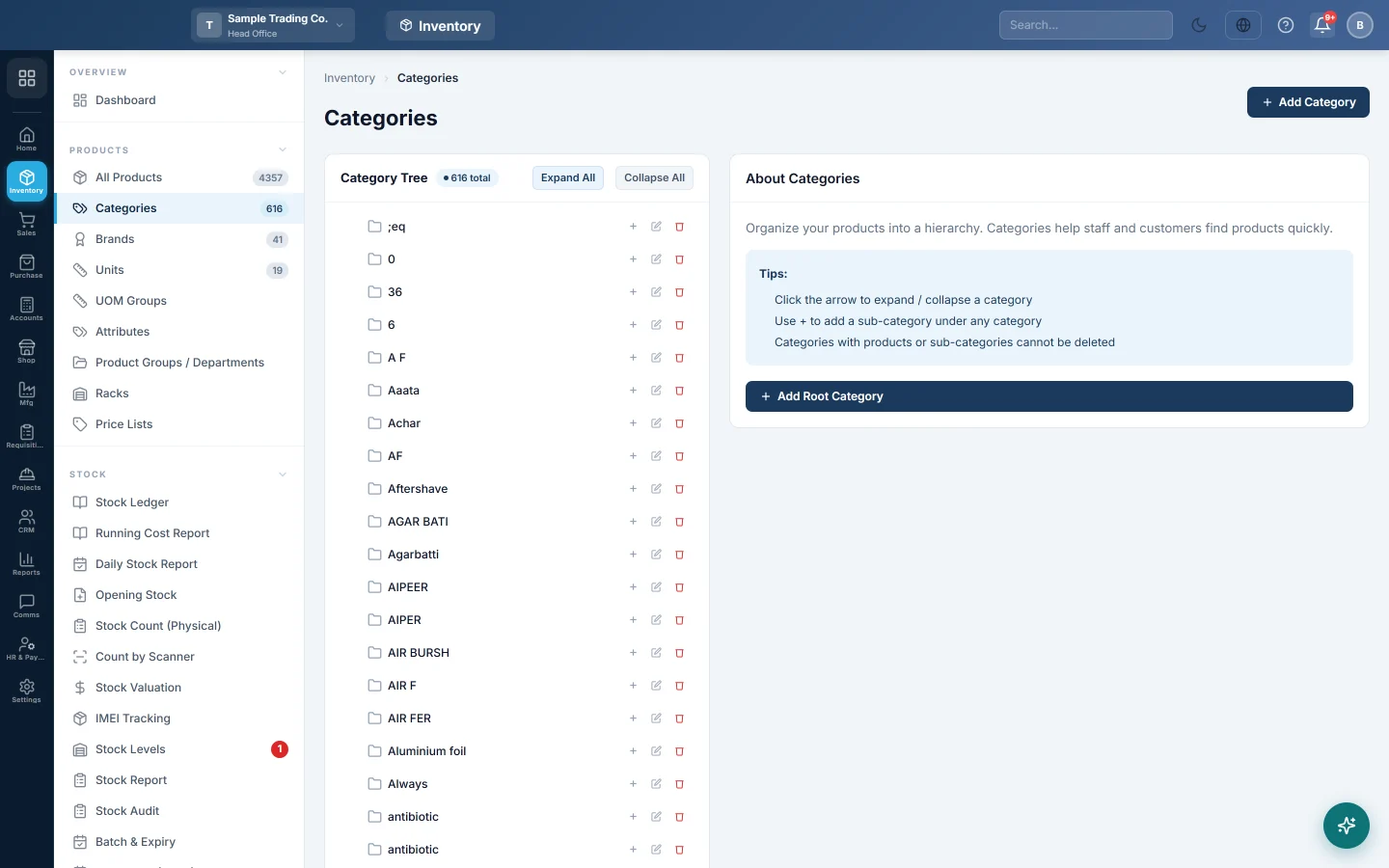
Open Inventory → Products → Categories.
The left side shows the Category Tree with the total number of categories. The tree opens collapsed: click the arrow next to a category to see its sub-categories, or use Expand All and Collapse All. A small number next to a category shows how many sub-categories it has.
Add a category
- Click Add Category (top right), or Add Root Category in the panel on the right.
- Type the Category Name, for example Beverages.
- Leave Parent Category on None (Root Category) for a main category, or pick the category it sits under.
- Add a Description if you want one.
- Under Category Image, choose a picture if you sell online. It is shown on the online store. The file must be an image of 1 MB or less.
- Leave Status on Active.
- Click Save Category.
Add a sub-category
- Hover over the parent category in the tree.
- Click the + button on its row (Add sub-category).
- The form opens with Parent Category already filled in. Type the Category Name.
- Click Save Category.
Edit a category
- Hover over the category in the tree and click the pencil (Edit).
- Change the name, parent, description, image or status.
- Click Save Category.
Products keep their category when you rename it or move it under another parent.
Set FBR defaults for a category
This section shows only when FBR digital invoicing is switched on for your company. See FBR Digital Invoicing.
- Open the category with Edit.
- Under FBR Tax & Compliance, fill in the fields that apply: HS Code, HS Unit of Measure, FBR Sale Type, Tax Rate Label, SRO Schedule No, SRO Item Serial No, Is 3rd Schedule Goods, Retail Price (3rd Sch) and FED Rate %.
- Click Save Category.
- To copy these values onto every product already in the category, open it again and click Apply to all items in this category.
- Confirm the message. A note tells you how many products were updated.
Delete a category
- Hover over the category and click the red bin (Delete).
- Click Delete in the confirmation box.
A category that still has sub-categories or products cannot be deleted. Move the products to another category first (edit each product, or use bulk edit from All Products), then delete or move its sub-categories.
Common questions
Why can't I delete a category? It still has products or sub-categories. The message says which. Move them first, then delete.
How many levels can I have? The tree takes as many levels as you need. Two or three levels are easiest to work with.
Is a category the same as a product group or a brand? No. A category is what the item is. A brand is who makes it, and a product group / department is an extra grouping you can use as you like, such as a store department.
Why is the FBR section missing? It shows only when FBR digital invoicing is on for your company.
Where does the category image appear? On your online store's category pages. It is not printed on invoices.
Vielen Dank. Wenn Sie weitere Hilfe brauchen, schreiben Sie an info@eloerp.net.