Brands
Keep the list of brands (manufacturers or labels) you sell, so each product can carry its brand and reports can be filtered by it.
The brand list holds the makers or labels of the goods you sell. You pick a brand on each product, then filter the product list, stock reports and sales item reports by brand.
Before you begin
- Your role needs permission to view brands, and to create, edit or delete them. See Users & Roles.
Where to find it
Open Inventory → Products → Brands.
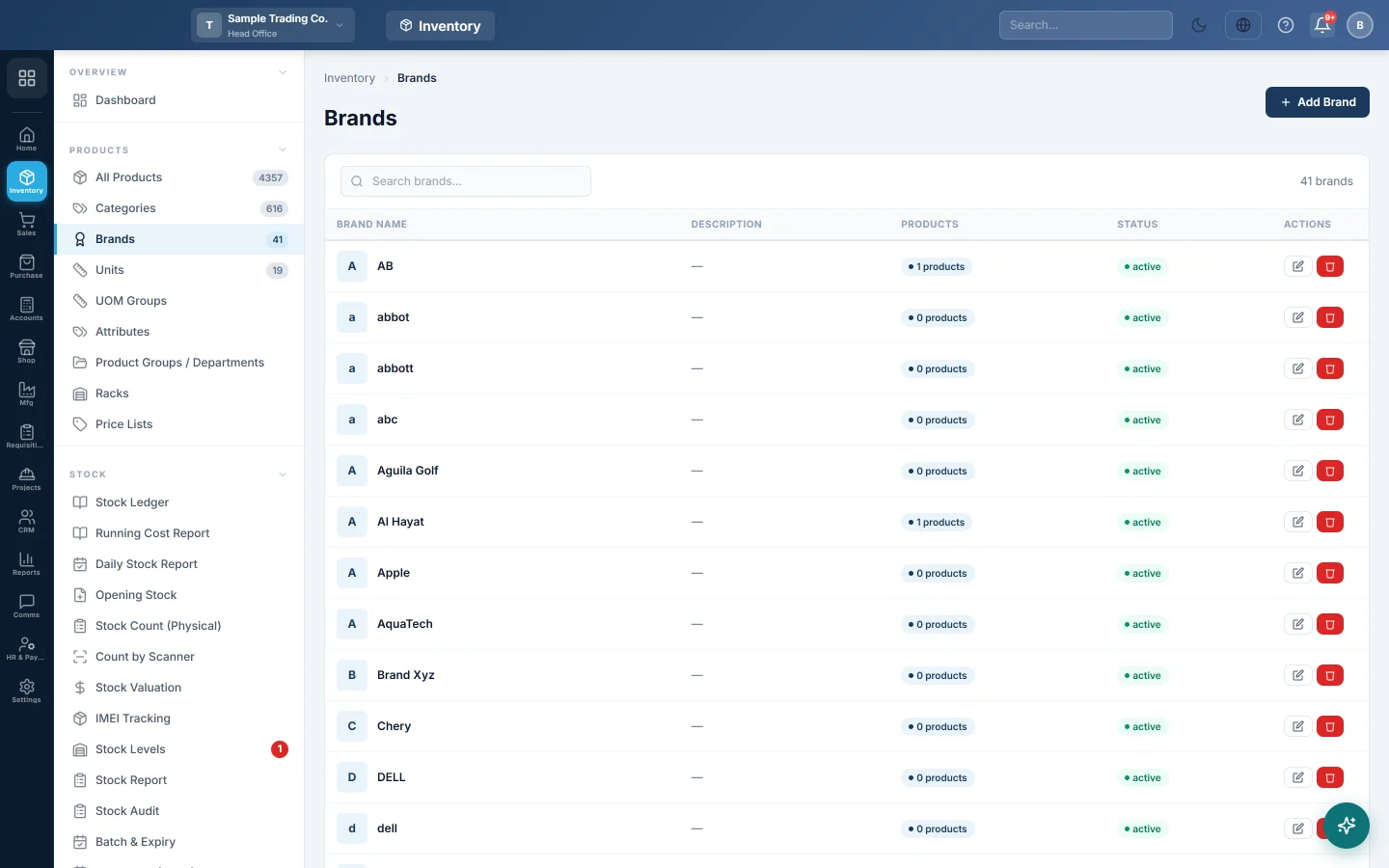
The list shows each Brand Name, its Description, how many Products use it and its Status. Use Search brands... to find one by name.
Add a brand
- Click Add Brand.
- Type the Brand Name.
- Add a Description if you want one.
- Leave Status on Active.
- Click Save Brand.
Edit a brand
- Click the pencil button on the brand's row.
- Change the name, description or status.
- Click Save Brand.
Products that use the brand show the new name straight away.
Delete a brand
- Click the red bin button on the brand's row.
- Click Delete in the confirmation box.
A brand that is used by any product cannot be deleted. Change the brand on those products first.
Common questions
Why can't I delete a brand? At least one product still uses it. The Products column shows how many.
Do I have to use brands? No. The brand is optional on a product. Leave the list empty if you do not need it.
Can I add a logo? Not from this screen. The list shows the first letter of the brand name instead.
Where can I filter by brand? On All Products, Stock Levels, the stock report and the sales and purchase item reports.
Vielen Dank. Wenn Sie weitere Hilfe brauchen, schreiben Sie an info@eloerp.net.