Stock Adjustments
Correct the quantity of a product in a warehouse for damage, loss, expiry, found stock or a counting error, and post the value difference to the books.
A stock adjustment changes the quantity of one or more products in a warehouse outside a sale or purchase: broken goods, theft, expired stock, or stock you found. You enter the quantity that is really there and EloERP posts the difference.
Before you begin
- The products and the warehouse exist. See All Products and Warehouses.
- Your role needs the stock adjustments permissions, and access to the warehouse. See Users & Roles.
- Many lines to correct after a full count? Use a physical stock count instead; it does the same posting for the whole warehouse.
Where to find it
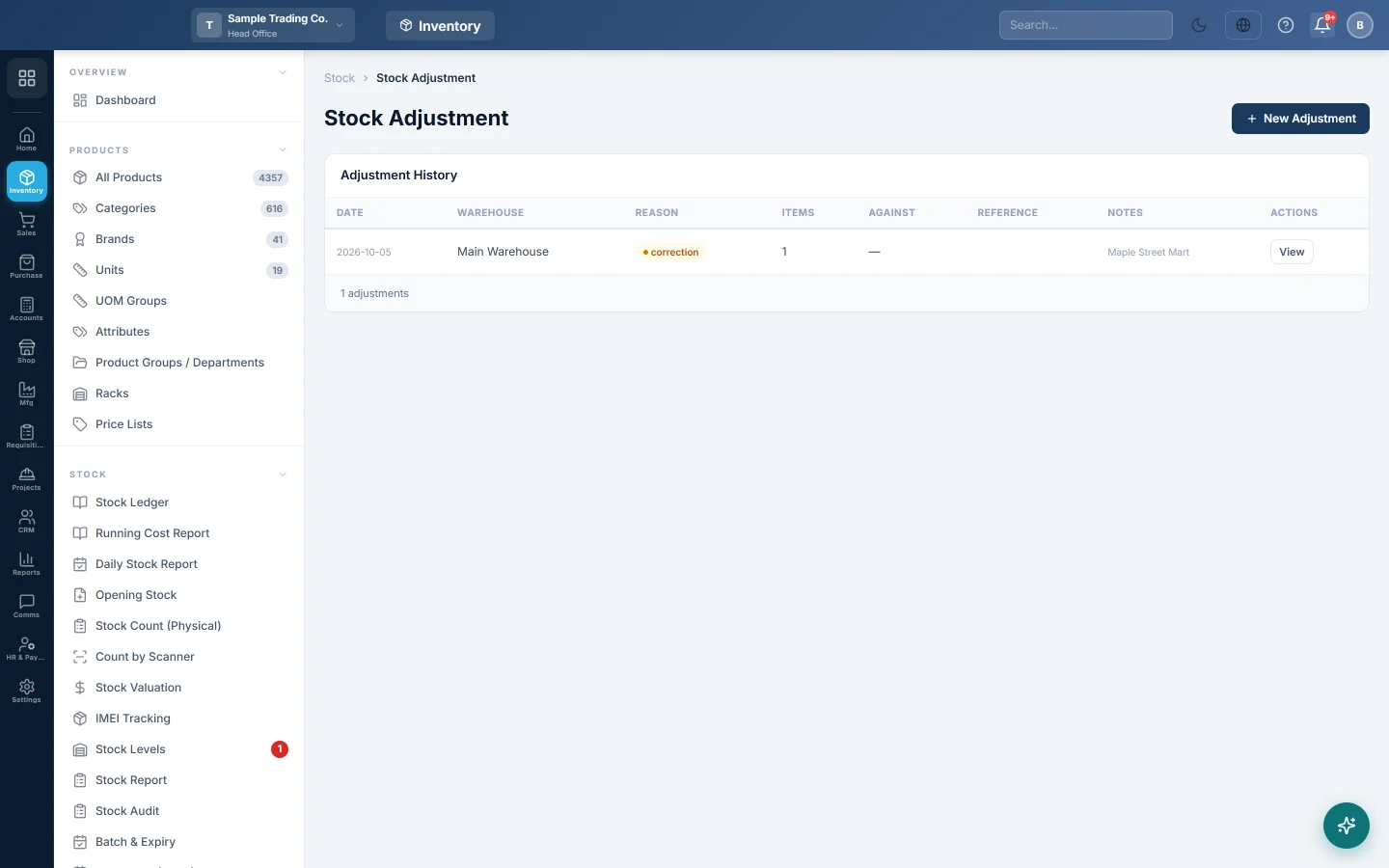
Open Inventory → Stock → Stock Adjustments. You can also use the Stock Adjustment quick action at the bottom of the Inventory menu.
Make an adjustment
- Click New Adjustment.
- Choose the Warehouse.
- Set the Date of the adjustment.
- Choose the Reason: Damage, Loss / Theft, Stock Correction, Found / Excess or Expiry.
- Optionally enter a Reference #, such as a damage report number.
- Optionally fill Against: a Supplier / company who sent short, a Customer, or Other (type a name) such as a transporter.
- Write a short explanation in Notes.
- In the grid, scan the Barcode or search the Product, and pick the Variant if the product has sizes or colours.
- Read System Qty: the quantity EloERP holds now in that warehouse.
- Enter the quantity really there in Adjusted Qty. Difference shows the change, for example −3.
- Add more rows with + Add Row, then click Save Adjustment.
Batches and serial numbers
- Batch products: when your company keeps stock by batch, choose the batch for each line. Pick + New batch… for found stock of a batch the system does not hold. Saving is refused until every batch line names its batch.
- Serial or IMEI products: click Serials on the line. For a decrease, pick the units being written off. For an increase, enter the new units' numbers.
View a past adjustment
- Find it in Adjustment History. Each row shows the date, warehouse, reason, number of items and who it is against.
- Click View. The details show each item's system quantity, the counted quantity, the difference, its value and the Net value, plus the Accounts voucher number.
Saved adjustments cannot be edited or deleted on this screen. To undo one, make a second adjustment back to the right quantity.
What happens in the books
- Stock: each line moves the warehouse quantity by the difference. The Stock Ledger shows an inward row for a gain or an outward row for a loss, under the reference you typed or ADJ-number, valued at the item's average cost.
- Accounts: one voucher is posted for the net value of the adjustment.
- A net loss (damage, theft, expiry) debits Inventory Adjustment and credits Inventory. A net gain debits Inventory and credits Inventory Adjustment.
- Inventory Adjustment sits under cost of goods sold, so write-offs reduce your profit. A zero net difference posts no voucher.
Common questions
Can a quantity go below zero? No. Adjusted Qty cannot be negative; enter 0 to write off everything.
System Qty looks wrong. It is the stock in the chosen warehouse only, and per variant. Check the warehouse and the variant, or compare with Stock Levels.
Does "Against" charge the supplier? No. It only records who the adjustment is about. To claim the value from a supplier, raise a purchase return or a journal voucher.
Which reason should I pick? The reason is a label for your reports; the posting is the same for all. Pick the one that explains the change best.
Why is the stock value different from what I expected? The difference is valued at the item's average cost in that warehouse, not its sale price. See Stock Valuation.
Vielen Dank. Wenn Sie weitere Hilfe brauchen, schreiben Sie an info@eloerp.net.