Opening Stock
Enter the quantities and costs you already hold when you start using EloERP, by hand or from a barcode file, and post their value to the books.
Opening stock is the stock you already have on the shelves on the day you start using EloERP. You enter it once per warehouse, with its cost, so stock reports and the balance sheet both start from the right figure.
Before you begin
- Your products exist, with a barcode if you plan to import a file. See All Products.
- The warehouse exists. See Warehouses.
- You need the View Opening Stock permission to enter stock and Manage Opening Stock to delete a saved batch. See Users & Roles.
- Your chart of accounts has an Inventory account and an equity or capital account. See Chart of Accounts.
Where to find it
Open Inventory → Stock → Opening Stock.
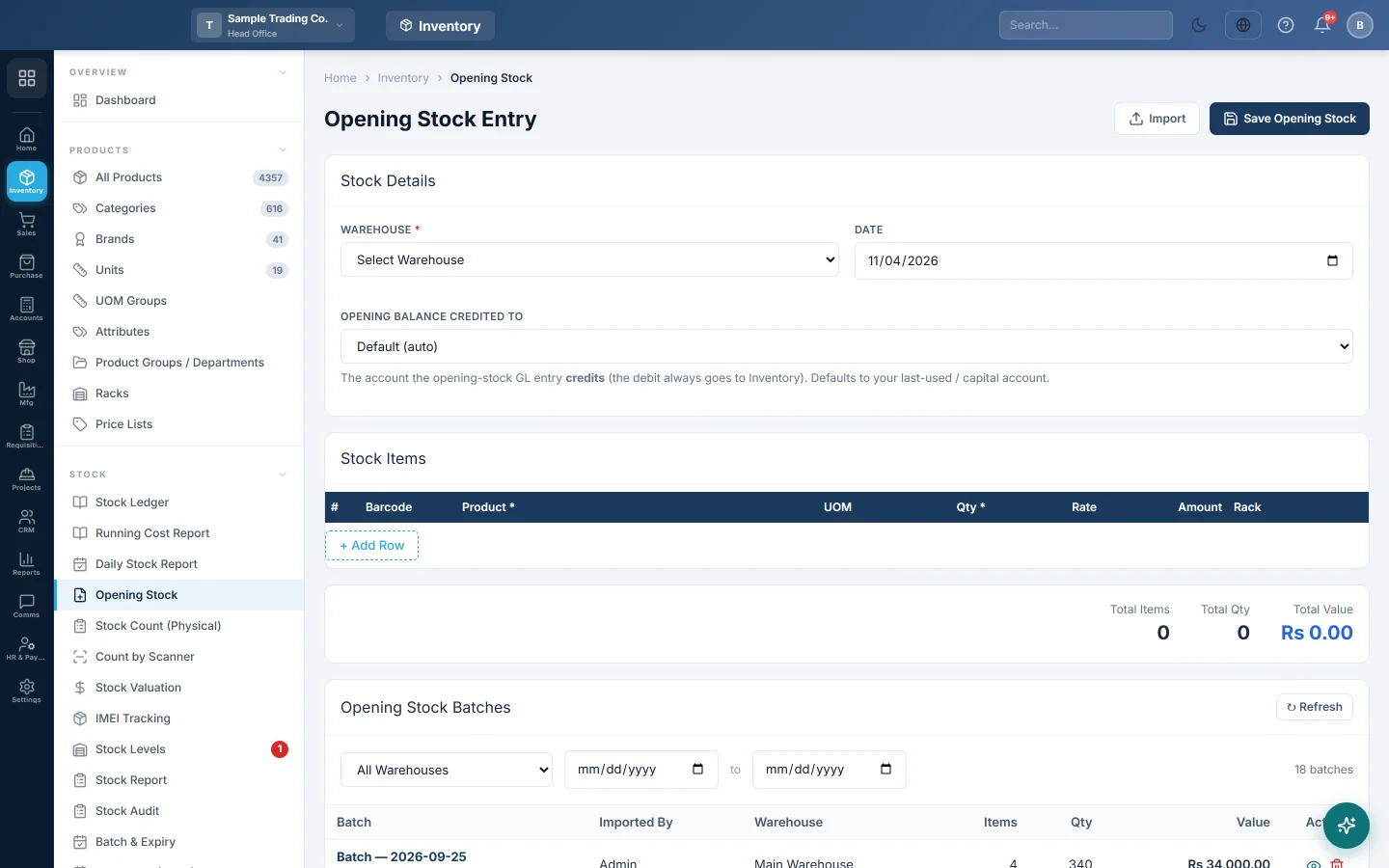
Enter opening stock by hand
- Under Stock Details, choose the Warehouse the goods are in.
- Set the Date. Use the day before you start trading if you want the opening to come before your first sale.
- Check Opening balance credited to. Leave it on the account shown unless your accountant asks for another (see What happens in the books).
- In Stock Items, scan into Barcode or type in Product and pick the product.
- For a product with sizes or colours, pick the Variant. Each variant is its own stock, and saving is refused until every variant line names one.
- Enter the Qty. The Rate fills in from the product's cost price; change it if your real cost is different.
- For batch products, fill Batch # and Expiry. For IMEI, engine or chassis products, click Serials and enter one line per unit.
- Optionally pick a Rack.
- Press Enter on the last cell, or click + Add Row, for the next product.
- Check Total Items, Total Qty and Total Value at the bottom, then click Save Opening Stock.
Import opening stock from a file
Use this when you have hundreds of products, for example from a stock sheet or your old software.
- Click Import.
- Click Download template to get a spreadsheet with the right columns and an Instructions sheet.
- Fill one row per product. barcode is required; qty, rate and rack are optional. A blank rate uses the product's cost price.
- For batch products, add one row per batch with batch_number and expiry_date. For serialised products, add one row per unit with imei, serial_no, engine_no or chassis_no.
- Click Choose file to import and pick your .xlsx or .csv file.
- Read the result banner. It shows how many rows were imported and lists any barcodes that matched no product.
- Review the rows in the grid, choose the Warehouse, then click Save Opening Stock.
Check or delete a saved batch
Every save or import appears under Opening Stock Batches, with who saved it, the warehouse, items, quantity and value.
- Filter by warehouse or date if the list is long.
- Click the eye icon to open the batch in a new tab. Click Print there for a paper copy.
- To remove a wrong batch, click the bin icon and confirm.
What happens in the books
- Stock: each line adds its quantity to the warehouse as an Opening Stock Entry row in the Stock Ledger, dated with the Date you chose. The rate becomes the item's starting average cost.
- Accounts: one voucher (number OB-…) is posted for the whole save. Inventory is debited with the total value and the account in Opening balance credited to is credited.
- The default credit account is the one you used last time, else the default set on Opening Balances, else your first capital or equity account.
- A save whose total value is zero or negative posts stock only, with no voucher.
Common questions
Can I enter a negative quantity? Yes. It is allowed for an item you have already oversold, when negative stock is allowed. Zero or blank quantities are refused.
I entered opening stock in two warehouses. Do I save twice? Yes. A save goes to one warehouse; repeat it for each warehouse.
Some barcodes were "not found" in the import. Those rows were skipped. Add the barcode to the product (or the variant) and import those rows again.
Why is my opening stock not on the trial balance? The voucher needs an Inventory account and an equity account. If either is missing the stock is saved but no voucher posts. Add the accounts, delete the batch and save it again.
Should I use this or a stock adjustment? Use opening stock once, when you start. For later corrections use Stock Adjustments or a physical count.
Merci. Si vous avez encore besoin d’aide, écrivez à info@eloerp.net.