Product Groups / Departments
Keep a list of product groups or departments (Electronics, Clothing, Raw Materials) as an extra way to organise products alongside categories.
Product groups, also called departments, are a second way to organise your products, next to categories. Use them for a store department, a product family or a buying section, then pick the group on each product.
Before you begin
- Your role needs permission to view, create, edit or delete product groups. See Users & Roles.
Where to find it
Open Inventory → Products → Product Groups / Departments.
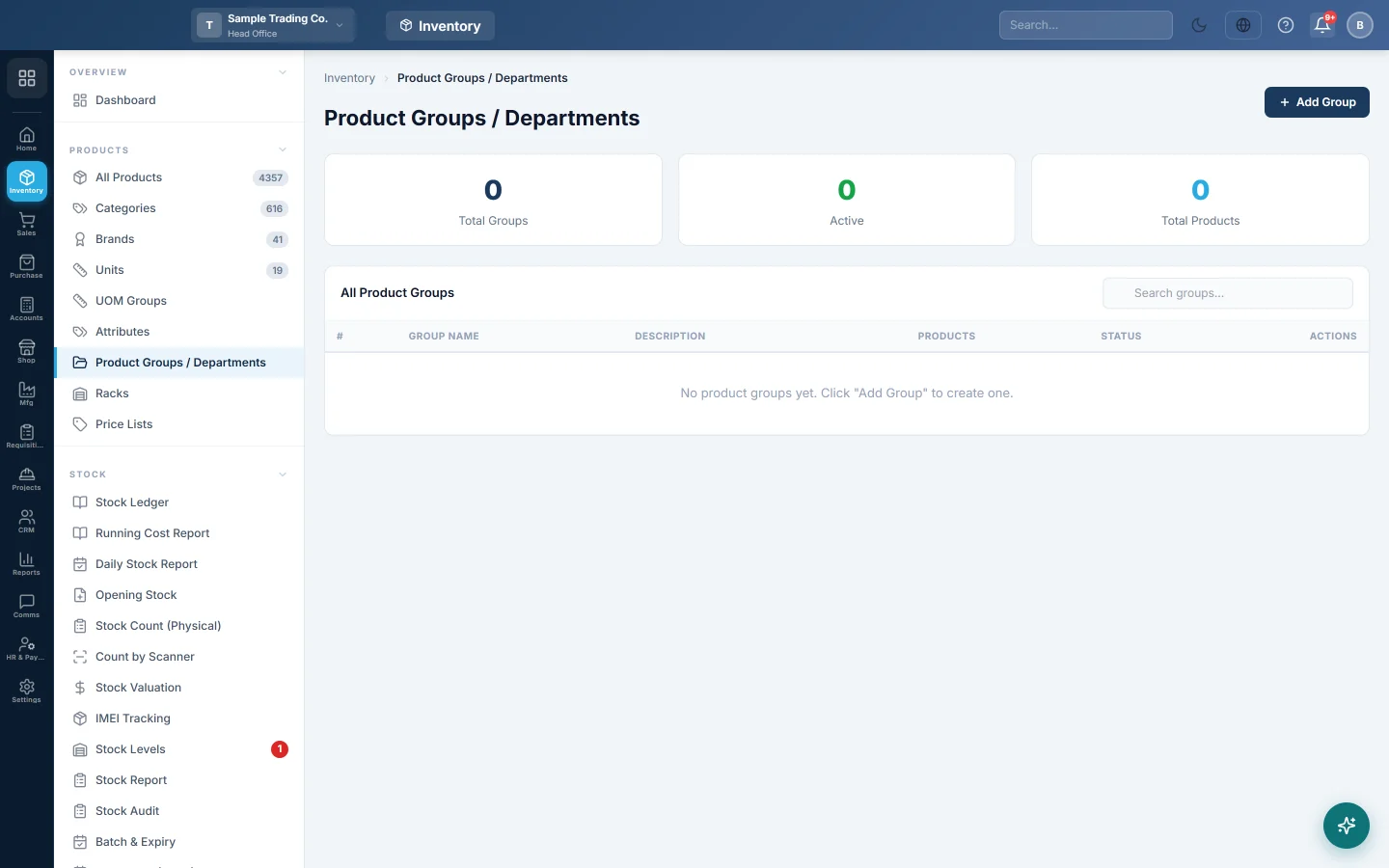
Three totals sit at the top: Total Groups, Active and Total Products. The list shows each Group Name, Description, the number of Products in it and its Status. Type in Search groups... to filter by name or description.
Add a group
- Click Add Group.
- Type the Group Name, for example Electronics.
- Add a Description if you want one.
- Leave Status on Active.
- Click Create Group. You can also press Enter in the name box.
Edit a group
- Click Edit on the group's row.
- Change the name, description or status.
- Click Update Group.
Put a product in a group
- Open the product form from All Products.
- Choose the group in Product Group / Department.
- Save the product.
Delete a group
- Click Delete on the group's row.
- Click Yes, Delete to confirm.
The Delete button is greyed out while the group has products. Move those products to another group first.
Common questions
What is the difference between a category and a product group? A category is a tree of what the item is, used across reports and the online store. A product group is a flat list you can use for any other grouping, such as a department.
Is this the same as the Kitchen Department on restaurant products? No. The kitchen department decides where an order ticket prints. It is set separately on the product form.
Do I have to use product groups? No. The field is optional on the product form.
Why is the Delete button greyed out? The group still has products. Hover over the button to see how many.
Vielen Dank. Wenn Sie weitere Hilfe brauchen, schreiben Sie an info@eloerp.net.