All Products
The product list, where you add, edit, find, import, export, bulk-edit and delete the items you buy and sell.
All Products is your item master: every product you buy, sell or keep in stock. From here you add new products, change prices, import a list from a spreadsheet and find any item by name, SKU or barcode.
Before you begin
- Create at least one unit, such as Piece or Kg. See Units. A product cannot be saved without a Unit of Measure.
- Optional masters: Categories, Brands, UOM Groups for multi-unit products and Attributes for variants.
- Your role needs the products permissions. See Users & Roles.
Where to find it
Open Inventory → Products → All Products. The Add Product quick action at the bottom of the side menu opens the form directly.
Find a product
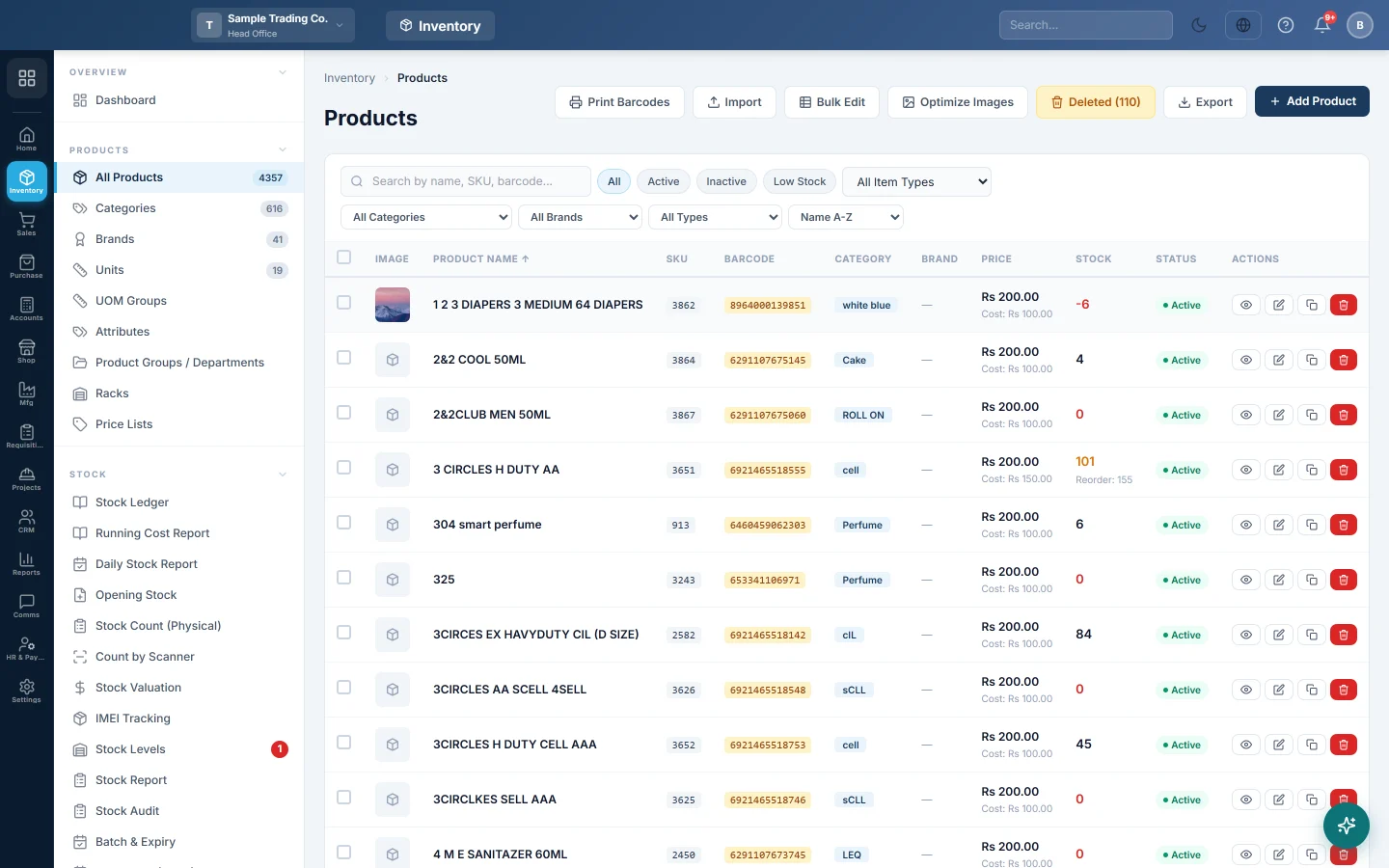
- Type in Search by name, SKU, barcode.... The list updates as you type.
- Click a filter chip: All, Active, Inactive or Low Stock.
- Narrow the list with the category list, All Brands and All Types (Simple Product, Multi UOM Product, Variable Product).
- Change the order with the sort list: Name A-Z, Newest, Price High-Low and so on.
The Stock column turns amber at or below the reorder level and red at zero. Products that are not stockable show N/A.
Add a product
- Click Add Product.
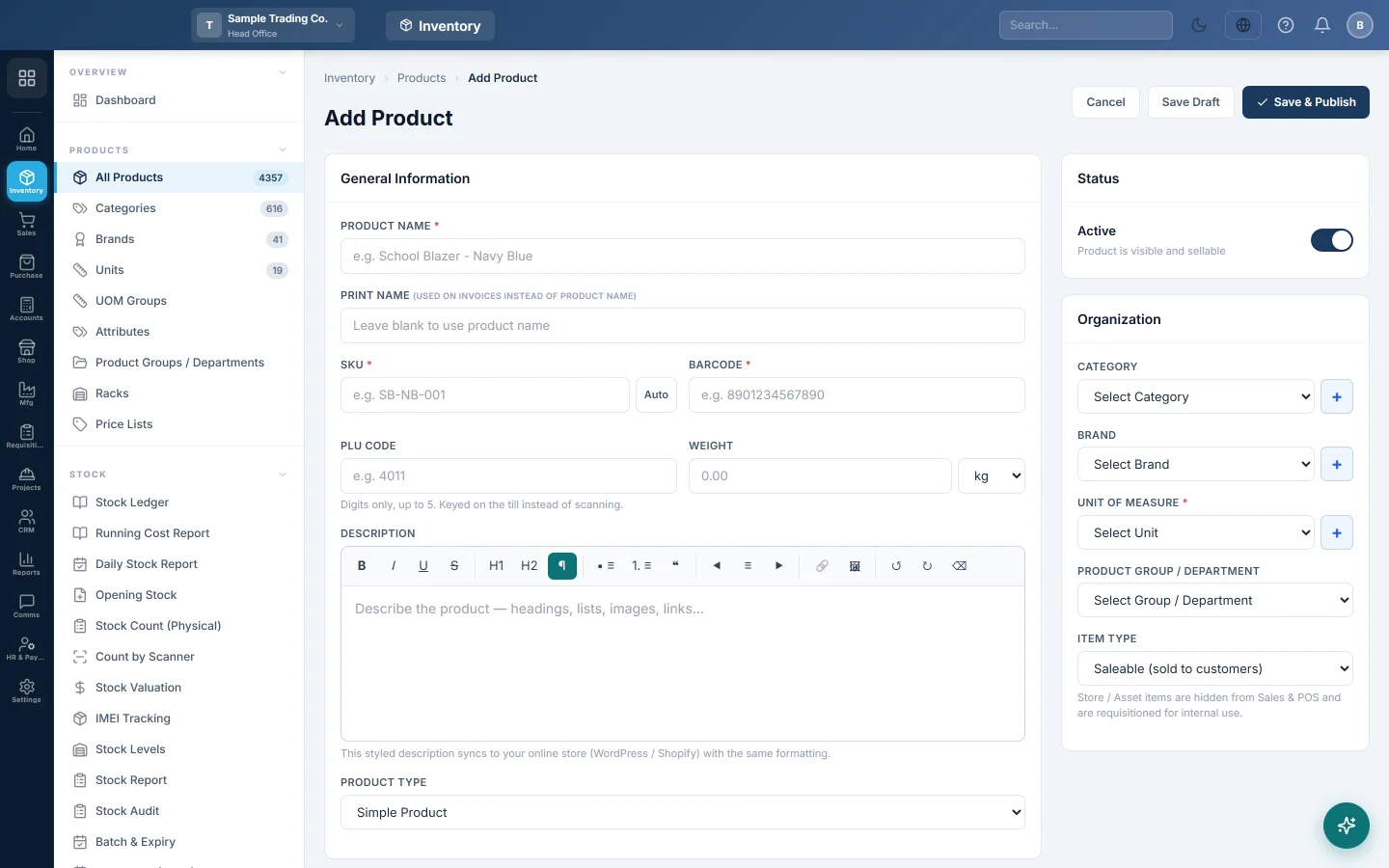
- Under General Information, enter the Product Name. Add a Print Name if invoices should show a different name.
- Enter a SKU, or click Auto to generate one.
- Scan or type the Barcode. Add a PLU Code if cashiers key the item in at the till.
- Choose the Product Type: Simple Product, Multi UOM Product, Product with Variants or Service.
- Under Pricing, enter the Cost Price and Sale Price. Both are required.
- Pick a Tax if the item carries its own tax. Fill in Tax Rate (%) only if this product's rate differs from the tax's rate.
- Under Organization on the right, choose the Category, Brand and Unit of Measure. Use the + next to each to add a new one without leaving the form.
- Under Product Settings, tick what applies: Show on POS, Taxable, Stockable, Sold by Weight, Kitchen Item and so on.
- Under Stock Management, set the Reorder Level.
- For a new simple product, enter Opening Stock and its As of date if you already hold some.
- Click Save & Publish.
Some boxes appear only when a feature is on: Enable Batch and Enable Expiry need batch and expiry tracking, Enable IMEI needs IMEI numbers, and FBR Tax & Compliance needs FBR digital invoicing. See Features & Add-ons.
Add a product sold in more than one unit
- Set Product Type to Multi UOM Product.
- In Multi UOM Configuration, pick a UOM Group.
- In the UOM Pricing Table, the first row is the Base Unit. For each other unit, enter the Base Qty (for example 12 for a dozen), Purchase Rate and Sale Rate.
- Give each unit its own SKU or Barcode if you scan cartons and pieces separately.
- Click Save & Publish.
Add a product with variants
- Set Product Type to Product with Variants.
- Under Product Variants, tick the attribute values you sell, for example Size: S, M, L and Colour: Red, Blue.
- Click Generate All Combinations.
- Click Apply Base Prices to All, then change the price of any variant that differs.
- Enter a SKU and Barcode for each variant. Leave Reorder Level blank to use the product's level.
- Click Save & Publish.
Edit, duplicate or delete a product
In the Actions column:
- The eye icon (View) opens the product's details.
- Edit opens the form. Save with Update & Publish.
- Duplicate as Draft makes an inactive copy and opens it. This is quick for similar items.
- Delete removes the product after you confirm.
A product with stock on hand, stock ledger entries, or sale or purchase invoice lines cannot be deleted. Set it to Inactive in the Status box on the form instead.
Restore a deleted product
- Click Deleted (n) at the top. It only appears when there are deleted products.
- Click Restore next to the product.
- To remove them for good, click Purge All. This frees their SKUs and barcodes for a new import and cannot be undone.
Import products from a spreadsheet
- Click Import.
- Click Download Template and fill in one product per row.
- If the file has opening quantities, set Opening stock as of and Opening stock credited to.
- Drop the file on the page, or click browse. CSV and .xlsx files up to 10MB are accepted.
- Click Next: Validate → and read the Errors and Warnings.
- Tick Skip rows with errors and import valid rows only if you want to go ahead, and start the import.
- When you see Import Complete!, click View Products.
Change many products at once
- Click Bulk Edit. A grid opens with the name, SKU, barcode, category, brand, prices, tax and status of each product.
- Change the cells you need. A warning shows when a sale price is below cost.
- To raise or cut prices, click Adjust Prices. Choose Apply to, Price field, Direction and By, then set the rounding.
- Click Save Changes.
Variant and multi-UOM prices are adjusted with the product, so the till stays consistent.
Export or print
- Export downloads the current filtered list as a CSV file.
- Print Barcodes prints labels for the ticked products, or for the whole page if none are ticked. For label sizes and quantities, use Print Barcodes.
What happens in the books
Opening stock entered on the product form goes into the first warehouse of your current branch, valued at the Cost Price. A journal debits the Inventory account and credits the opening balance equity account, dated on the As of date. The entry shows in the Stock Ledger.
Products with batch, expiry or serial tracking cannot take opening stock on the form. Enter it in Opening Stock so each batch or serial number is recorded.
Common questions
The product does not appear at the till. Check that it is Active and that Show on POS is ticked. Store and fixed asset items (the Item Type field) never show in Sales or POS.
Why is my opening stock valued at zero? Opening stock is valued at the Cost Price. Enter the cost before you save, or correct the value with a Stock Adjustment.
I get "Cannot delete product". The product has stock or history. Set it to Inactive so it no longer shows in sales.
Can I give one customer group a different price? Use Price Lists. The sale price on the product is the default.
I cannot add or delete products in my branch. Your branch shares Head Office's product list. Products are added and changed in Head Office.
Where do I see how much stock is in each warehouse? Open Stock Levels. To set up warehouses, see Warehouses.
Teşekkür ederiz. Hâlâ yardıma ihtiyacınız varsa info@eloerp.net adresine yazın.