UOM Groups
Link several units with conversion quantities (1 Carton = 12 Boxes = 144 Pieces) for products you buy in one unit and sell in another.
A UOM group links several units with a conversion, for example Piece = 1, Box = 12, Carton = 144. You attach the group to a Multi UOM Product, so you can buy by the carton and sell by the piece while stock is kept in one base unit.
Before you begin
- Create each unit first under Units. The group only lets you pick existing units.
- Your role needs permission to view, create, edit or delete UOM groups. See Users & Roles.
Where to find it
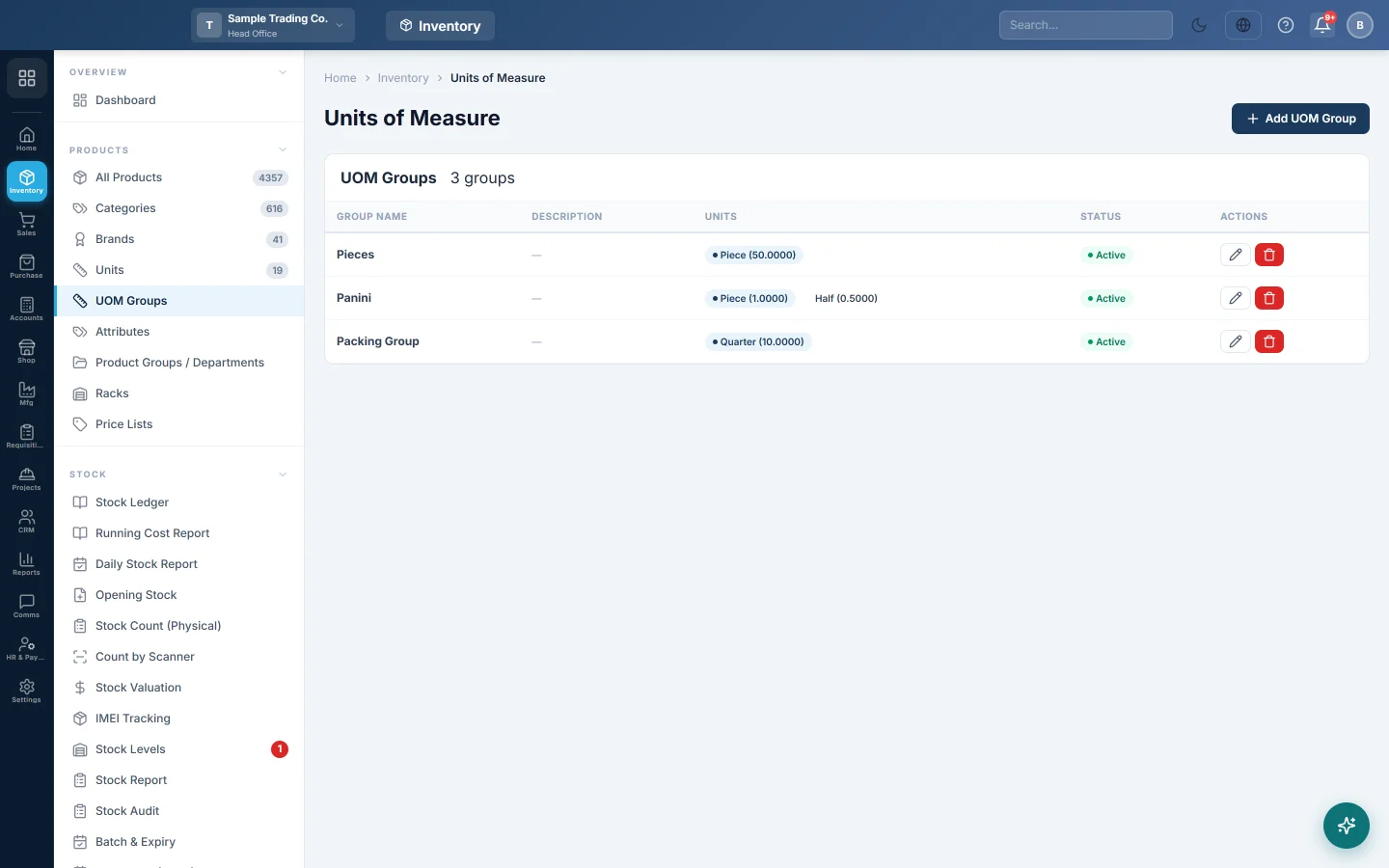
Open Inventory → Products → UOM Groups. The page is titled Units of Measure and the list is headed UOM Groups.
Each row shows the Group Name, Description, its Units with their quantity in brackets, and the Status. The default unit is highlighted in blue.
Create a UOM group
- Click Add UOM Group.
- Type the Group Name, for example Carton of 144.
- Under UOM Definitions, pick the base unit in the first row's Unit box and leave Quantity at 1.
- Click Add Unit to add the next row.
- Pick the larger unit and type in Quantity how many base units it holds, for example Box and 12.
- Repeat for each unit, for example Carton and 144.
- Click Create.
The Barcode column shows the unit's barcode when the unit has one. Each row needs a unit and a quantity of more than zero.
Edit a UOM group
- Click the pencil button on the group's row.
- Change the name, the quantities, or add and remove rows. The bin on a row removes it.
- Choose the Default unit with the radio button.
- Click Update.
Past documents keep the unit name they were saved with, even when you remove that unit from the group.
Use the group on a product
- Open the product form from All Products.
- Set Product Type to Multi UOM Product.
- In Multi UOM Configuration, choose the UOM Group.
- The UOM Pricing Table fills in one row per unit with its Base Qty. Check the Purchase Rate and Sale Rate of each row.
- Save the product.
Delete a UOM group
- Click the red bin button on the group's row.
- Click OK to confirm.
The group is taken off the list. Products that already use it keep their units and prices.
Common questions
What does Quantity mean? How many base units one of this unit holds. If the base unit is Piece and a box holds 12, the box's quantity is 12.
Which unit should be the base? The smallest unit you sell or count, usually Piece. Stock is kept in that unit.
Why is my unit missing from the Unit list? Only units created under Units are offered. Add it there, then reopen the group.
Do I need a UOM group for every product? No. Use one only for products you trade in more than one unit. A product sold in one unit just needs its unit.
I set a different Default when creating the group, but the first row is the default. When you create a group, the first row becomes the default. Edit the group, pick the Default again and click Update.
Teşekkür ederiz. Hâlâ yardıma ihtiyacınız varsa info@eloerp.net adresine yazın.