Quick order: type or say the order
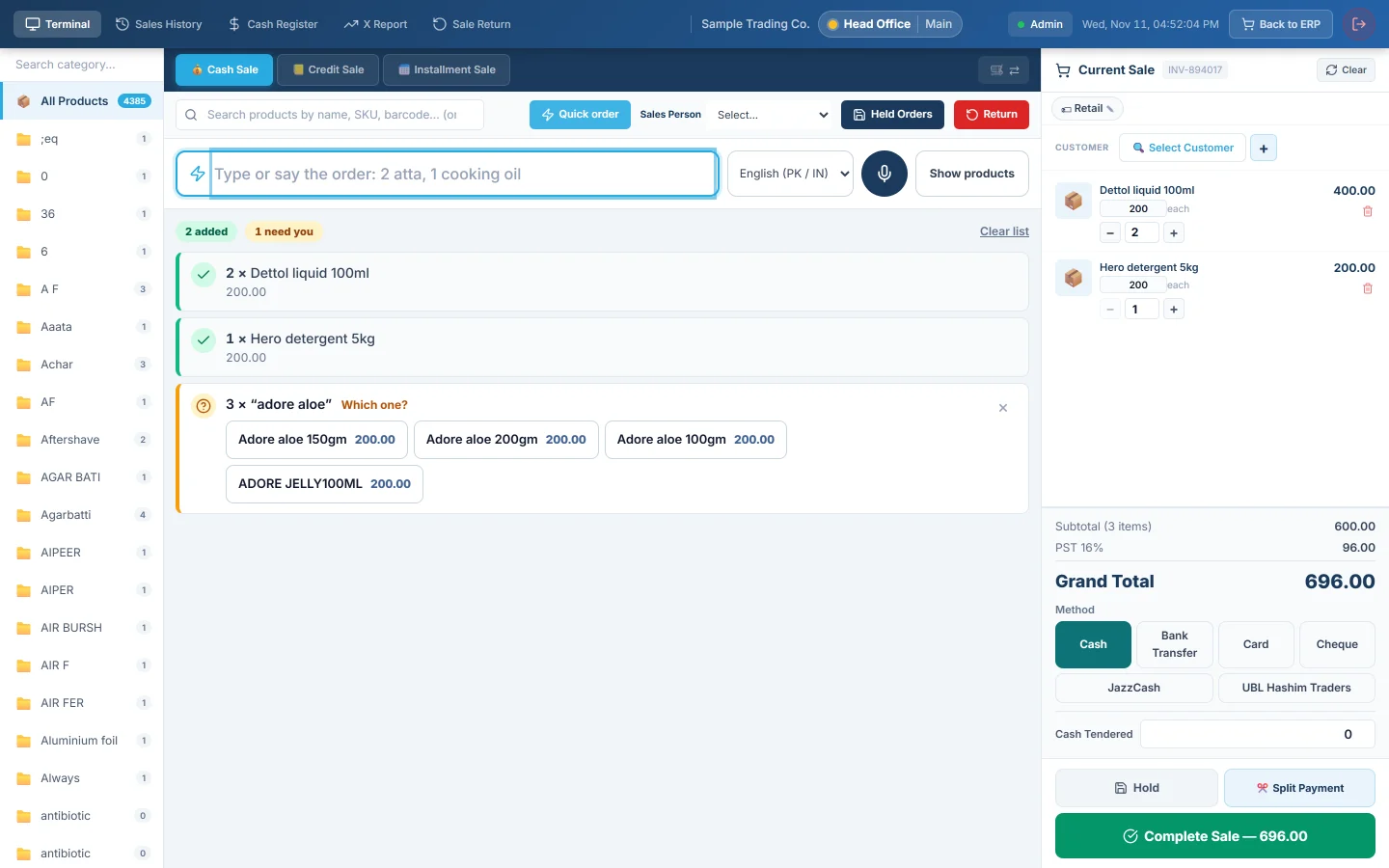
Switch on Quick order, then type or say the whole order ("2 atta, 1 cooking oil") on the till: clear items go straight to the cart and only the lines that need a decision are listed.
Quick order is a second way to fill the cart. The cashier types or says the order as the customer says it, for example "2 atta 10kg, 1 cooking oil, dozen eggs". Items that are clear go straight into the cart, and only the lines that need a decision are listed.
Before you begin
- Quick order is off for every company until you switch it on. Open Settings → POS & Sales → POS Settings, turn on Quick order on the till under General POS Settings, then click Save Settings.
- The switch does nothing until it is saved. While a change is unsaved, the page shows a bar that says so. See POS Settings.
- Reload the POS page after saving. An offline till takes the setting at its next sync.
- Your products need clear names on the till. Quick order matches what you type against the products the till has loaded.
Where to find it
Open the POS Terminal. With the setting on, a Quick order button sits on the right of the search bar. Click it to swap the product grid for the order line; click Show products to go back. The till remembers which one you had open on that computer.
Type an order
- Click Quick order.
- Type the order in the box, for example
2 atta 10kg, 1 cooking oil, dozen eggs. - Press Enter, or click Add.
- Check the list. Green lines are in the cart; amber and red lines need you.
- Take the payment as usual. See Take a cash sale at the till.
You can type the next order straight away. The box keeps the cursor, and the newest lines appear at the top.
How the order is read:
- Separate items with a comma, "and", "aur" or "+".
- A quantity can be a number (2, 1.5), a word (two, do, teen), "dozen" or "darjan", or "x2" after the item.
- A size such as "5 litre", "10kg" or "900 g" is part of the product name, not the quantity. "Oil 5 litre" means one bottle of the 5-litre oil.
- Words such as "please", "give me" or "dena" are ignored.
- A barcode typed or scanned into the box works like a scan on the search bar, including variant barcodes and weighed labels.
Say an order
- Click Quick order.
- Pick the language from the list next to the microphone, for example English (PK / IN) or اردو.
- Click the microphone and say the order. The box turns red while it listens and shows what it hears.
- Stop talking, or click the microphone again. The order is added as if you had typed it.
Lines that need a decision
| What the line says | What to do |
|---|---|
| Which one? with two or more products | Click the right product. A close spelling is offered here too; it is never added by itself. |
| Pick a variant, Pick the options, Pick the combo items | Click the button. The till's own picker opens, as for a tile tap. |
| Weigh it | Click it to open the scale panel for the item. |
| Check the customer's age | Click it to open the age check. |
| Out of stock or No more in stock | Nothing was added. Allow Negative Stock is off and the shelf is empty, or every unit is already in the cart. See Stock limits at the till. |
| Only 3 in stock under an added line | The cart took what the shelf has, not the full quantity asked. |
| Nothing matches | Click Search products to look it up on the grid, or click × to drop the line. |
The counters at the top show how many lines were added and how many need you. Clear list empties the list; it does not touch the cart.
Keyboard
- Enter adds what is in the box.
- Esc clears the box. Press it again on an empty box to go back to the products.
- The cursor stays in the box after each order and after each choice, so you can keep typing.
What happens in the books
Nothing new. Each line enters the cart the same way a tile tap does, with the same price, tax, discounts and stock checks. The sale posts exactly like any other till sale.
Common questions
I switched it on but there is no Quick order button. Check that you clicked Save Settings on POS Settings, then reload the POS page. An offline till needs to sync first.
It picked the wrong product. Type a little more of the name, for example the brand or the size. When two products fit equally well, the till asks Which one? instead of guessing.
Can it read Urdu? Spoken Urdu and Urdu numbers are understood. Products are matched by the names stored in your catalogue, so names typed in English letters match best.
The microphone does nothing. Allow the microphone for the site in the browser, and check the internet connection. The message under the box says which one is missing.
Does Quick order change prices or skip the stock check? No. It only decides which product was asked for. Price, tax, stock, variants and age checks are the till's own, exactly as for a tile tap.
谢谢。 如果仍需帮助,请发邮件至 info@eloerp.net。