Take bookings online with your booking page
Switch on your own booking page at /book-service, where your customers pick a service, a team member and a free time, prove their phone with a code, and later cancel or move the booking from their own link.
Your booking page is a web page of your own where your customers book an appointment themselves. They pick a service and a free time, and the booking lands on the Booking Desk like one made at the counter.
The booking page on a phone, with the list of services to choose from
Before you begin
- The Services module is on for your company, and your services are on Catalogue.
- At least one person is Bookable and Active on Staff. Their Weekly working hours limit the times they are offered.
- WhatsApp or SMS is connected under Settings → Notifications → Notification Channels. Your customer proves their phone with a 6-digit code sent this way. Without it, the page stays closed. See Notification Channels.
- You need the Manage Services Settings / Industry Preset permission to change the settings.
Where to find it
Open Services → Setup → Settings and scroll to Online booking. Bookings made on the page appear on Services → Front Desk → Booking Desk.
Switch on your booking page
- Turn on Take bookings online.
- Under Your booking page, see your address, ending in /book-service. The link starts working when you save.
- Set the rules below.
- Click Save online booking. The message says Online booking is on. Share your link.
- Click Copy and share the link on WhatsApp, Instagram or your website. Click Open to see the page yourself.
A yellow warning shows when something stops customers booking: no WhatsApp or SMS for the codes, or nobody on your team marked bookable.
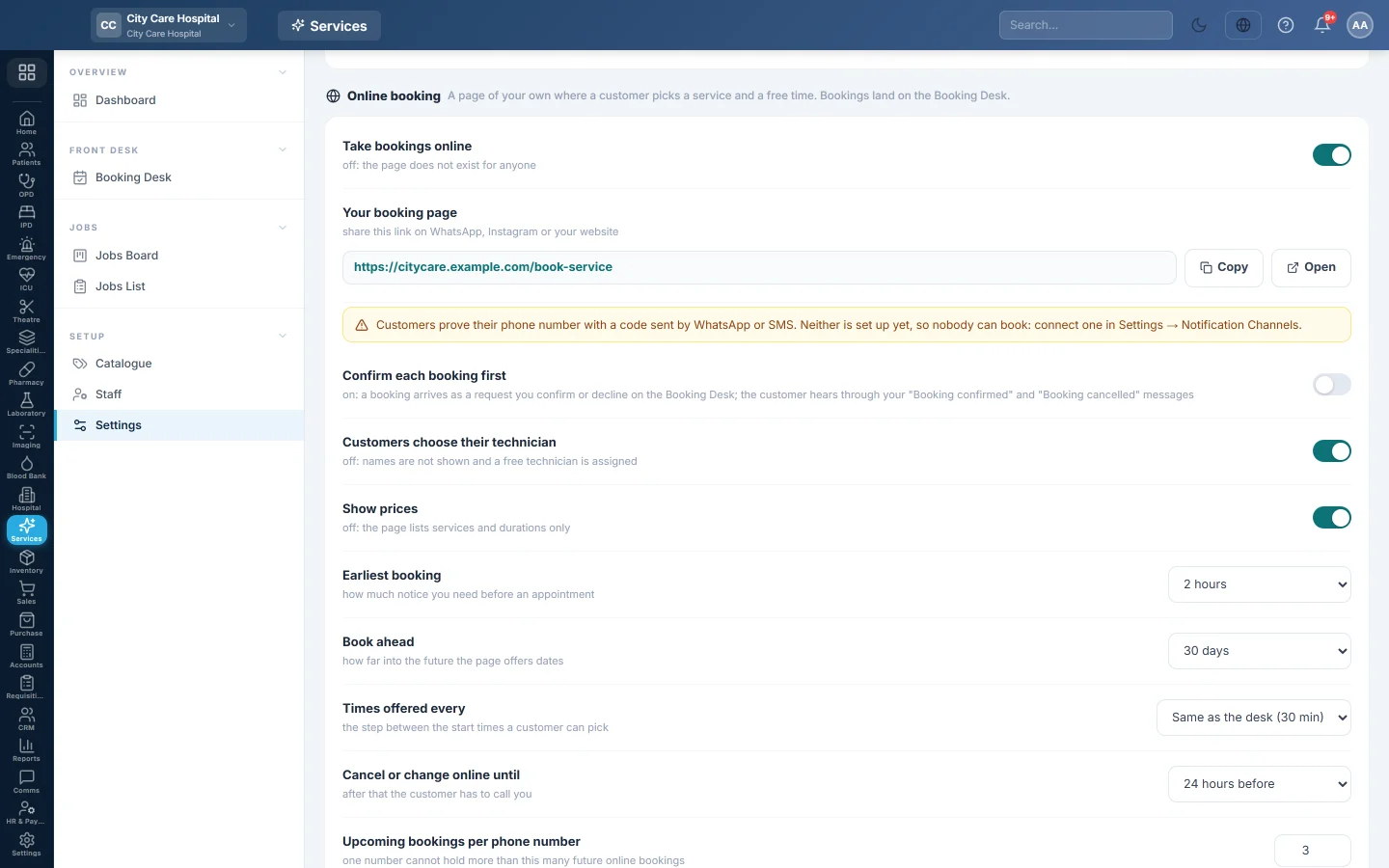
Set the rules
| Setting | What it does |
|---|---|
| Confirm each booking first | On: a booking arrives as a request you confirm or decline on the Booking Desk. Off (the default): it is booked at once. |
| Customers choose their staff | The word follows your preset, for example stylist. Off: names are not shown and a free person is assigned. |
| Show prices | Off: the page lists services and durations only. |
| Earliest booking | How much notice you need, from No notice needed to 2 days. The default is 2 hours. |
| Book ahead | How far into the future the page offers dates, from 7 days to 180 days. The default is 30 days. |
| Times offered every | The step between start times, for example 15 min. Same as the desk uses the desk's Slot size. |
| Cancel or change online until | For example 24 hours before. After that, the customer has to call you. Any time before it starts allows it up to the start. |
| Upcoming bookings per phone number | The most future online bookings one number may hold, from 1 to 20. The default is 3. |
| Note on the page | An optional line for parking, what to bring or your late policy. |
Set the hours and the services
Under Hours you take online bookings, each day has a switch. Turn a day off to show Closed. For an open day, set the opening and closing times, and a break if you take one. A team member is also limited to their own working hours on the Staff screen.
Under Services offered online, untick anything that needs a call first. All on and All off change the whole list. Every active service starts ticked. A person is offered for a service only when they have its Required skill, or when the service asks for none.
Click Save online booking when you are done. Discard undoes your changes.
What your customer does
- Your customer opens your link and picks a service. They can search or filter by category.
- They pick a team member, or Anyone available, which gives the most times. This step is skipped when Customers choose their staff is off.
- They pick a day and a free time.
- Under Your details, they type Your name and Mobile number, and optionally an Email and a note for you.
- They tap Send code and type the 6-digit code they get on WhatsApp or SMS.
- On Check and confirm, they read the summary and tap Confirm booking, or Send request when you confirm first.
A customer already signed in to your customer account with the same number needs no code. The page says nothing is paid now: your customer pays at the visit.
The booking ticket with the time, the booking number and Manage this booking
Next, your customer sees You are booked, or Request sent when you confirm first. They can Add to calendar, Share or Print it.
Your customer cancels or moves a booking
The ticket has its own link. Under Manage this booking, your customer taps Change the time or Cancel booking, up to the time set in Cancel or change online until. After that the page says Too late to cancel online and shows your phone and WhatsApp.
- Moving keeps the same service and, unless they chose Anyone available, the same person. One booking can be moved online at most 5 times.
- When you confirm first, a moved booking becomes a request again, for you to confirm.
- The desk's bell tells your staff about each new online booking, request, cancellation and move.
Answer online requests on the Booking Desk
With Confirm each booking first on, a request shows on the desk grid with a dashed amber border and an Online request tag. It holds its time, so nobody else can book it.
- On the Booking Desk, click the online requests chip above the grid. It goes to the day of the earliest request.
- Click the request. The card says it is waiting for your answer.
- Click Confirm booking to keep the time, or Reschedule to offer another one.
- To refuse it, click Decline, type an optional Reason for declining, and click Decline request.
A confirmed booking fires your Booking confirmed rule, and a declined one your Booking cancelled rule. Set these messages under Communication → Notification System → Rules. See Rules. A request cannot be checked in until you answer it.
Common questions
My customers see Online booking is closed. The page has nothing to offer: no service is ticked under Services offered online, nobody is bookable, or WhatsApp and SMS are not set up.
A customer says no times are free. Check the day is open under Hours you take online bookings, the person's working hours on Staff, and the Earliest booking and Book ahead rules. Times taken on the desk are never offered.
A customer cannot book again. They already hold the number of upcoming online bookings set in Upcoming bookings per phone number. They can cancel one, or you book them at the desk.
Does an online booking make a new customer? Only for a new phone number. A number already on a customer is booked under that customer. If the name typed differs, it is added to the booking's notes.
How do I tell an online booking from a desk booking? It carries an Online tag on the grid and on its card.
Does the customer pay online? No. The page takes no payment. Bill the visit as usual with Bill & collect.
Спасибо. Если помощь всё ещё нужна, напишите на info@eloerp.net.