Home sample collection requests
Let patients ask for a home sample collection from the portal, and confirm or decline each request on the lab's Home Collection page.
Patients can ask for a phlebotomist to visit from the patient portal. Each request waits on Home Collection for the lab to confirm. Nothing is ordered or billed until then.
Before you begin
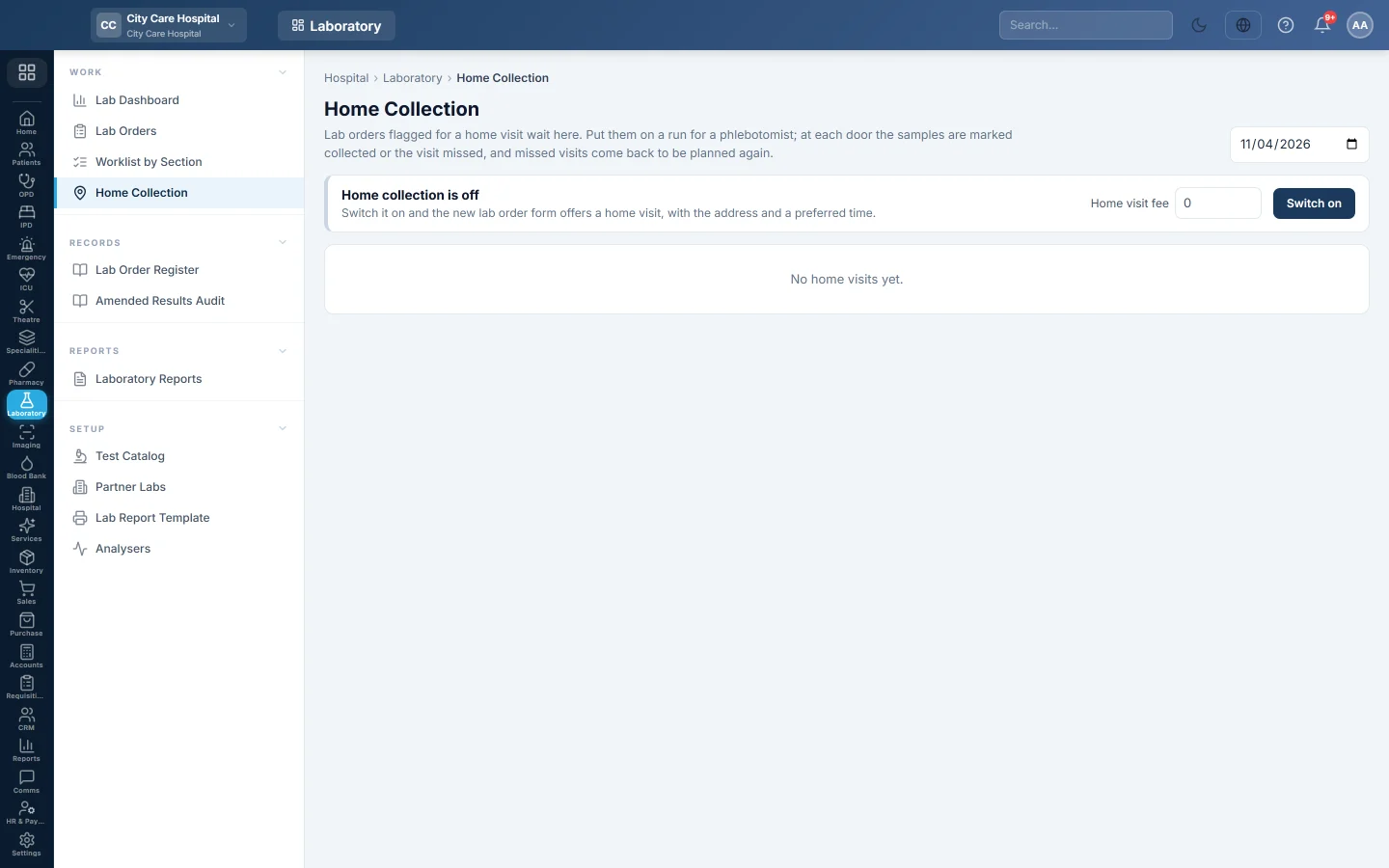
- Home collection is switched on, with your Home visit fee. See Home Collection.
- The patient portal is on, and its Home sample collection switch is On.
- Confirming or declining needs Collect Samples / Phlebotomy or Manage Lab Orders / Workflow.
Where to find it
- Settings: Outpatients (OPD) → Work → Patient Queue → Queue rules → Patient portal → Home sample collection.
- Requests: Laboratory → Work → Home Collection, in the box Requests from patients. The staff bell also links there.
Set up the request page
- Switch Home sample collection to On.
- Under Visit times patients may choose, keep or change the times, for example Morning 08:00 to 11:00. Click + Add a time for another.
- In Areas you visit, type your areas separated by commas, for example Gulberg, Model Town, Johar Town. Leave it empty to visit anywhere.
- Type a Note shown to the patient, for example Fast for 10 hours before a fasting test.
- Click Save home collection settings.
The page address ends in /portal/home-collection. Use Open or Copy link to share it.
What the patient does
- The patient opens Home sample collection. They tick tests from your catalogue, or write them under A test that is not on the list?
- Under When should we come?, they pick a day in the next two weeks and a visit time.
- Under Where should we come?, they type the Home address, the Area, an optional Nearby landmark and the Mobile number.
- A patient who is not signed in also types the Patient’s full name, taps Send me a code and types the six-digit code.
- They tap Send the request.
The page shows We have your request with a Request number. A signed-in patient follows it under Home collection requests and can cancel it until the lab confirms.
Confirm a request
- Open Home Collection. Each request shows the name, MR number or New patient, the address, phone, day, time and tests.
- Call the patient to agree the visit if needed.
- To change the tests, click Change tests, search the catalogue and add or remove tests.
- Click Confirm visit.
A lab order is made, and the visit joins Waiting for a visit. Plan it on a run as usual. For a New patient, EloERP finds the patient by name and phone or registers them.
Decline a request
- Click Decline.
- Type why under Why can this visit not be made? The patient will read it., for example We do not visit that area yet.
- Click Decline request.
A signed-in patient sees Not possible with your reason.
What happens in the books
Nothing is posted by the request. The confirmed lab order is billed like any home visit order, with the home visit fee as its own line.
Common questions
The box Requests from patients is missing. It shows only while requests are waiting.
A patient wrote a test we do not have. It shows under Also asked for. Pick the right tests with Change tests.
How many requests can a patient send? Up to three waiting at once.
Is the patient told when we confirm? The status in the portal changes to Confirmed, then follows the visit. Call or message them as you usually do.
شكرًا لك. إذا كنت لا تزال بحاجة إلى مساعدة، راسلنا على info@eloerp.net.