Patient portal: what patients can do
Open the patient portal and choose, one switch at a time, what patients can do in it - book, open report links, download PDFs, add family, pay bills, ask for home collection and see glasses orders.
The patient portal is your hospital's own web page where patients sign in with their MR number and a code sent to their phone. They see their appointments, released reports, bills and receipts. Everything else in the portal has its own switch, and each one is off until you turn it on.
Before you begin
- Patients get their sign-in code by SMS or WhatsApp. Add a rule for Patient portal sign-in code to the patient, with
@OTP_Codein its message. See Rules and Channels. - Changing these settings needs the Manage HIMS / Facility Settings right. See Users & Roles.
Where to find it
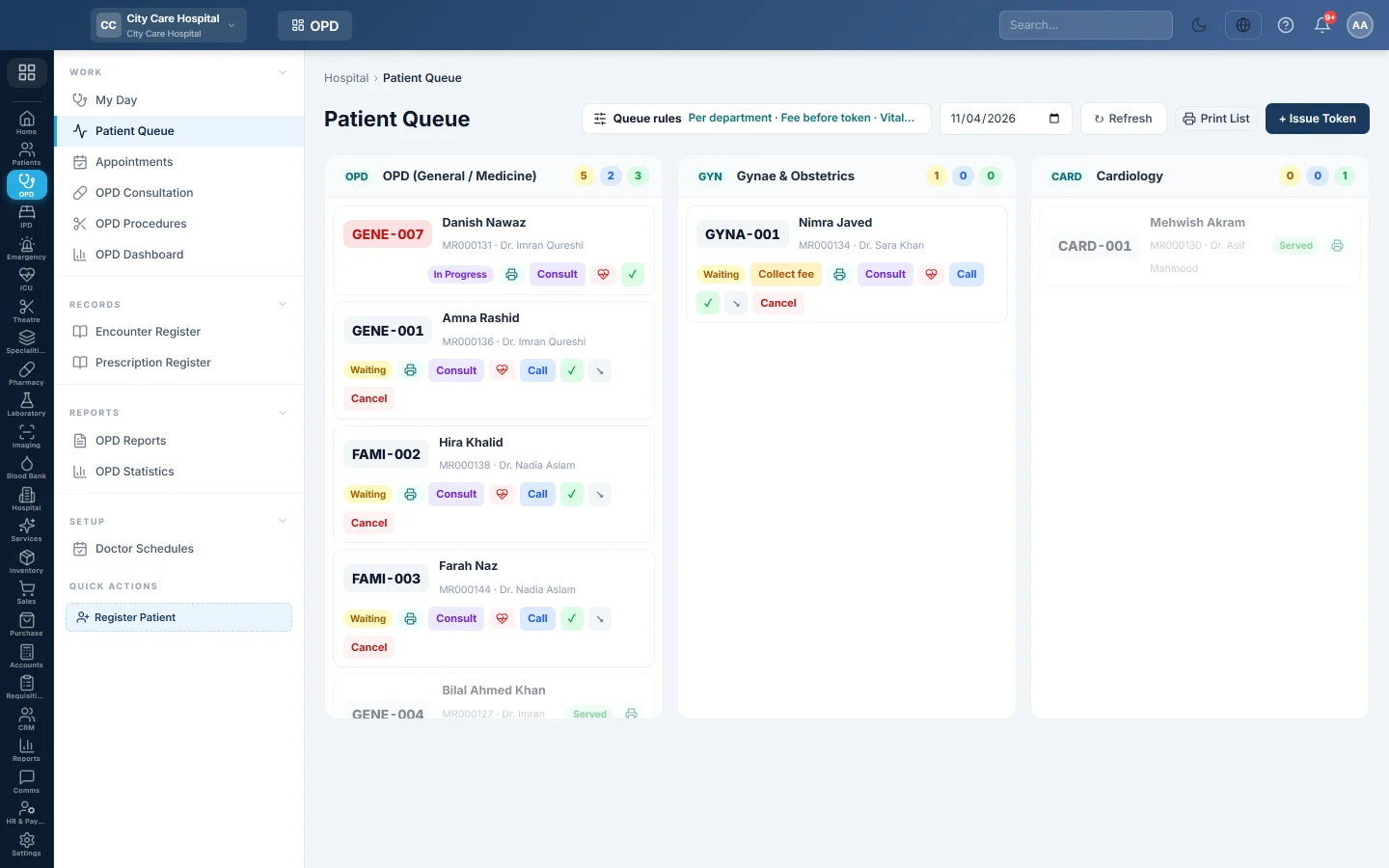
Open Outpatients (OPD) → Work → Patient Queue and click Queue rules. The switches are under Patient portal.
Open the portal
- Under Patient portal, click On.
- Copy the address with Copy link. It ends in
/portal. - Print the address on receipts and report envelopes, or send it to patients.
If the portal cannot be switched on, the reason shows under the rules, for example that no sign-in code rule exists yet.
Choose what patients can do
Once the portal is on, the box What patients can do in the portal lists the switches. Click On or Off beside each one. Patients only ever see what is on.
| Switch | What patients get | Needs first |
|---|---|---|
| Book an appointment | A booking page for free slots of your doctors' schedules. See Book an appointment online. | The Online booking rule set to On, and not Walk-ins only. |
| Report link in the message | A private link to the report in your "report ready" message. See Report links and the verify page. | @Report_Link in your report-ready message. |
| Download the report (PDF) | A Download PDF button on each released report. | Nothing. |
| Family members | One sign-in for a family. See Family members in the patient portal. | Nothing. |
| Pay a bill | Paying a bill's balance by bank transfer or online. See Pay dues online. | Your bank account details or a payment gateway. |
| Home sample collection | A request form for a home visit. See Home sample collection requests. | Home collection switched on in Laboratory → Work → Home Collection. |
| Spectacle orders | Their glasses prescription and order status. See Glasses orders in the patient portal. | An optical shop in EloERP. |
When something a switch needs is missing, a short orange line under it says what. A switch that is on but cannot work yet shows Switched on, but not working yet with the reason.
Verify a printed report
The last row, Verify a printed report, says whether the QR code on your lab reports is on. A scan opens a page that confirms the report is genuine, without any result. Click Copy to copy the address to type in Lab Report Settings. See Report links and the verify page.
Common questions
The Patient portal rule will not switch on. Read the line under the rules. Usually the Patient portal sign-in code rule or its SMS or WhatsApp channel is missing or off.
A patient says the booking page is not available. Book an appointment is off, or Online booking was switched off. The patient sees "This is not available online".
Can a patient change their details in the portal? No. Name, phone and address are changed at the reception on Patients.
Which phone gets the code? The mobile number on the patient's file. A patient with a new number must update it at the reception first.
How long does a code work? Ten minutes, and only once. A patient can ask for a new code after a short wait.
Vielen Dank. Wenn Sie weitere Hilfe brauchen, schreiben Sie an info@eloerp.net.