Pay dues online
Let patients pay a bill's balance from the portal by bank transfer or an online gateway, and confirm each payment at Hospital Bills so it is received on the bill.
Patients can pay the balance of their bills from the portal. Nothing reaches your books until a cashier checks the payment on Hospital Bills and confirms it.
Before you begin
- The patient portal is on, and its Pay a bill switch is On. It needs the Hospital module.
- Your bank account details, or at least one payment gateway that is set up and active.
- Confirming needs the billing create right and your open cash shift. See Cash Register.
Where to find it
- Settings: Outpatients (OPD) → Work → Patient Queue → Queue rules → Patient portal → Pay a bill.
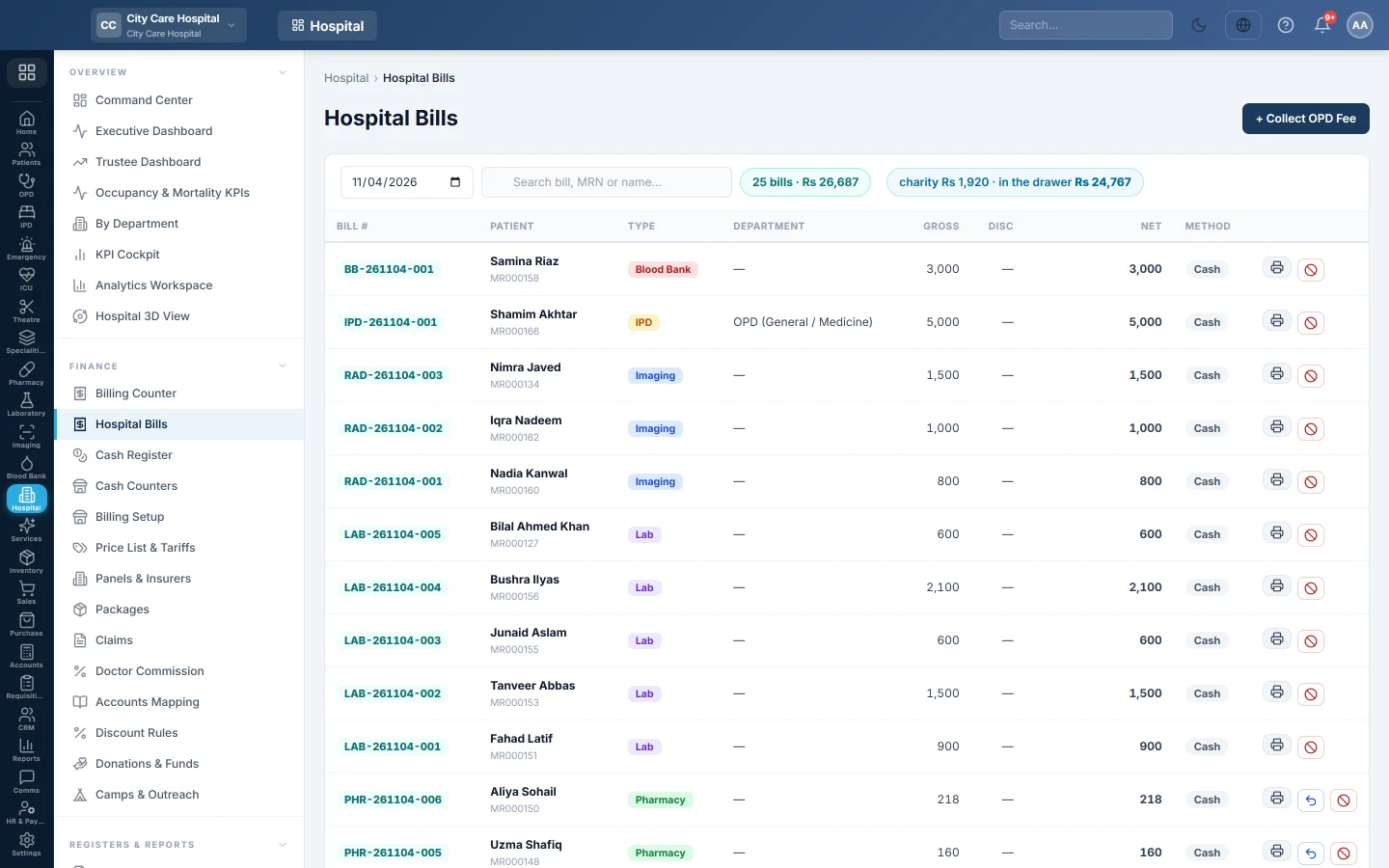
- Payments to check: Hospital → Finance → Hospital Bills, in the box Payments from the patient portal. The staff bell also links there.
Set up paying
- Switch Pay a bill to On.
- Type your Bank name, Account title, Account number, IBAN and Branch. An account number or IBAN is enough to offer a bank transfer.
- Type a Note for the patient, for example Write your MR number in the transfer remarks.
- Optionally set the Smallest payment, for example Rs 500. A balance smaller than this can still be paid off in full.
- Under Online payment, tick the gateways to offer: JazzCash, Easypaisa, Card (Stripe) or PayPal. A gateway shows not set up until its keys are in and it is active.
- Click Save payment settings.
Until one way to pay is ready, an orange line says Patients cannot pay yet.
What the patient does
- On Bills, the patient sees the Balance due. They tap Pay on a bill, or Pay all dues with several.
- Under Amount to pay, they keep the full balance or type less.
- Under How would you like to pay?, they choose the bank transfer or a gateway, then tap Continue.
- For a bank transfer, they send the money from their banking app, then tap Add a photo of the receipt and Send the receipt. A photo, screenshot or PDF up to 5 MB is accepted.
- For a gateway, they leave to pay and come back to the portal.
The bill then shows Being checked. The patient pays several bills one at a time.
Confirm a payment
- Open Hospital Bills. The box Payments from the patient portal shows how many are to check.
- Check the patient, the Bill, the amount it still owed, the method and the date.
- For a bank transfer, click View receipt and check the money reached your account.
- Click Confirm.
- Pick the Account the money came into.
- Click Receive on the bill.
The payment is received on the bill in your cash shift, as if taken at the counter. The patient sees Payment confirmed.
Reject a payment
- Click Reject.
- Type why under Why is it not accepted? The patient will read it., for example The transfer has not reached our account.
- Click Reject payment.
Nothing is posted. The patient sees Not accepted with your reason.
What happens in the books
Confirming posts the same receipt as taking the money on the bill at the counter. The account you picked is debited, the patient's balance on the bill goes down, and the payment counts in your shift. Rejecting posts nothing.
Common questions
Confirm says there is no open shift. Open your cash shift first, then confirm again.
The amount is more than the bill still owes. A warning shows. Reject it, or ask the patient to pay the right amount.
A bank payment has no receipt. It shows No receipt attached. On a trial account, receipts cannot be uploaded, so the patient only taps I have paid.
A family member paid the bill. The row shows paid by with their name and MR number. See Family members in the patient portal.
Can the patient cancel a payment? Yes, while it waits for their receipt or for the gateway. Once it is Being checked, only the cashier can decide.
Where are older payments? Click All in the box to see confirmed, rejected and cancelled payments too.
Thank you. If you still need help, write to info@eloerp.net.