Let guests check in online before they arrive
Let a guest send their details, ID, arrival time and requests from their online account before the stay, then copy them onto the booking with Apply to reservation.
A guest with a booking can check in online a few days before they arrive. They send their details, ID, arrival time and requests from "My Account". Nothing changes on the booking until someone at the front desk checks it and clicks Apply to reservation.
Before you begin
- The Bookings card of the customer portal is on, so guests can see their bookings. See Let guests see, pay and cancel their bookings online.
- Copying the guest's details onto a booking needs the right to edit reservations. See Users & Roles.
- An ID photo cannot be sent while your company is on trial.
Where to find it
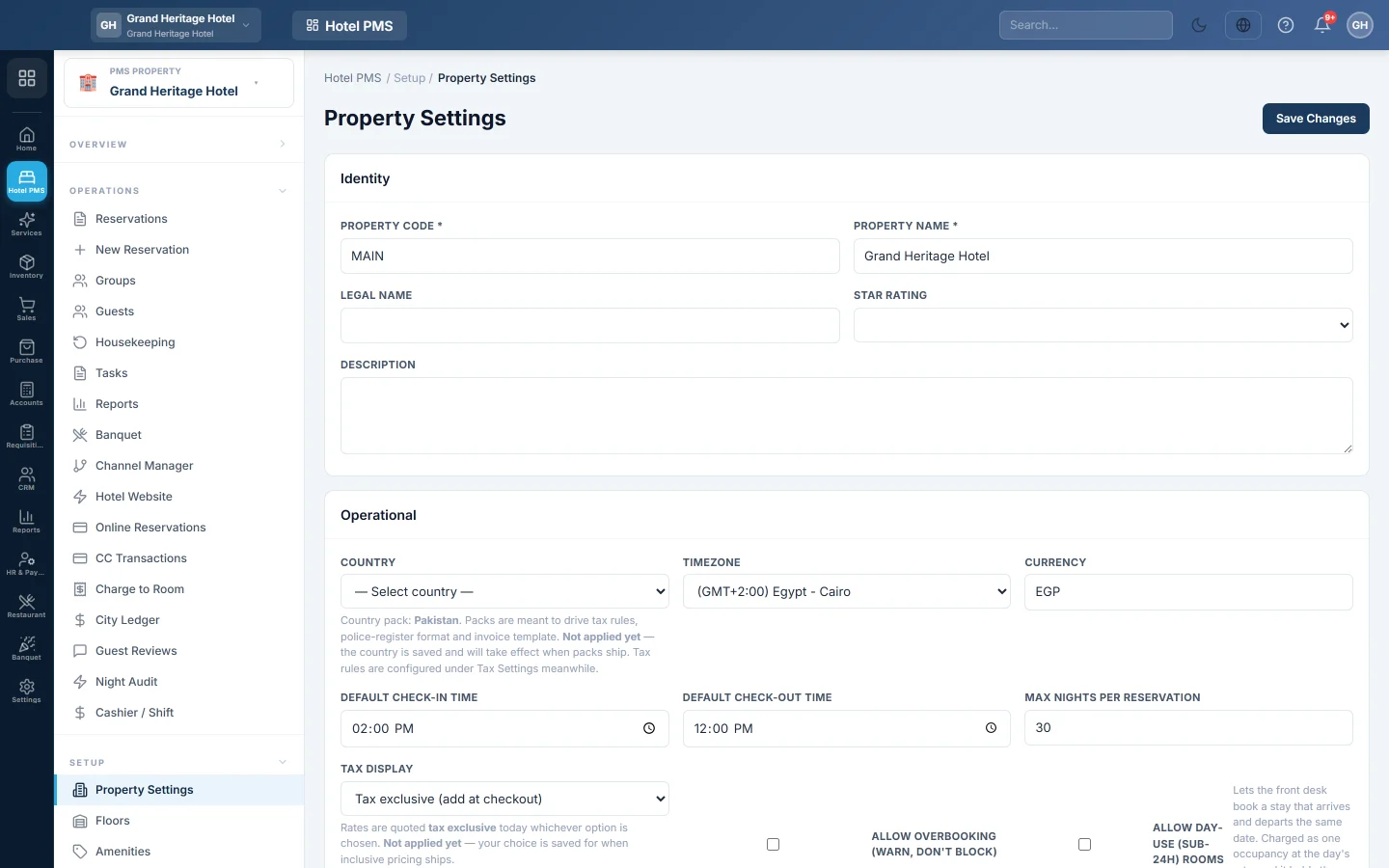
Open Hotel → Setup → Property Settings. The switches are on the Guest online account card at the bottom. When you run more than one hotel, pick the hotel in the PMS Property box first; each hotel has its own switches.
Switch on online check-in
- Open Hotel → Setup → Property Settings.
- On Guest online account, tick Guests can check in online before they arrive.
- Set Opens this many days before arrival, from 1 to 30. It starts at 3.
- To ask for a picture of the guest's ID, tick Ask for a photo of the guest's ID.
- Click Save Changes.
The switch is off until you turn it on. If the card says guests cannot see their bookings online yet, switch on Bookings under Settings → Configuration → Customer Portal first.
What the guest does
From the opening day, the guest's booking page shows Check in before you arrive with Start check-in. The form opens for a Confirmed or Tentative booking, until the last day of the stay. Before that, it says when online check-in opens.
The guest goes through these steps:
- Your details: Full name, phone, email, Nationality, Home address and City. Only the name is required.
- Your ID: Kind of ID, for example CNIC or Passport, the ID number, and the Photo of your ID when you ask for one.
- Your arrival: About what time will you arrive?, the Vehicle number plate and Anything the hotel should know?.
- Who is coming: the names of the other guests in the room.
- Check and send: the guest checks everything and clicks Send to the hotel.
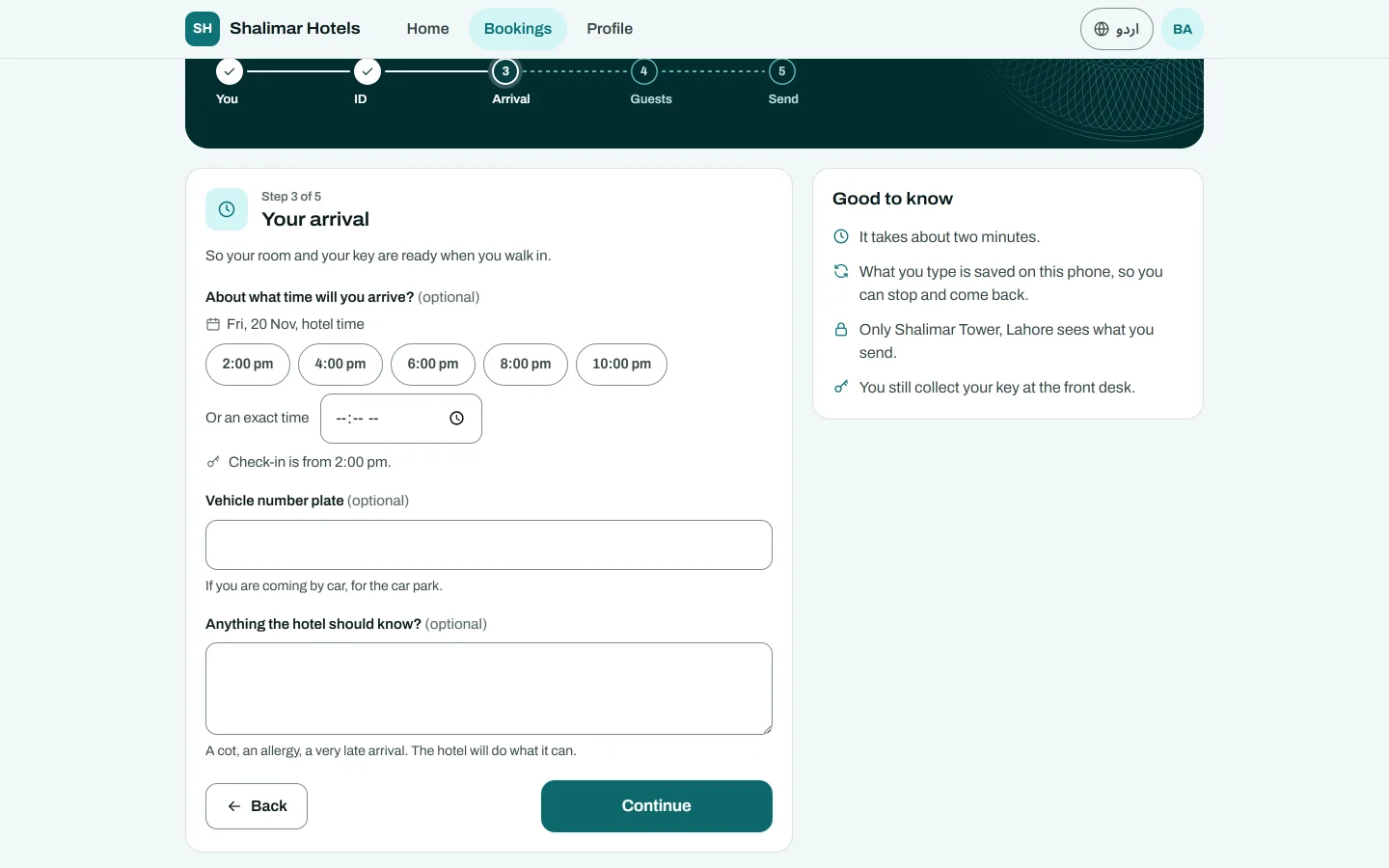
What the guest types is kept on their phone, so they can stop and come back. They can change what they sent until the desk applies it. The guest still collects the key at the front desk.
See what the guest sent
When a guest sends their check-in, staff with the reservations permission get a bell notice, Pre-arrival check-in received for booking …. On Hotel → Operations → Reservations, the booking shows Pre-arrival check-in received.
Open the booking. The Pre-arrival check-in card lists each Detail with The guest sent and On the reservation now. The same card is in the side panel on the Front Desk (Tape Chart). Click View next to ID photo from the guest to open the photo.
Apply it to the reservation
- Read each line. Same means nothing changes. Will be copied means the booking is empty there.
- Where the booking already says something different, tick Replace with the guest's only if the guest's value is right. For requests, tick Add to the existing requests.
- Click Apply to reservation.
The arrival time, requests, vehicle and other guests go on the booking. The name, contact details, nationality and ID go on the guest's profile. Nothing you entered is replaced unless you ticked that line. The booking then shows Pre-arrival check-in applied, and the guest can no longer change it online.
When the guest arrives, check them in as usual. See Check a guest in.
Common questions
The guest does not see Check in before you arrive. The switch is off for that hotel, the opening day has not come, or the booking is not confirmed or tentative. A booking already checked in, cancelled or past its dates is closed too.
Apply to reservation is missing. You need the right to edit reservations. A closed booking cannot take the details either.
The guest sent an ID photo but no form. The card says so. Ask the guest to finish the form, or take the details at the desk.
Does applying check the guest in? No. It only copies the details. Check the guest in when they arrive.
Can I turn it on for one hotel only? Yes. Each property has its own switch on its Property Settings.
Merci. Si vous avez encore besoin d’aide, écrivez à info@eloerp.net.