Subscriptions in the customer portal
Show subscribers their plans, next bill and unpaid invoices in "My Account", and answer the pause, cancel and resume requests they send from there.
With the Subscriptions card on, your subscribers see their plans in "My Account": the plan, the next bill, their subscription invoices and what is unpaid, each with a link to your pay page. They can also ask to pause, cancel or resume. A request changes nothing until your staff act on it.
Before you begin
- Your company has the customer portal. See Customer Portal.
- You have at least one subscription. The Subscriptions switch is offered only then. See Subscriptions.
- The subscriber's phone or email is on their customer record, so they can sign in.
- To answer requests, your role needs the permission to edit or cancel subscriptions.
Where to find it
- The switch: Settings → Configuration → Customer Portal, under What customers see.
- The requests: Subscriptions → Billing → Subscriptions, and each subscription's own page.
Switch the card on
- Open Settings → Configuration → Customer Portal.
- Tick Subscriptions.
- Click Save.
What your subscriber sees
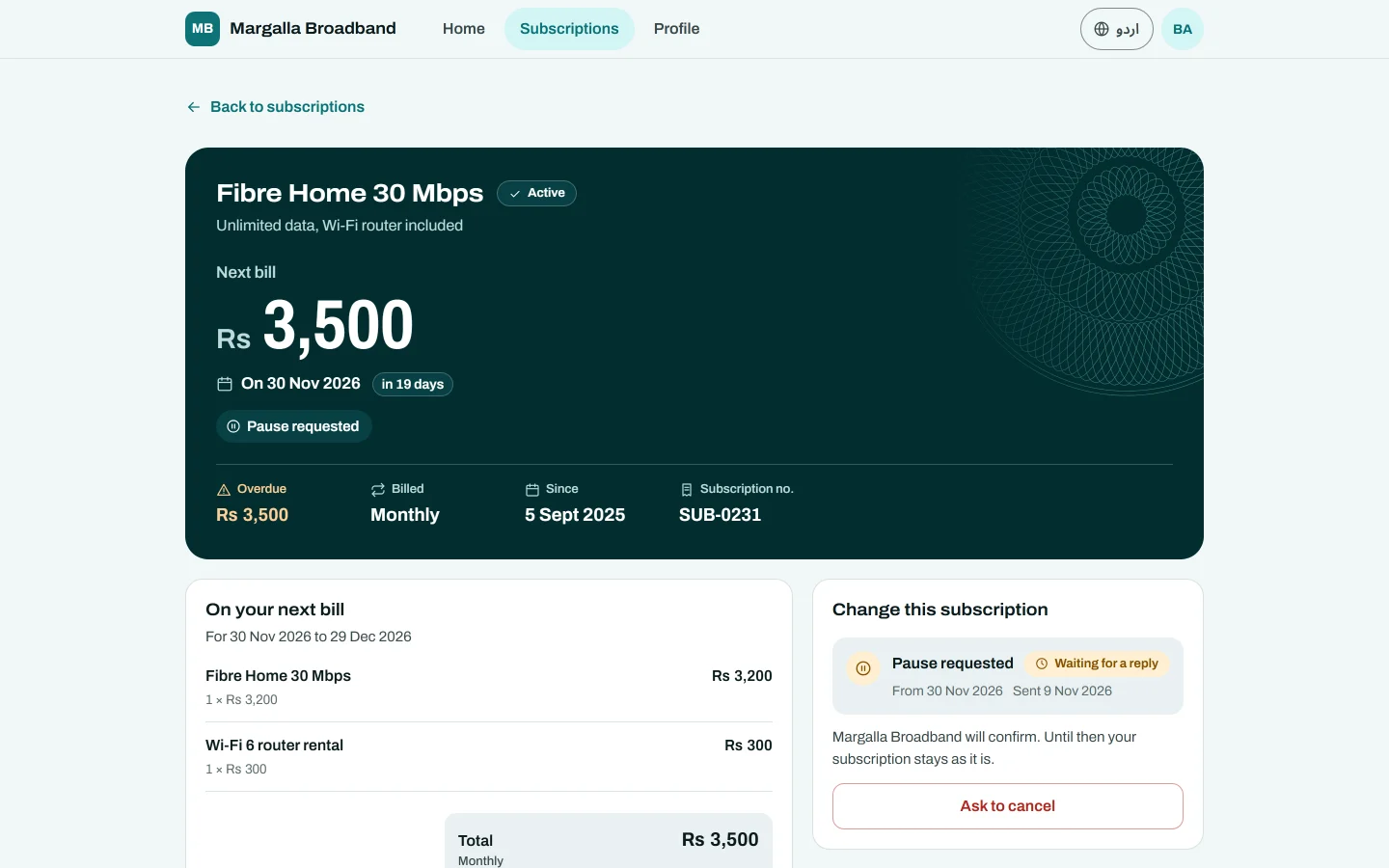
- On Home, a Subscriptions card with how many plans are active and the next bill.
- On Subscriptions (Plans on a phone), each plan with its status, such as Active, Payment overdue or Paused.
- On one subscription: On your next bill with the amount, the period and the due date, the History of the plan, and the subscription invoices with what is Unpaid.
- The Pay button on an unpaid invoice opens your subscription pay page. The link is the same kind as Send pay link makes.
What your subscriber can ask for
Under Change this subscription, your subscriber taps Ask to pause, Ask to resume or Ask to cancel. What they can ask depends on the plan's status:
| Status | Requests offered |
|---|---|
| Active, trial or payment overdue | Pause (not on a one-time plan) and cancel |
| Paused | Resume and cancel |
| Suspended | Cancel, and resume once nothing is unpaid |
| Cancelled or ended | None |
For a pause they choose Pause from, a date within the next year. For a cancellation they can say why. They are told that the plan keeps running and is billed as usual until you confirm. Only one open request of each kind is allowed on a subscription.
Answer a request
The people who run subscriptions get a bell message. A Customer requests box shows on the Subscriptions list, and on the subscription's page, while anything is waiting. Each line reads, for example, Sara Khan asks to pause from 1 Dec 2026, with the plan and the reason.
- On the Subscriptions list, click Open subscription on the request. On the subscription's own page you are there already.
- Make the change yourself on the subscription: Pause or Cancel subscription under the three dots, or Resume. See Subscriptions.
- Back in Customer requests, click Mark done. Optionally type a Note for the customer (optional), for example Paused from 1 December, as you asked.
- Click Mark done.
To say no, click Decline, type the Note for the customer, for example Please clear the unpaid invoice first., and click Decline. The subscription stays as it is.
The subscriber sees Done or Declined on their request, with your note.
Common questions
The Subscriptions switch is not on the Customer Portal page. Your company has no subscription yet, or the Subscriptions module is not on.
A request was sent but the subscription is still billed. That is expected. Nothing changes until your staff change the subscription.
Can a subscriber change plan from the portal? No. Only pause, resume and cancel can be asked for. A plan change is arranged with you.
Can I put the statement link in subscription reminders? Yes. See Statement and portal links in messages.
Teşekkür ederiz. Hâlâ yardıma ihtiyacınız varsa info@eloerp.net adresine yazın.