Subscriptions
Put a customer on a plan, then pause, resume, cancel, change plan, bill early or send the customer a pay link from the subscription's page.
A subscription puts one customer on one plan. From then on, EloERP raises their invoice every period, posts it to the books and reminds them to pay. This page lists every subscription and is where you start new ones.
Before you begin
- At least one plan exists. See Plans.
- Optional: custom fields for the details you keep per customer, such as a connection ID or locker number. See Custom Fields.
- Your role needs the Subscriptions permissions to view, create, edit or cancel subscriptions. Bill now also needs the permission to run billing. See Users & Roles.
Where to find it
Open Subscriptions → Billing → Subscriptions.
Find a subscription
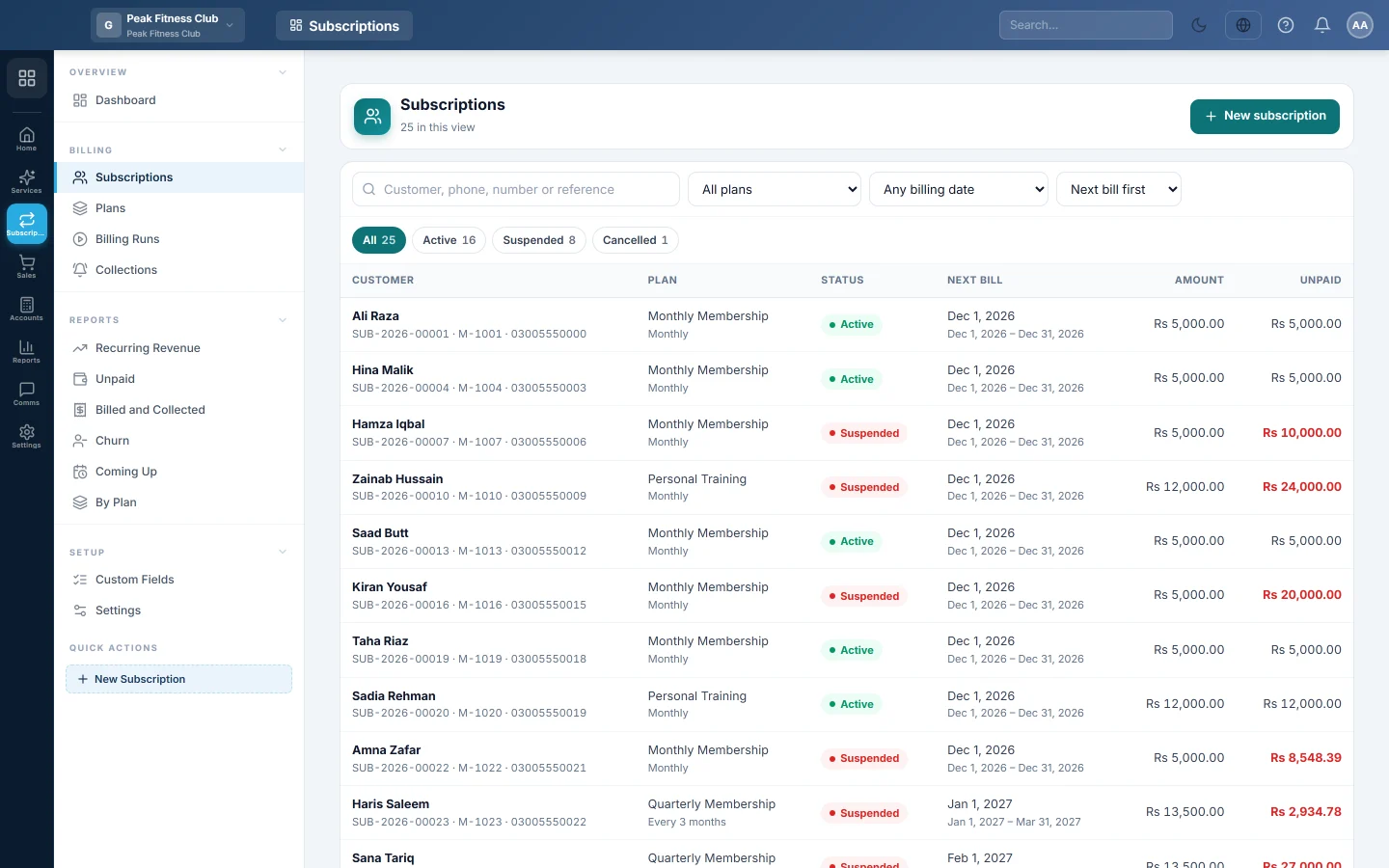
- Type a customer name, phone, subscription number or reference in the search box.
- Pick a plan in All plans to see one plan's subscribers.
- Pick Bills this month or Has an overdue invoice in Any billing date to narrow the list.
- Click a status chip, such as Active, Past due or Suspended, to see only that status. Each chip shows its count.
- Choose the order in the sort list: Next bill first, Newest first, Customer A–Z or Number.
Each row shows the customer, plan, status, next bill date with its service period, the amount per period and what is unpaid. An unpaid amount in red is overdue. Click a row to open the subscription.
Start a subscription
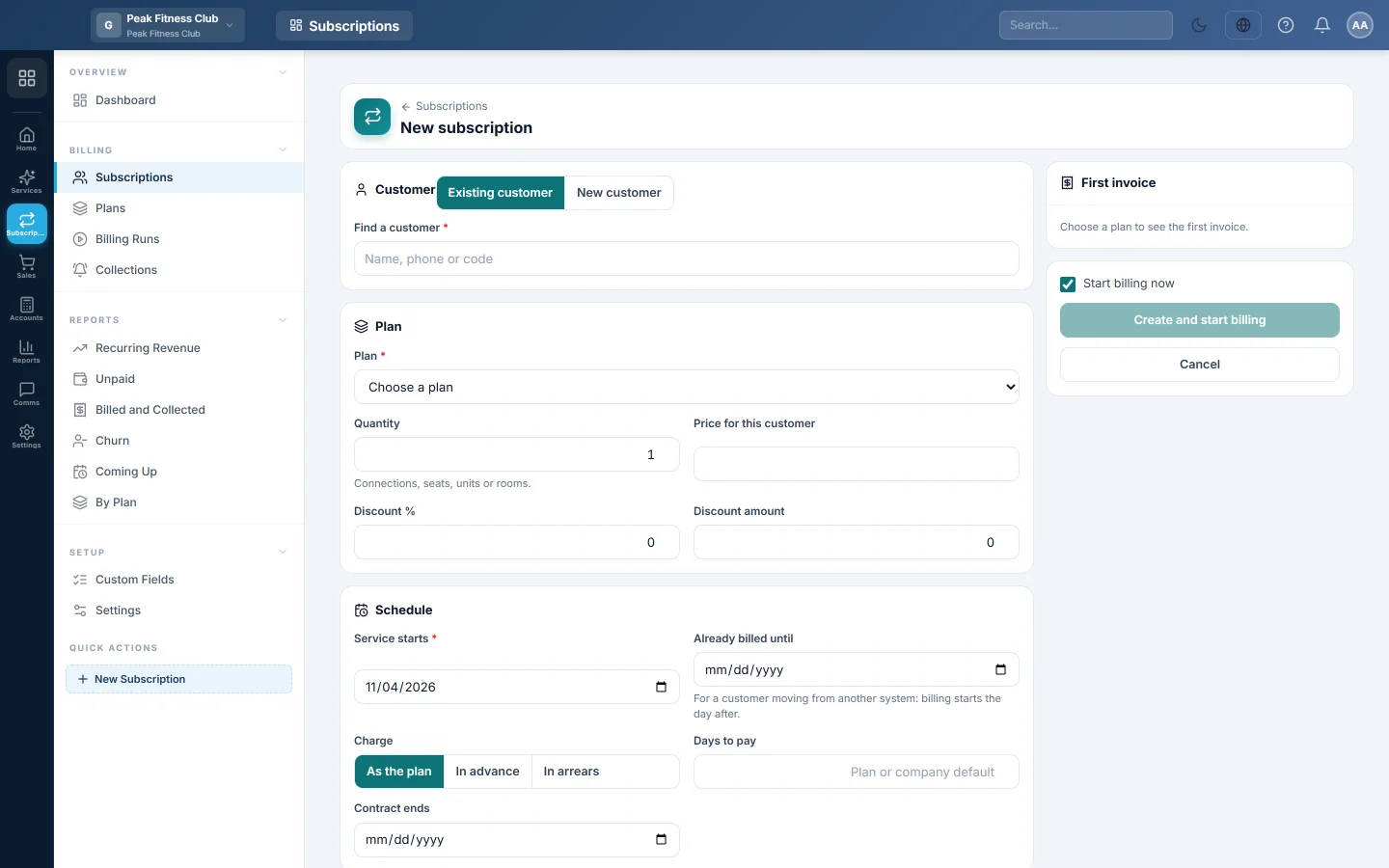
- Click New subscription.
- Under Customer, choose Existing customer and find them by name, phone or code. Or choose New customer and type their Name, Phone, Email, City and Address. A customer with the same phone number is reused, not duplicated.
- Under Plan, choose the Plan.
- Change Quantity if the customer takes more than one connection, seat, unit or room.
- Optional: type a Price for this customer, a Discount % or a Discount amount.
- Under Schedule, set Service starts.
- For a customer moving from another system, fill Already billed until with the last day the old system billed. Billing here starts the day after.
- Leave Charge on As the plan, or choose In advance or In arrears for this customer only.
- Optional: change Bill on day, Days to pay or Contract ends.
- Fill the Details section if your company has custom fields. Fields marked with a star are required.
- Optional: under Extra lines for this customer, click Add a line for a charge on top of the plan, such as a static IP. Choose Every time or Next invoice only.
- Optional: type a Reference, such as the PPPoE username or meter number, and pick the Usual payment method. If you have more than one branch, pick the Branch.
- Check the First invoice panel on the right. It shows the date it is raised, the service period, the due date, every line and the total.
- Leave Start billing now ticked and click Create and start billing. To save without billing, untick it and click Save as draft.
Activate a draft
A draft is never billed. Open it and click Activate. The schedule starts from its start date, and a free trial on the plan comes first.
Work with a subscription
Open a subscription from the list. The top shows the amount per period, the Next invoice date and what is Unpaid. Three tabs sit below:
- Invoices: every invoice raised for it, with the service period, due date, total, unpaid amount and status. Click a row to open the invoice in Sales.
- Timeline: every change, with the date and who made it.
- Details: start date, trial end, quantity, price, discount, days to pay, Billed through, extra lines and notes.
The buttons at the top:
| Button | What it does |
|---|---|
| Bill now | Raises the next invoice today instead of waiting for the billing run. |
| Customer link | Makes a link to the customer's statement, where they see open invoices and can pay. Click Copy or WhatsApp to send it. |
| Edit | Changes the price, quantity, details, extra lines and other terms. |
| Resume | Shown when the subscription is paused or suspended. |
| Activate / Reactivate | Shown on a draft, or on a cancelled or ended subscription. Reactivating starts it again from today. |
The More actions button (three dots) holds Pause, Change plan, Add a note, Another subscription for this customer and Cancel subscription.
Pause and resume
- Click the three dots, then Pause.
- Set From, and Until if you know when the pause ends. Leave Until empty to pause until you resume it.
- Click Pause.
No invoice is raised while it is paused. With an Until date, it resumes by itself. To resume by hand, click Resume, set Resume on and click Resume. Periods that would have started while it was stopped are not billed. The first invoice after resuming charges only the days up to the next billing day.
Change plan
- Click the three dots, then Change plan.
- Pick the New plan.
- Choose From the next invoice to keep the current period on the old plan. Or choose From today: an upgrade during a period already billed is charged for the days left.
- Click Change plan.
Cancel a subscription
- Click the three dots, then Cancel subscription.
- Choose At the end of the period to let it run until what is paid for ends. Or choose Today to stop now.
- Type a Reason, such as "Moving away". It appears in the Churn report.
- Click Cancel subscription.
Invoices already raised stay owed. Collect them, or cancel them in Sales.
Answer customer requests
When the Subscriptions card is on in the customer portal, subscribers can ask to pause, resume or cancel from "My Account". A Customer requests box then shows at the top of this list, and on the subscription's page, while anything is waiting. A request changes nothing by itself.
- Click Open subscription on the request.
- Make the change with Pause, Resume or Cancel subscription.
- Click Mark done on the request, add a note for the customer if you like, and click Mark done. Or click Decline and write why.
See Subscriptions in the customer portal.
Bill a period again
If a subscription invoice was cancelled in Sales by mistake, open the subscription's Invoices tab. Click Bill this period again on that row and confirm. A new invoice is raised for the same period, and the schedule does not move.
What happens in the books
Each subscription invoice is an ordinary sales invoice of the type Subscription, listed in Sales Invoices. EloERP gives every subscriber their own customer ledger.
- When the invoice is confirmed, the customer's ledger is debited with the total. Subscription Revenue is credited with the amount before tax, and the tax account with the tax.
- When the customer pays, the receipt debits cash or bank and credits the customer's ledger, like any other customer payment.
- If revenue is deferred in Settings, the invoice credits Unearned Subscription Revenue instead. Each month's earned share then moves to Subscription Revenue in one journal.
Common questions
Can one customer have more than one subscription? Yes. Open one of their subscriptions, click the three dots and choose Another subscription for this customer.
Why can I not change the plan on the Edit page? A plan change is made from the subscription page with Change plan, so it is dated and recorded on the timeline.
The customer moved from our old system. How do I avoid billing a month twice? Use their real start date and fill Already billed until with the last day the old system billed. Put their old balance on the customer's ledger as an opening balance.
What does Past due mean? The customer has an overdue invoice. The steps in Collections decide when they are reminded and when the service is suspended.
How long does a customer link work? For the number of days in Customer links stay valid for (days) in Settings. The default is 30 days.
Can I bring back a cancelled subscription? Yes. Open it and click Reactivate. Billing starts again from today.
Teşekkür ederiz. Hâlâ yardıma ihtiyacınız varsa info@eloerp.net adresine yazın.