My HR Portal
The employee's own page - attendance this month, payslips, leave balance and applications, loans and profile - and how to apply for leave from it.
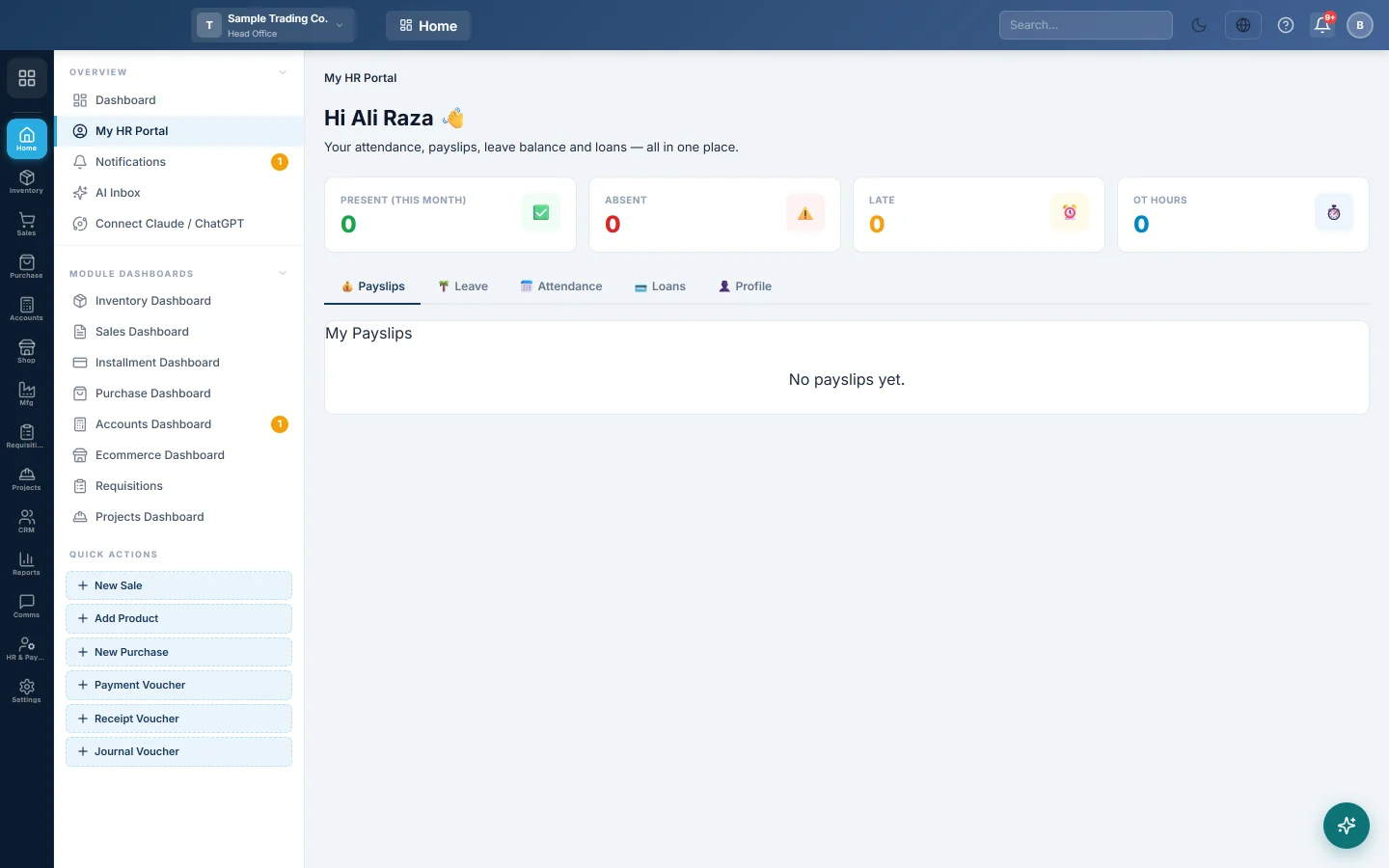
My HR Portal is each employee's own page. It shows your attendance this month, your payslips, leave balance and loans, and lets you apply for leave and update your contact details. You see only your own records.
Before you begin
- HR must give you a login linked to your employee record. See Employees (Login & Access tab).
- Until the link is made, the page says No employee record linked to your login.
Where to find it
- Click your name or picture at the top right and choose My HR Portal.
- Or open Home → Overview → My HR Portal.
Read your month at a glance
The cards at the top count this month's days Present (this month), Absent and Late, and your OT hours.
See your payslips
- Click the Payslips tab.
- Find the month. Each row shows the Period, Status, Gross, Deductions and Net.
- Click View to see each earning and deduction.
A payslip appears once HR has processed that month's payroll.
Apply for leave
- Click the Leave tab.
- Check My Leave Balance for the days left of each leave type.
- Click + Apply for Leave.
- Choose the Leave Type.
- Choose the From and To dates.
- For one day only, tick Half day and choose First half (morning) or Second half (afternoon).
- Type the Reason.
- Check Working days requested and what remains of that leave type.
- Click Submit.
The application shows under My Applications as pending until HR decides. See Leave Applications.
If you have comp-off days, the leave tab says how many. Apply for Compensatory Off leave to use them.
Check your attendance
- Click the Attendance tab.
- Choose the month and year.
- Read each day: Status, In, Out, Late minutes and OT hours. Weekends and holidays are marked.
See your loans
Click the Loans tab. Each loan shows the Amount, the Monthly instalment, the Disbursed date and the Status.
Update your contact details
- Click the Profile tab.
- Click Edit my contact details.
- Change your Phone, Marital Status, Address, Emergency Contact Name, Emergency Contact Phone or Blood Group.
- Click Save.
Your name, employee number, CNIC, department, designation and joining date are kept by HR. Your Salary account is shown but cannot be changed here; ask HR if it is wrong.
Common questions
It says "No employee record linked to your login". Ask HR to create your self-service login from your employee record, or link your login to it.
It says more than one employee record uses my email address. Ask HR to link your login to your own employee record.
My leave was refused with "Insufficient leave balance". You asked for more days than you have left of that type. Choose fewer days or another leave type.
It says the day is a weekend or holiday. No leave is needed for that day.
Why can I not change my bank account? So nobody who signs in as you can move your salary. HR changes it for you.
Can my manager see my portal? The portal shows only your own records. HR sees employees' records on the HR screens.
Teşekkür ederiz. Hâlâ yardıma ihtiyacınız varsa info@eloerp.net adresine yazın.