Read a supplier bill from a photo
Photograph or upload a supplier bill or a receipt; the AI reads it, matches it to your suppliers and products, and you check it and send it to the AI Inbox for approval.
Capture a bill saves you typing a supplier's bill line by line. Take a photo or choose a PDF; the AI reads the supplier, the invoice number, the date and the lines. You check them and send the bill to the AI Inbox, where it is approved and posted.
Before you begin
- Your company needs the AI add-on. See Switch AI on for your company.
- Your company is not on a free trial. On a trial no file can be uploaded, so a bill cannot be captured. See Uploads on a trial, and when a company is deleted.
- Your role needs the right to create purchase invoices, or payment vouchers for expenses.
- The supplier and the products on the bill should already exist. See All Suppliers and All Products.
Where to find it
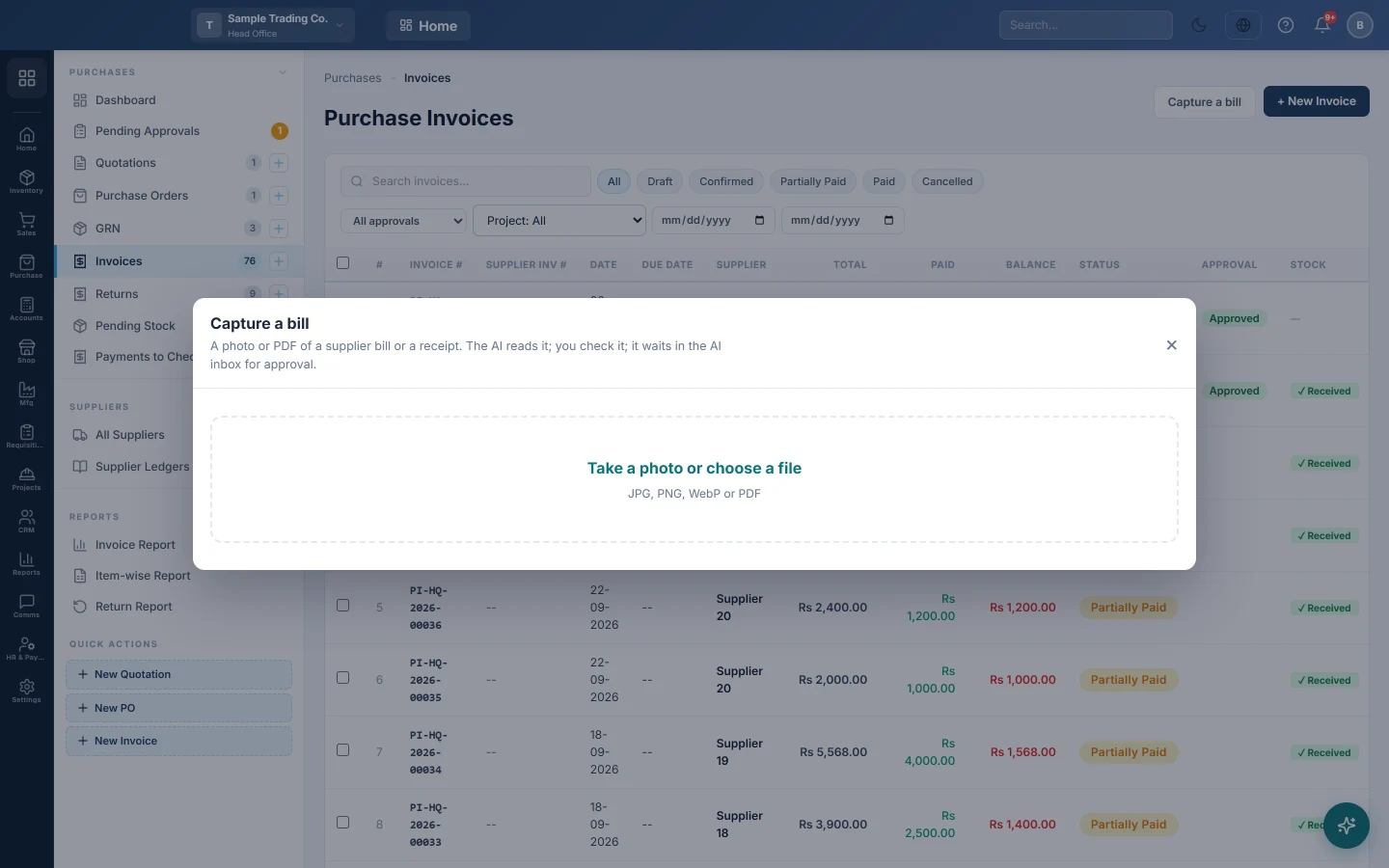
Open Purchases → Purchases → Invoices and click Capture a bill, next to + New Invoice.
Read a bill
- Click Capture a bill.
- Click Take a photo or choose a file. On a phone this opens the camera. A JPG, PNG, WebP or PDF of up to 10 MB works.
- Wait while it says Reading the document….
- Check the picture on the left against the form on the right.
Check a purchase bill
- Leave Purchase bill (items) selected.
- Check the Supplier. If the AI was not sure, the box shows Read as: and the name on the bill, with buttons for the closest suppliers. Click the right one, or search for it.
- Check Supplier invoice # and Date.
- Type Paid now if you paid part or all of it in cash.
- If the branch has more than one warehouse, pick the Warehouse that receives the stock. It starts on the branch's default warehouse.
- For each line, check the product under Which product?. Click a suggested product, or search for it.
- Check Qty, Rate and Tax % on each line.
- Untick a line you do not want, such as a delivery charge you enter elsewhere.
- Compare the Total with the bill. It includes the tax. If they differ, it shows The document says and the bill's total.
- Click Send to the AI inbox.
It says Sent to the AI inbox. Nothing is posted until it is approved there. Click Open the AI inbox to approve it now, or Another document for the next bill.
Check a receipt as an expense
Use this for a shop receipt, a fuel slip or a utility bill with no stock items.
- Choose Expense.
- Choose the Expense account. The likely ones are at the top.
- Check the Amount and the Date.
- Choose Paid from: the cash, bank or other payment method the money left. It starts on your default method.
- Click Send to the AI inbox.
Read the warnings
Read any warning in the list above the form before you send the bill:
| Warning | What to do |
|---|---|
| A line does not add up (quantity × price ≠ amount). | Check that line's Qty and Rate against the bill. |
| The lines do not add up to the subtotal. | A line may be missing or misread. |
| Subtotal, discount and tax do not add up to the total. | Check the totals on the bill. |
| This supplier invoice number is already entered. | The bill is already in your books. It cannot be sent again for the same supplier. |
| A tax rate on the bill is not one of your taxes. | Check your taxes before you post. |
| The document contains text that looks like instructions. | The text was ignored. Check every figure yourself. |
| Parts of the document could not be read. | Take a clearer photo. |
If you send the same file twice, it shows This file was captured before; this is its earlier reading.
What happens in the books
Nothing happens until someone approves it in the AI Inbox. Then:
- A purchase bill becomes a confirmed purchase invoice with the supplier's invoice number. The stock is received into the warehouse shown on the form: the branch's default, or the one you picked. Each line's Tax % is posted as tax on the invoice. Paid now is paid from cash.
- An expense becomes a payment voucher: the expense account is debited, and the method chosen in Paid from is credited.
Common questions
Where is the photo kept? In your company's private storage. Only the person who captured it, people who may approve it and administrators can open it, with View the document in the AI Inbox. When the entry is approved, the photo moves into the attachments of the purchase invoice or voucher it became, as Captured bill, and stays there as proof. A bill that is rejected or never filed is deleted after 30 days.
It says "The AI could not read it just now". Wait a minute and try again, or take a clearer photo.
It says "That file is too large". Use a file under 10 MB. Large photos are made smaller before upload; a long PDF may still be too large.
The product on the bill is not in my list. Add the product first, then capture the bill again. The earlier reading comes back at once.
It stopped reading bills this month. The Documents read allowance is used up. It starts again on the first of next month.
Gracias. Si todavía necesita ayuda, escriba a info@eloerp.net.