Switch AI on for your company
How a company gets the AI - the Claude / ChatGPT connector, the AI add-on or the add-on on your own model key - how to check what is on, and how to add your own key.
The AI is not on by default. Your service provider switches on the parts your company wants; you then check them, and add your own model key if you use one.
Before you begin
- Decide which way suits you: the connector for your own Claude or ChatGPT, the AI add-on, or the add-on on your own key. See What the AI can do for you.
- Only a company administrator can open Settings → Notifications → AI.
Where to find it
Open Settings → Notifications → AI. The menu item appears once any AI feature is on.
Ask for the AI
- Contact your service provider and say which you want: Connect Claude / ChatGPT, the AI add-on, or the add-on on your own key.
- Wait for them to confirm it is on.
- Sign out and sign in again, or reload the page, so the new menu items appear.
Check what is switched on
- Open Settings → Notifications → AI.
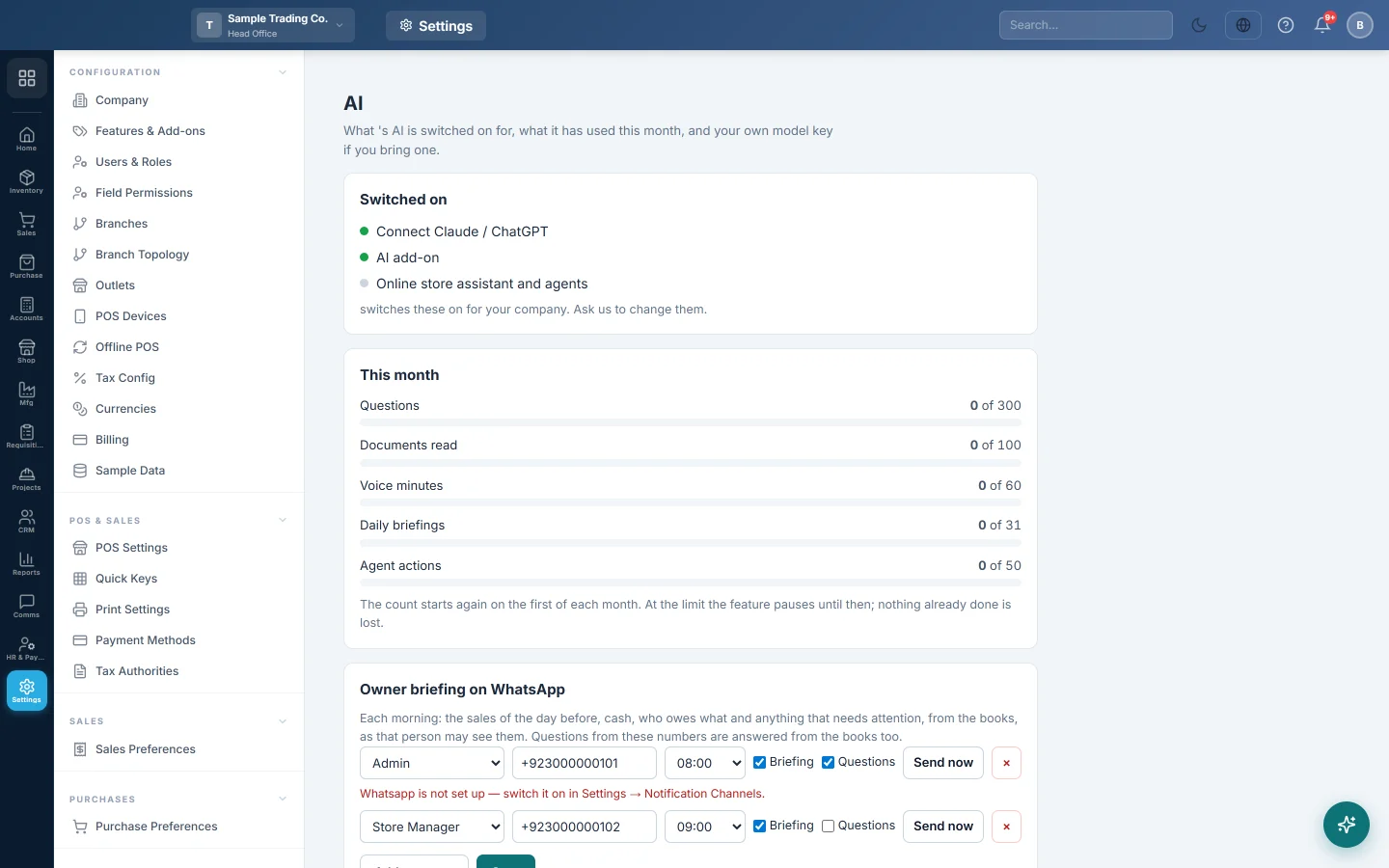
- Under Switched on, a green dot marks each feature you have:
- Connect Claude / ChatGPT: your own AI app may reach your books.
- AI add-on, or AI add-on — on your own key: the AI inside EloERP.
- Online store assistant and agents: the AI on your online store.
With the add-on, you also see the Ask button at the bottom right, Home → Overview → AI Inbox, and Capture a bill on purchase invoices. With the connector, you see Home → Overview → Connect Claude / ChatGPT.
Check this month's usage
Under This month, each kind of use has a bar with the amount used of your limit:
| Bar | What counts |
|---|---|
| Questions | Each question asked in the Ask panel or on WhatsApp. |
| Documents read | Each bill or receipt read from a photo or PDF. |
| Voice minutes | The length of voice notes understood. |
| Daily briefings | Each morning briefing sent on WhatsApp. |
| Agent actions | Each entry an AI agent files for approval. |
The count starts again on the first of each month. At the limit, that feature pauses until then; nothing already done is lost. On your own key nothing is limited, and the bars are for information.
Add your own model key
You see Your own model key only when your company is set up to use its own key. The AI stays off until a key is saved.
- Create an API key in your Anthropic or OpenAI account.
- On the AI page, choose the Provider: Anthropic (Claude) or OpenAI.
- Choose the Model size: Small — fastest, cheapest, Standard or Large — best answers, dearest.
- Paste the key into API key.
- Click Save and test. The key line shows works, or refused by the provider.
The key is stored encrypted and shows only its last four characters. Nobody can read it back. Click Test to check it again, or Remove to delete it.
Common questions
I do not see the Ask button. The AI add-on is not on for your company. The connector alone does not add the Ask button.
Only some people see the AI page. Settings → Notifications → AI is for company administrators. Everyone else uses the AI from the Ask button and the AI Inbox.
Can I switch the AI on myself? No. Your service provider switches it on and off.
What does each model size change? A larger model gives better answers to hard questions and costs more on your key. Standard suits most companies.
My key shows "refused by the provider". The key is wrong, expired or out of credit. Create a new key and save it again.
Does the AI stop in the middle of the month? Only the feature whose limit is reached pauses, until the first of next month.
Vielen Dank. Wenn Sie weitere Hilfe brauchen, schreiben Sie an info@eloerp.net.