Add a courier account
Add Leopards, TCS, Trax, M&P, a portal courier or any other courier with the right keys and pickup details, and test it before the first booking.
This guide adds one courier so you can book parcels from EloERP. The keys differ from courier to courier; the right box for each is below.
Before you begin
- You have a merchant account with the courier and its API keys from their portal.
- You know the address, phone and city your parcels are picked up from.
- Your role needs the online shop courier permissions. See Users & Roles.
Where to find it
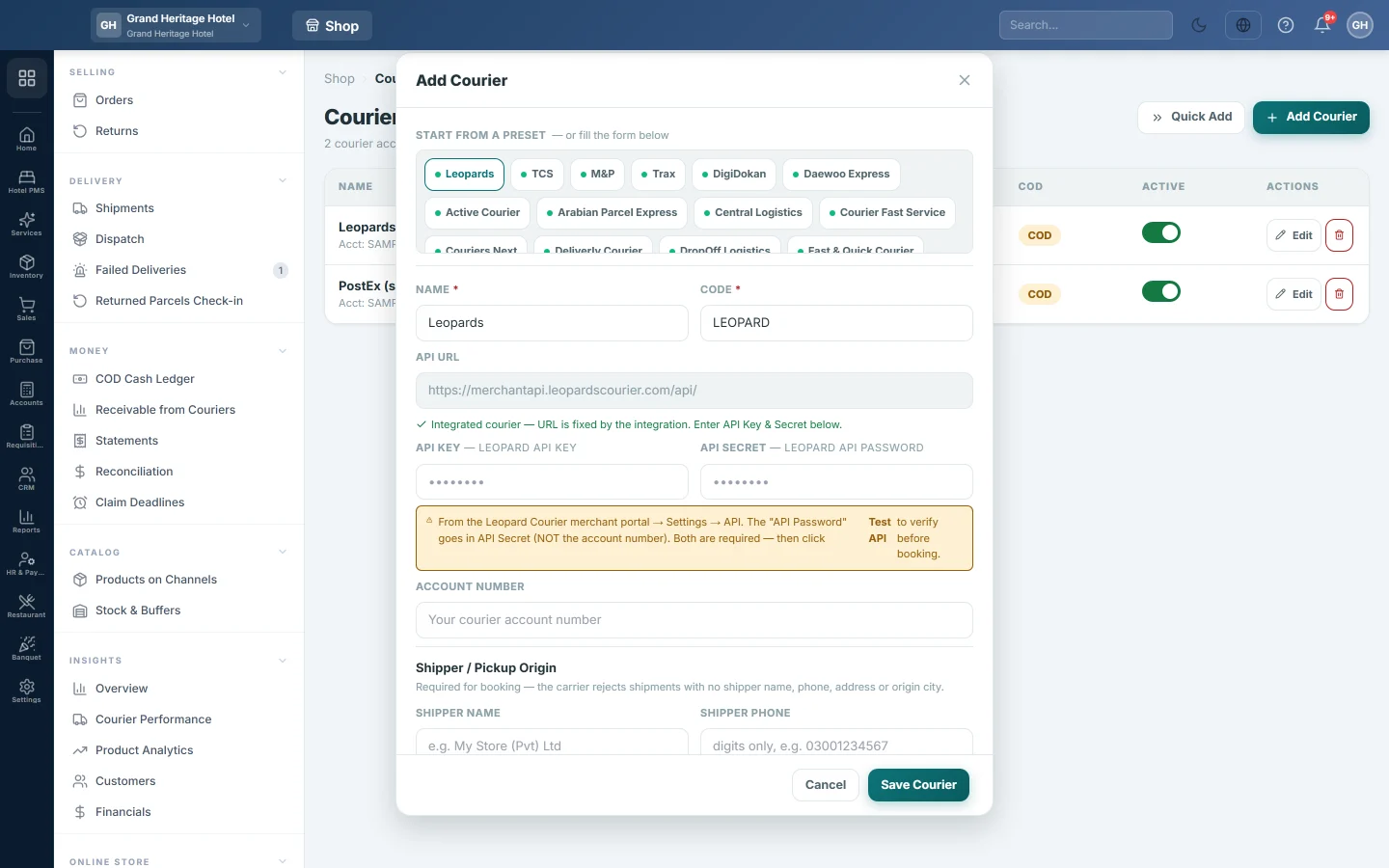
Open Online shop → Setup → Courier Accounts and click Add Courier.
Add the courier
- Under Start from a preset, click your courier. A green dot means it is integrated: it can be booked in one click.
- Enter the keys in the boxes the table below gives for your courier.
- Fill in Shipper Name, Shipper Phone (digits only, for example 03001234567), Shipper Address and Shipper Email.
- Choose the Origin City. For a portal courier the list loads once the keys are in; search it by typing. For Leopards, TCS, Trax and the other integrated couriers, the list appears when you open the saved courier again with Edit.
- Set the Default parcel weight (kg). It is used when a product has no weight.
- Enter the Default Delivery Fee, COD Fee % and Remittance Cycle from your courier agreement.
- Tick Supports COD if the courier collects cash on delivery.
- Click Save Courier.
- Click Test API on the courier's row. It says Connected. when the keys work.
Which key goes where
| Courier | API Key | API Secret | Account Number |
|---|---|---|---|
| Leopards | Leopard API Key | Leopard API Password | Your account number |
| TCS | TCS User Name | TCS Password | Your account number |
| Trax | Trax API Token | Not used | Your account number |
| Portal couriers (most other presets) | Authentication Key | Not used | Client Code |
Leopards keys are in the Leopard merchant portal under Settings → API. For portal couriers, look in your courier portal under Settings → API, or ask the courier for the Authentication Key and Client Code.
Extra settings for some couriers
- Trax: choose the Trax account type: Reimbursement (charges taken from COD) or Corporate invoicing. For corporate invoicing, also choose the Delivery type: Doorstep or Hub to hub. Choose the Default shipping mode.
- Portal couriers: under Portal Options, click Load from portal. Then choose the Product, Service and Shipper Profile, or leave Portal default. Some portals also let you choose the Courier (via this portal).
- Leopards: after saving, click Push URL on the row and paste the address and header into Leopards → Settings → Push API Management. Status updates then arrive straight away.
A courier that is not integrated
PostEx, BlueEx, Dex, DHL and FedEx have presets without a green dot, and you can add any other courier by typing its Name and Code. These couriers work for everything except one-click booking: you book on the courier's own portal and type the tracking number into the order.
Common questions
I opened the courier again and the key boxes are empty. Saved keys are never shown back. The box reads Saved — leave blank to keep: leave it blank to keep the key, or type a new one to replace it.
The Origin City list is empty. Enter the keys and click Save Courier, then open the courier again with Edit. For portal couriers, click Load from portal.
A portal courier says it has not been verified against a live account. Book one test parcel before you send real orders with it.
I ship from two warehouses. Click Add location under Additional Pickup Locations and fill in the second address and city.
Can I choose the courier automatically? You can write rules for it on Courier Rules.
Obrigado. Se ainda precisar de ajuda, escreva para info@eloerp.net.