Open your online store
The steps in order to put your products online, set delivery and payment, test the store with a real order and open it to the public.
This guide takes you from nothing to an open online store, in the order that avoids surprises. Plan an hour; most of it is checking your products.
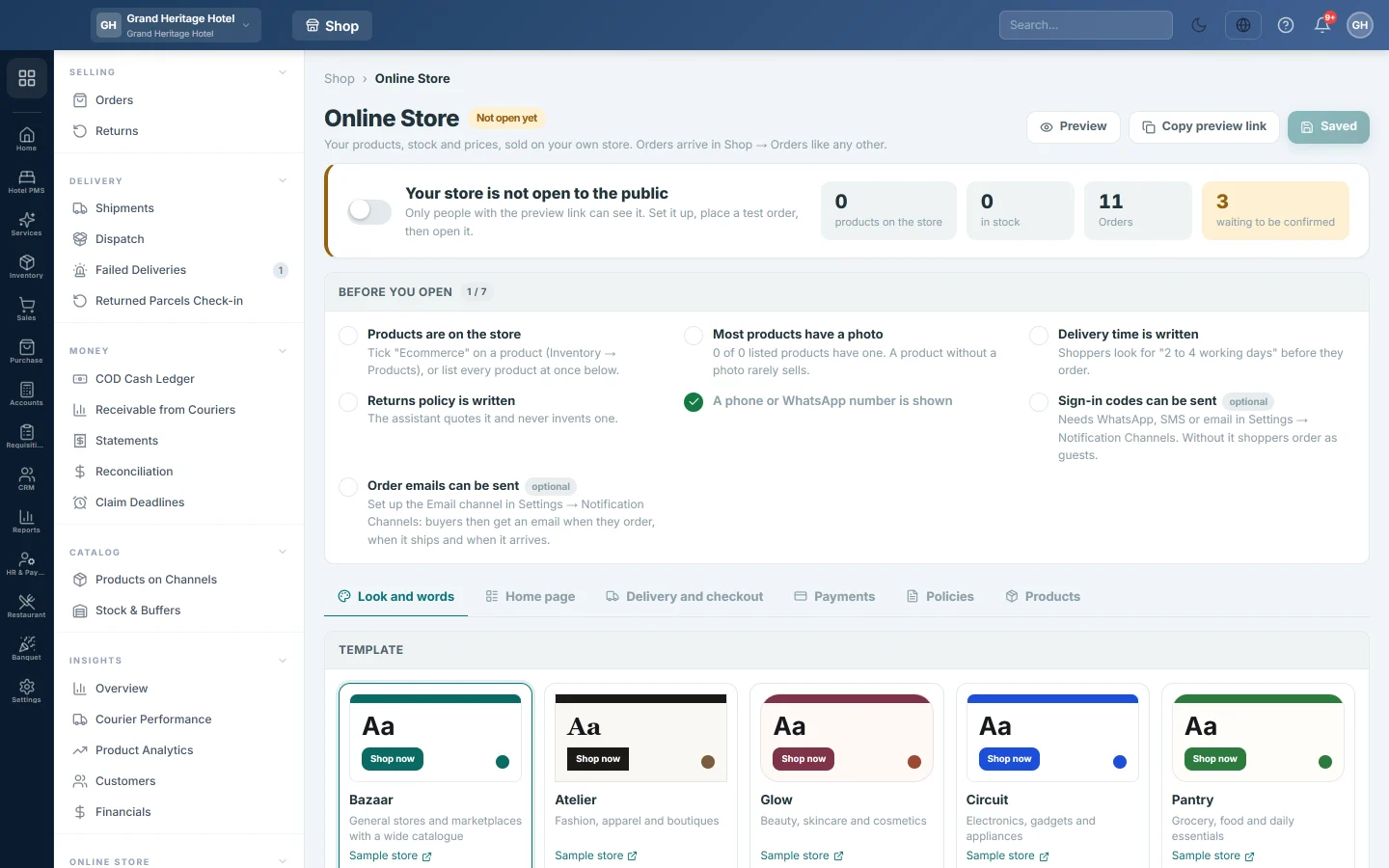
Before you begin
- The online store must be switched on for your company by your service provider. Until then, Online shop → Online Store says The online store is not part of this plan yet.
- You are a company administrator.
- Your products are in EloERP with sale prices and head office stock. See All Products.
Where to find it
Open Online shop → Online Store → Online Store.
1. Put products on the store
- Click the Products tab.
- Choose Only the products I tick to choose product by product, or Every product I sell to list all active, priced, saleable products at once.
- For Only the products I tick, open each product in Inventory → Products and tick Ecommerce.
- Add a photo to each product you list. The checklist wants six out of ten listed products to have one.
- Click Save changes.
2. Choose the look
- Click the Look and words tab.
- Click a Template, then With my products to see it with your own goods.
- Fill in the Tagline, the Big headline and the WhatsApp number shown on the store.
- Click Save changes.
3. Set delivery
- Click the Delivery and checkout tab.
- Enter the Delivery charge, Free delivery on orders over and Delivery time, as you would say it.
- Add any city with a different charge with Add a city.
- Click Save changes.
4. Set how customers pay
- Click the Payments tab.
- Leave Cash on delivery ticked, and tick Bank transfer if you take transfers.
- To take cards or wallets, see Take card and wallet payments.
- Click Save changes.
5. Write your policies
- Click the Policies tab.
- Write Delivery, Returns and exchange and Payment in your own words.
- Add the questions customers ask most with Add a question.
- Click Save changes.
6. Add your courier
Add the courier that will carry your parcels. See Add a courier account.
7. Place a test order
- Click Preview. Your store opens in a new tab; only people with this link can see it.
- Add a product to the cart and go through checkout with your own phone number.
- Back in EloERP, open Orders. The order is there on the channel Online Store.
- Cancel the test order on the order once you have checked it.
8. Open the store
- Check that the Before you open box is gone, or shows only optional items.
- Turn on the switch at the top. It reads Your store is open.
- Click Save changes. The pill changes to Open to the public.
- Click Copy store link and share it on your social pages and WhatsApp.
Common questions
Can I close the store again? Yes. Turn the switch off and click Save changes. Orders already placed stay in Orders.
The store will not open and says there is nothing to sell yet. No product is on the store. Go back to step 1.
Where is my store's address? It is shown under Your store is open once the store is open. Copy store link copies it.
Do I need a courier before I open? Not to take orders, but you need one to ship them. Pickup orders need no courier.
Terima kasih. Jika masih butuh bantuan, kirim email ke info@eloerp.net.