Verify a new order before booking
Confirm a new cash on delivery order with the customer before you pay for a courier, and hold or cancel the ones that do not check out.
A cash on delivery order costs you a courier booking and two-way freight if the customer refuses it. Confirm each new order first; orders you verify move to Ready to Book.
Before you begin
- Orders arrive from your channels, or you enter them yourself. See Orders. Orders you type in with New Order are already verified.
- Your role needs the permission to edit online shop orders. See Users & Roles.
Where to find it
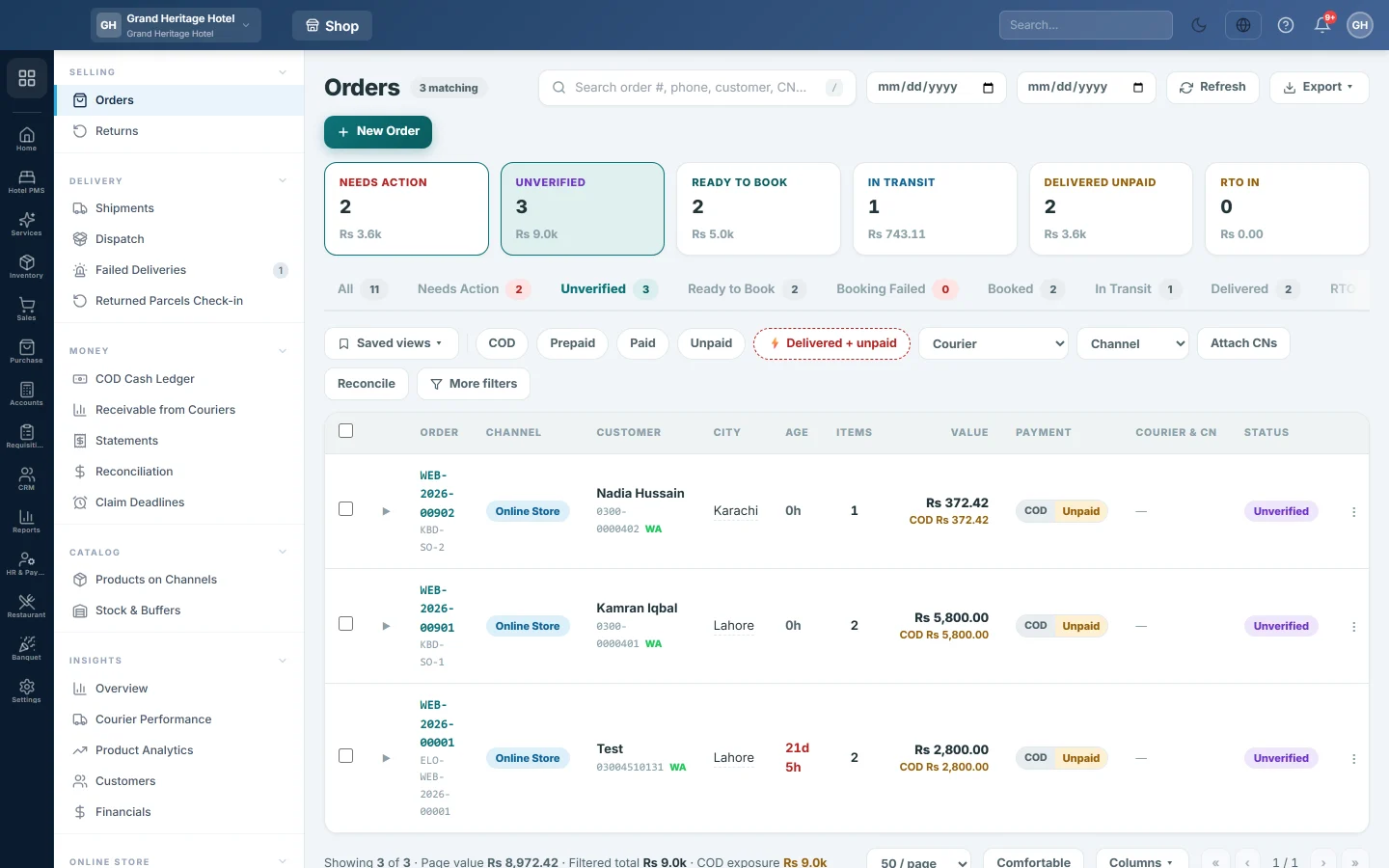
Open Online shop → Selling → Orders and click the Unverified tab. The Unverified card on the Dashboard opens the same tab.
Check the order
- Open the order by clicking its number.
- Look at the Customer card. It shows the customer's past orders, money spent, returns and a risk level. Click details to see why.
- If the card shows Similar order, the same customer ordered recently. Likely duplicate. means the same items too.
- Check the address under Shipping. Address quality says whether the courier can deliver to it.
- Call the customer with Call, or use the WhatsApp link on the list, to confirm the items, the address and the amount.
Verify the order
Do one of these:
- On the order page, click Verify order, or Verify now on the Verification tab.
- On the list, click ⋮ on the row and then Verify.
- To verify many at once, tick them on the list and click Verify in the dark bar.
The order moves to Ready to Book, and the Verification tab records who verified it and when. Then book it; see Turn an online order into an invoice.
Hold an order
Hold an order while you wait for the customer to answer.
- Click Hold on the order page's ⋯ menu, on the row's ⋮ menu, or in the dark bar for many orders.
- Type a reason if you like, for example Customer will call back.
The order moves to On Hold and stays out of dispatch. To continue, click Release hold on the order, or tick it and click Release.
Cancel an order
- Open the order.
- Click ⋯ and then Cancel with reason.
- Confirm.
The order moves to Cancelled. Add a comment on Notes & tags to record why.
Common questions
How do I send the customer a confirmation link? Use the Verification tab on Dispatch. Tick the orders and click Send Confirmation; the tab then shows which customers confirmed or cancelled.
Can I verify an order twice? No harm is done. Verifying it again changes nothing.
Why can I not verify a cancelled order? Cancelled and returned orders are closed. Enter a new order instead.
Do online store orders paid by card need verifying? They arrive on hold until the payment is confirmed. Once paid, they are released as verified.
谢谢。 如果仍需帮助,请发邮件至 info@eloerp.net。