Returns
Approve, receive, grade and refund customer returns on online orders, and post the credit note to the books.
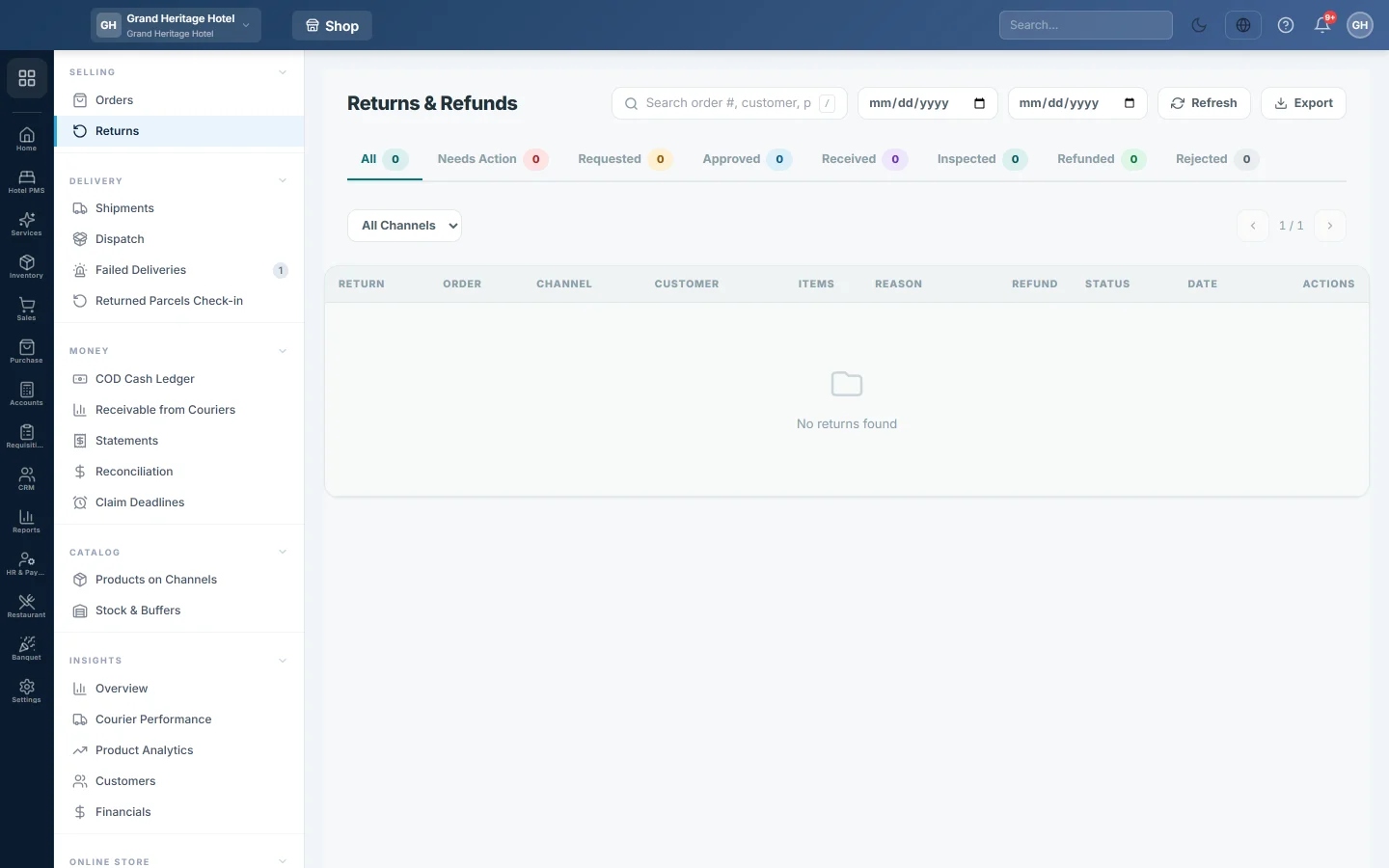
The Returns & Refunds desk is where you work through goods a customer sends back after an online order was shipped or delivered. You approve the return, receive the parcel, check each item and then refund, which posts a credit note and brings sellable stock back.
Before you begin
- Your role needs permission to view shop orders.
- The order must have a sale invoice. EloERP refuses the refund otherwise, because there is nothing to credit. The invoice is posted when the order is shipped, see Turn an online order into an invoice.
- A parcel the courier brought back undelivered (RTO) is not a customer return. It goes to Returned Parcels Check-in.
Where to find it
Open Online shop → Selling → Returns. The page heading reads Returns & Refunds.
Start a return from the order
- Open the order on Orders. It must be delivered or completed.
- Click ⋯ and choose Start return.
- For each item, type the Return Qty. Set 0 to leave an item out. You cannot return more than was ordered.
- Type the Reason, for example wrong size.
- Click Start return.
The return appears here as Requested. Nothing is posted yet: stock and the refund move when you inspect and refund it below.
Find a return
- The tabs show how many returns sit in each step: All, Needs Action, Requested, Approved, Received, Inspected, Refunded and Rejected. Needs Action is everything not yet refunded or rejected.
- Search by order number, customer or phone. Press / to jump to the search box.
- Pick a date range with the two date boxes, or one channel in All Channels. Clear filters resets them.
- Export downloads the rows on screen as a CSV file.
Click a row, or View, to open the return. The panel shows the customer, Refund Amount, Order Value, the reason, the Return Items and a Timeline of every step.
Work a return through its steps
- On a Requested return, click Approve, or Reject if you will not take it back.
- When the parcel arrives, open it and click Mark Received.
- For each item, choose the Condition: Sellable, Damaged or Destroyed.
- Click Save Inspection.
- Click Mark Inspected, or go straight to Process Refund.
- On an inspected return, click Process Refund.
The message shows the credit note number. The panel then shows Settled with the sale return number.
Print the credit note or return label
Open the return and click Credit Note or Return Label. The PDF opens in a new tab.
What happens in the books
Process Refund makes a sale return against the order's sale invoice and confirms it, the same way Sales Returns does:
- Sales Returns is debited with the goods value, and the tax is debited back to the tax account it was charged to.
- The customer's ledger, or Accounts Receivable, is credited with the return total.
- Sellable items go back into the invoice's warehouse: Inventory is debited and Cost of Goods Sold credited.
- Items graded Damaged or Destroyed stay on the credit note, so the customer is still refunded, but they do not go back into stock.
The return also appears in the standard sale return reports.
Common questions
How do I start a new return? Open the delivered order, click ⋯ and choose Start return, as above.
Process Refund says the order has no Sale Invoice. The order was never invoiced. Post its invoice first, then refund.
Can I refund more than was sold? No. Each line stops at the quantity sold less what has already come back on that invoice.
Part of a line came back broken. What happens? A line that is only partly damaged is restocked in full. Remove the broken units with a stock adjustment.
Can I undo a refund? Not from this desk. The credit note is a normal sale return, so correct it from Sales Returns.
谢谢。 如果仍需帮助,请发邮件至 info@eloerp.net。