Cross-match and issue blood
Group the patient's sample, reserve compatible units, cross-match them, issue them to the ward with a compatibility label, and release blood uncrossmatched in an emergency.
This task takes a blood request from the patient's sample to a labelled unit leaving the blood bank. EloERP only lists units that suit the patient's group, and refuses to issue a unit that was not cross-matched compatible, except in an emergency.
Before you begin
- Your role needs Reserve, Cross-match & Issue Units. See Users & Roles.
- The request exists on Blood Requests, raised there or with Request Blood on the admission chart, ER visit or OT case.
- Screened, available units of the requested component are in stock.
Where to find it
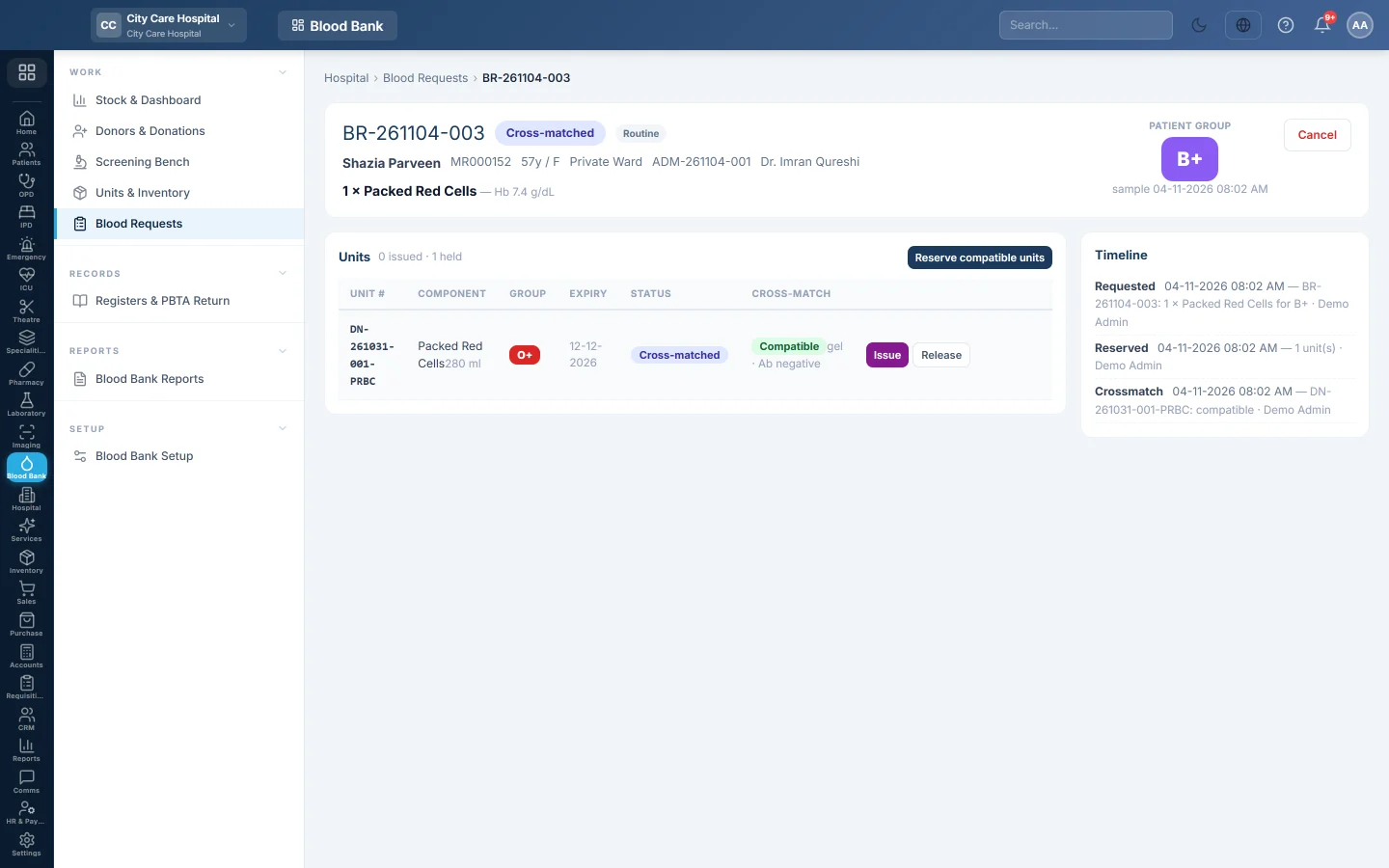
Open Blood Bank → Work → Blood Requests and click the request.
Record the sample group
- Click Record sample group in the Patient group box.
- Click the group found on the pre-transfusion sample.
- Click Save.
If the patient record already has a different group, EloERP blocks it. Regroup the sample before you go on.
Reserve units
- Click Reserve compatible units.
- Tick the units you want. The list shows only available, unexpired, compatible units, oldest expiry first.
- Click Reserve selected.
The units show as Reserved on this request and leave free stock.
Cross-match
- Click Cross-match on a reserved unit.
- Choose the Method: Tube (saline / AHG), Gel card or Electronic.
- Choose the Antibody screen result.
- Click Compatible or Incompatible and add Remarks.
- Click Save result.
A compatible unit becomes Cross-matched. An incompatible unit goes back to stock and off this request; reserve another.
Issue
- Click Issue on a cross-matched unit.
- Check Issued to (ward / OT / ER) and type Collected by, the person carrying the bag.
- Click Issue unit.
- Click 🏷 Label on the issued unit to print the compatibility label for the bag.
Emergency uncrossmatched release
Only on a request with the urgency Emergency (uncrossmatched allowed):
- Click ⚡ Emergency uncrossmatched.
- Pick an in-stock unit. Without a sample group, only O-negative red cells, or AB plasma, are allowed. A unit held for another request is refused, with that request's number.
- Type Authorised by (doctor). Your rules can make this compulsory.
- Fill in Issued to and Collected by, and click Issue unit.
Take back an unused unit
Click Return on the issued unit and type the reason. Returned within the Return-to-stock window (minutes) in your rules, the unit goes back to stock. Later, it is discarded for cold chain.
Common questions
The Issue button does not appear. The unit is only reserved. Cross-match it first.
Can I issue an expired unit? No. EloERP refuses expired units at reserve and at issue.
What if the ward no longer needs a reserved unit? Click Release on the unit. It returns to available stock.
When do I bill? After issuing. See the billing steps in Blood Requests.
Obrigado. Se ainda precisar de ajuda, escreva para info@eloerp.net.