Units & Inventory
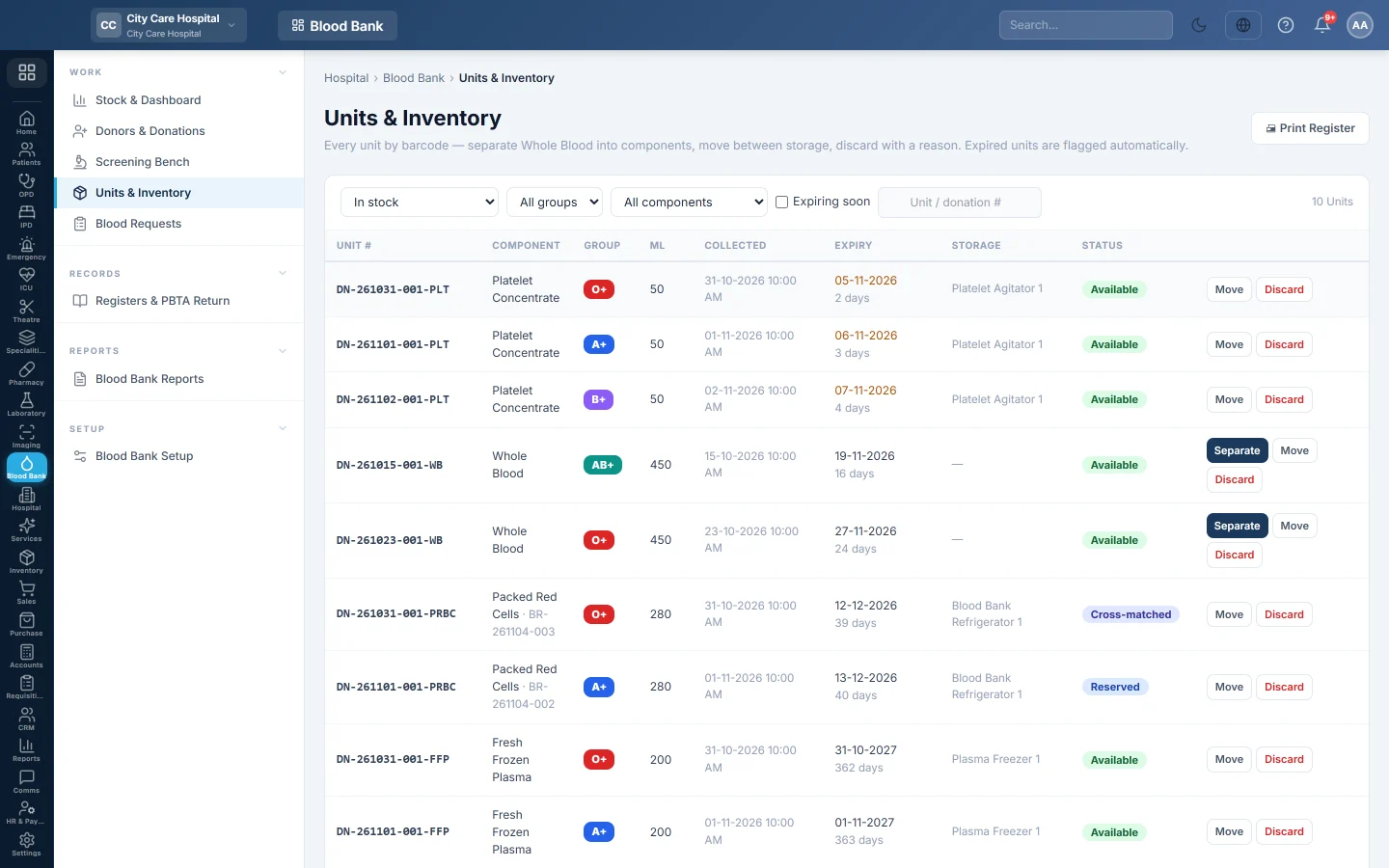
Find every blood unit by its number, separate Whole Blood into components, move units between fridges and freezers, discard units with a reason and print the stock register.
Units & Inventory lists every blood unit by its unit number. Here you split Whole Blood into components, keep each unit in the right fridge or freezer, and discard units that cannot be used.
Before you begin
- Your role needs Prepare Components, Move & Discard Units to use the buttons. View Blood Bank shows the list only. See Users & Roles.
- Components, shelf lives and storage units come from Blood Bank Setup.
Where to find it
Open Blood Bank → Work → Units & Inventory.
Find units
- The first list picks the status. In stock shows available, reserved and cross-matched units. Choose All to see everything.
- Filter by group and component, or tick Expiring soon.
- Search by unit number or donation number.
A unit number is the donation number plus the component code, for example DN-261104-003-PRBC. The Expiry column turns amber in the last 5 days and red once expired.
| Status | Meaning |
|---|---|
| Quarantine | Collected, waiting for screening. |
| Available | Screened and free to reserve. |
| Reserved / Cross-matched | Held for a request, shown next to the component. |
| Issued / Transfused | Sent to the ward, then given to the patient. |
| Processed | A Whole Blood unit that was split into components. |
| Discarded / Expired | Out of use, with the reason. |
Separate Whole Blood into components
- Click Separate on a Whole Blood unit in quarantine or available.
- Tick the components to make. Packed Red Cells and Fresh Frozen Plasma are ticked for you.
- Check the volume in ml and the storage for each one.
- Click Prepare components.
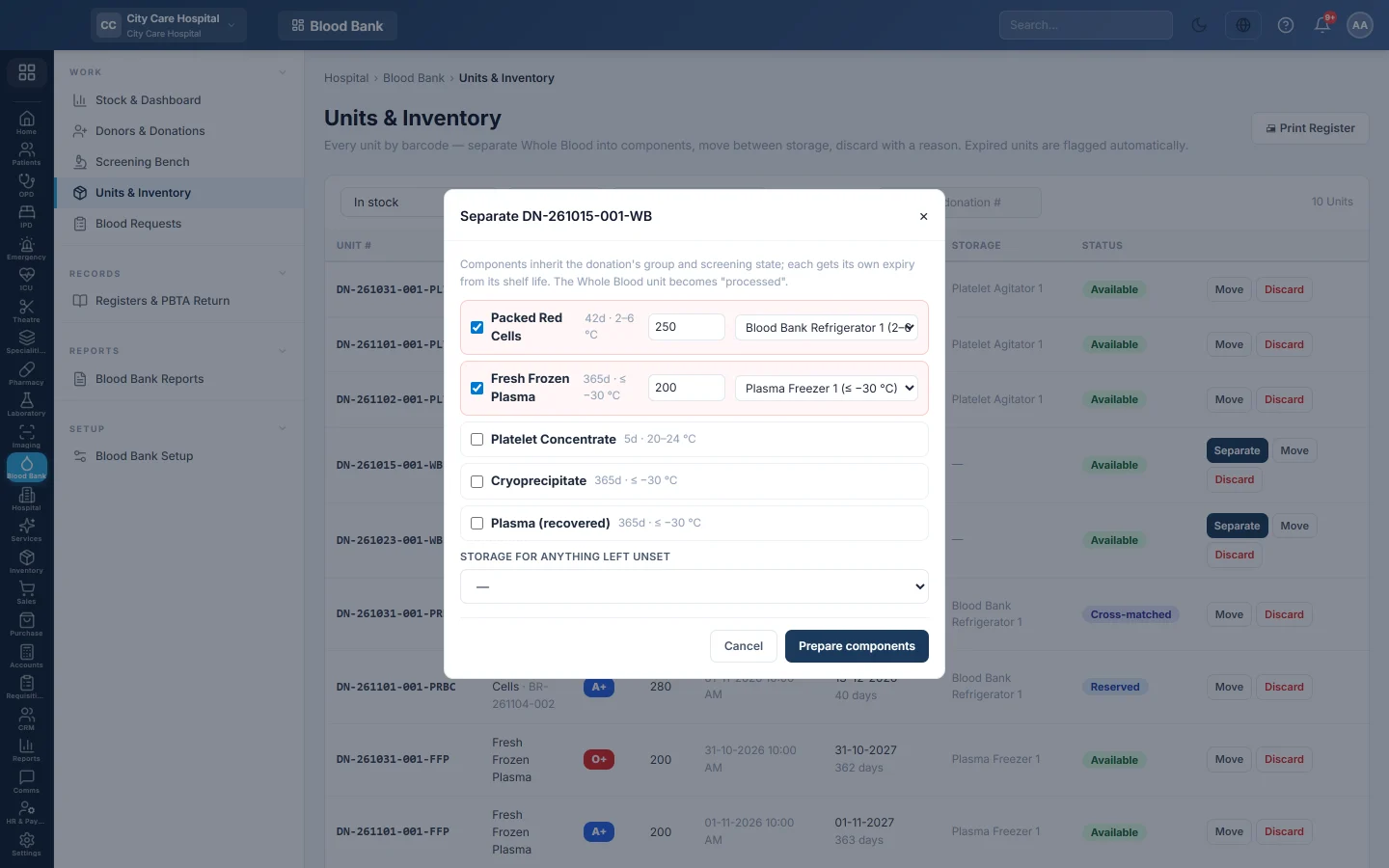
See Separate Whole Blood into components for how expiry and storage are set.
Move a unit
- Click Move on the unit.
- Choose the Storage unit. A wrong-temperature appliance is marked in the list.
- Click Move.
Discard a unit
- Click Discard on the unit.
- Choose the Reason, such as expired, damaged, leak, haemolysed, clotted, qc failed, reaction, cold chain or other.
- Add Remarks if needed and click Discard unit.
A discarded unit reserved for a request is taken off that request.
Print the stock register
Click 🖨 Print Register. It prints the list as filtered, with days left before expiry, storage and the request each unit is reserved for.
Common questions
Why is there no Separate button? Only Whole Blood units in quarantine or available can be separated, and each component only once per donation.
Who marks units Expired? EloERP does, whenever the dashboard or this list is opened after a unit's expiry time.
Can I undo a discard? No. A discarded unit stays in the register with its reason, for the inspectors.
What does a separated component's expiry count from? From the collection time, plus the component's shelf life in setup.
Obrigado. Se ainda precisar de ajuda, escreva para info@eloerp.net.