Connect the channel manager
Connect an online travel agency such as Booking.com or Agoda step by step, match your rooms and rates to its listings, switch it on and check that bookings arrive.
Connecting a channel takes four steps: pick the agency, give its account details, match your rooms and rates to its listings, and switch it on. After that, rooms, rates and bookings flow by themselves.
Before you begin
- Online distribution is switched on for your property by your service provider. If the Channel Manager says Not connected yet, ask them first.
- You have an account with the travel agency and its details at hand, such as your hotel or property ID there. Some agencies also ask you to approve the connection on their own extranet.
- Your room types and rate plans are final. See Room Types and Rate Plans.
Where to find it
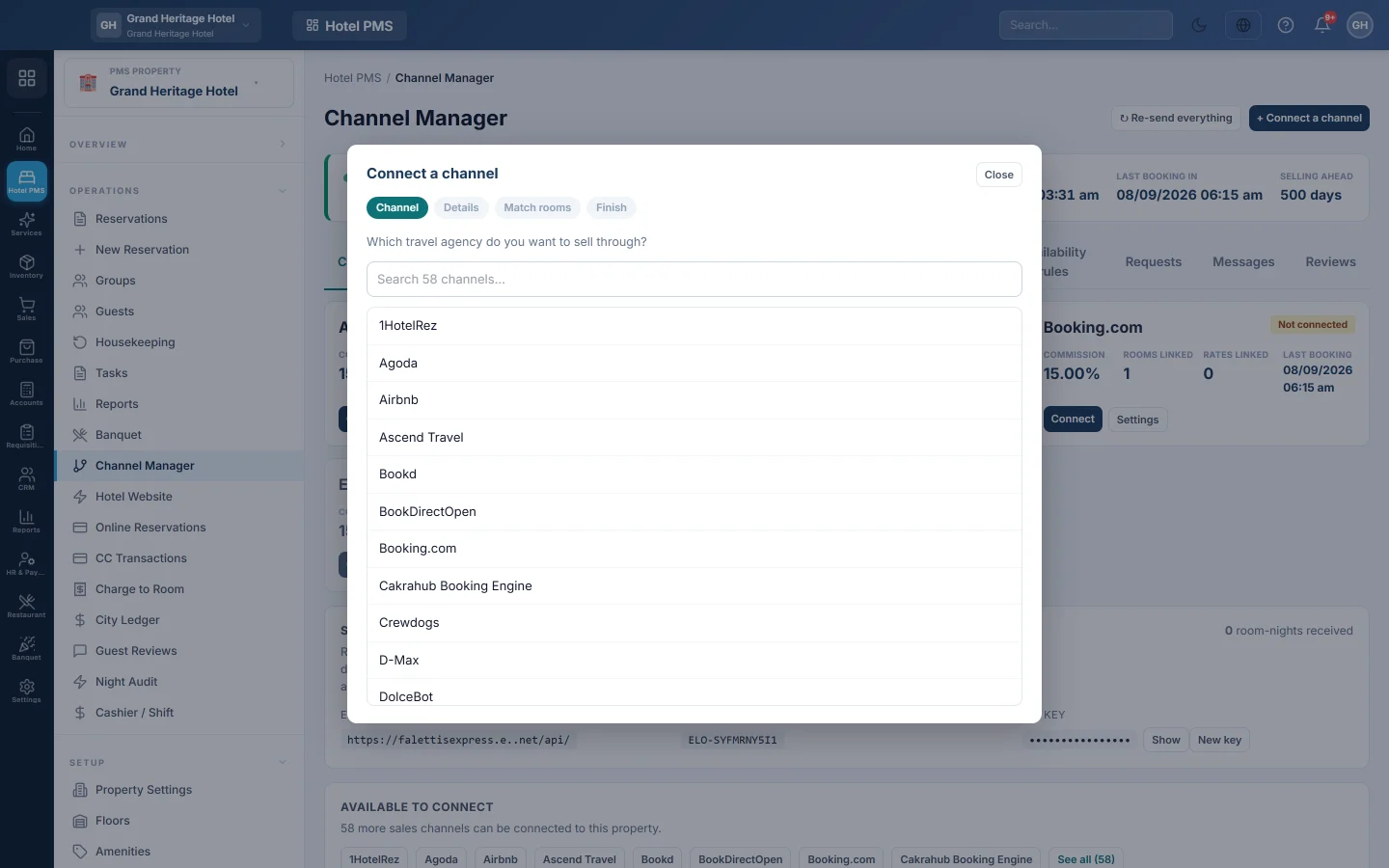
Open Hotel → Operations → Channel Manager and click + Connect a channel.
1. Pick the travel agency
Under Which travel agency do you want to sell through?, search for the agency and click it. Agencies already linked are marked connected.
2. Give the account details
- For most agencies, fill in the fields the agency asks for. Fields marked * are required. Enter the Commission % the agency charges you, then click Check details. EloERP checks the details with the agency before you go on.
- An agency marked This channel connects through your own account sends you to sign in there. Click Connect with your … account, approve the connection, and come back.
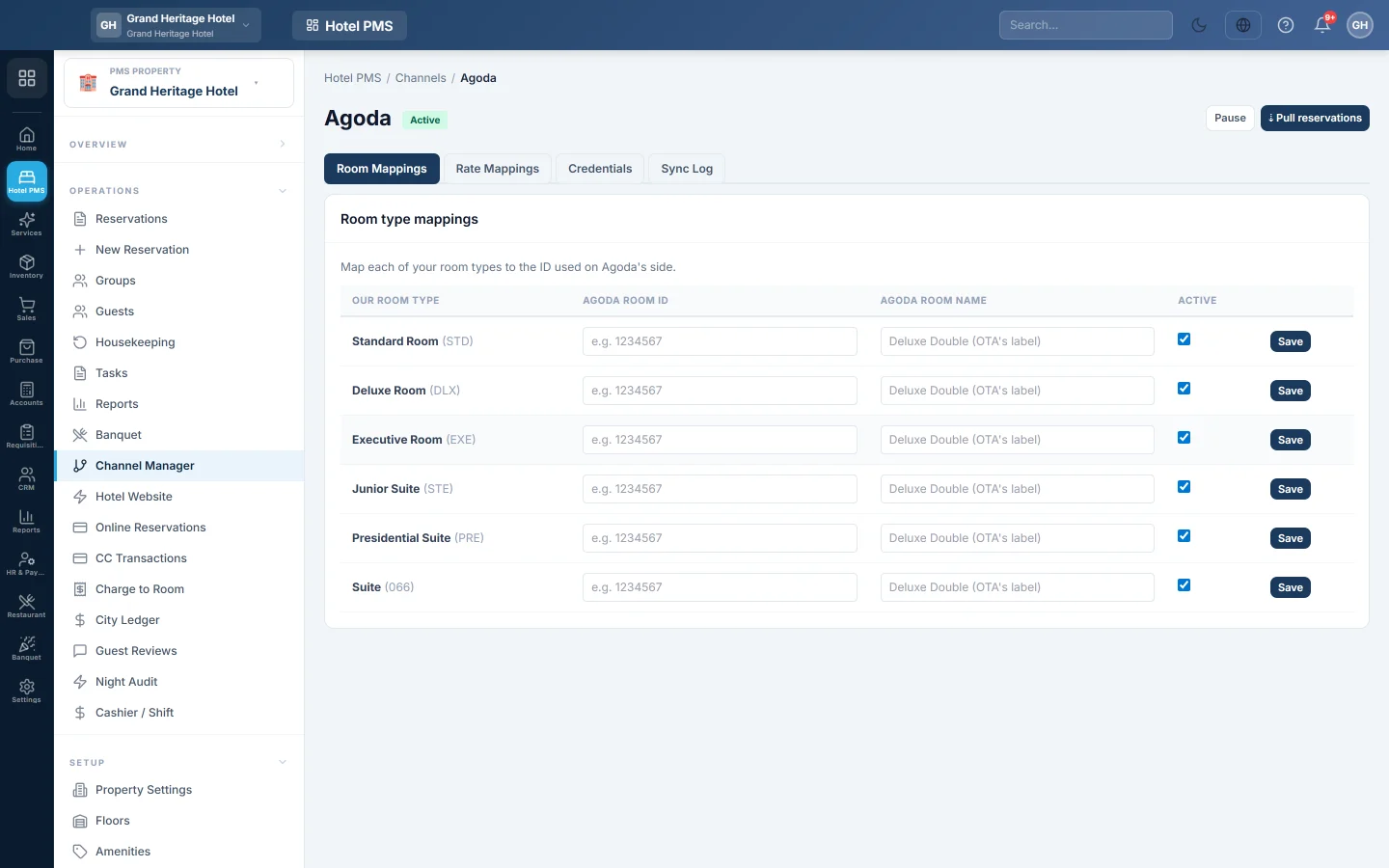
3. Match your rooms and rates
For each of your rates, pick Their room and Their rate on the agency, or Their listing for a listing-based agency. Anything left on — not sold here — or blank is not sold there. Some agencies sell your rates exactly as they are; then you only tick which rates to Sell.
Click Save mapping. Later keeps the connection and lets you finish the matching another time.
4. Switch it on
Still to do before it can go live lists anything missing. When the list is clear, click Switch it on. EloERP sends your availability, prices and restrictions to the agency.
5. Check it works
- Open the Channels tab and check the card's Rooms linked and Rates linked.
- Open Rates by channel and Inventory by channel and click Check against channel manager. Everything matches means the agency holds what you sent.
- Click Pull past bookings on the card to bring in bookings the agency took before today.
- When the next booking arrives, it appears under Incoming bookings and on the tape chart.
Common questions
Check details says the details are wrong. Check the hotel ID and any key on the agency's extranet, and that you approved the connection there.
A connected channel shows Connection lost — connect again. The agency dropped the link. Click Connect on the card and repeat the steps.
I added a new room type. What now? Open the channel's Settings, match the new room type under Rooms & rates on this channel, and save.
Should I raise prices for the OTA? If you want to recover the commission, use Adjust rates on the card, for example Increase by a percentage. Your own rates stay as they are. See Channel Manager.
Vielen Dank. Wenn Sie weitere Hilfe brauchen, schreiben Sie an info@eloerp.net.