Close dates or set a minimum stay
Stop selling rooms on chosen dates, require a minimum stay over a holiday weekend, or raise the price for an event, from the Availability Chart.
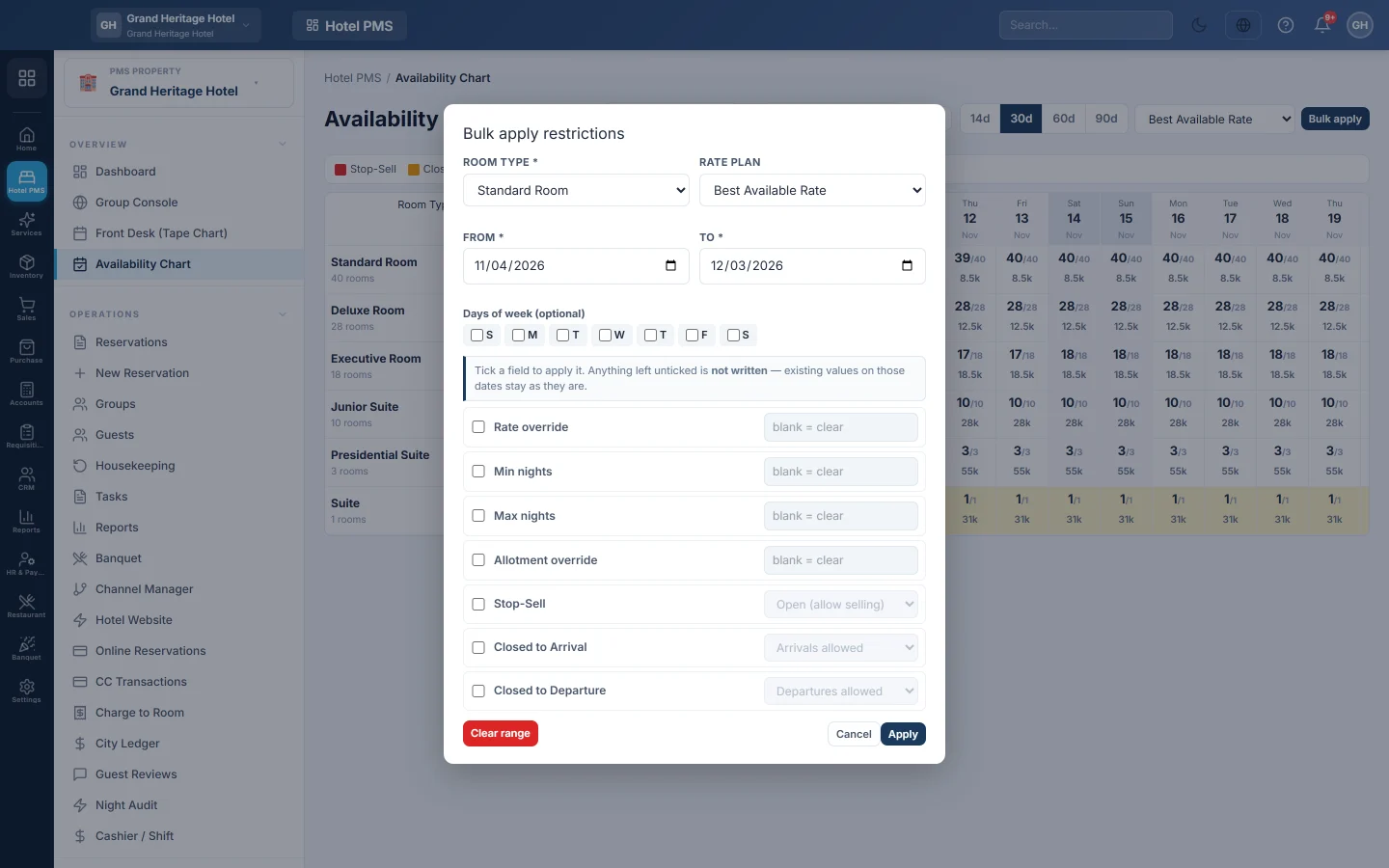
Use the Availability Chart's Bulk apply to set a rule on many dates at once, for example a two-night minimum over Eid, a stop-sell during renovation, or a higher price on concert nights.
Before you begin
- Your role needs the availability chart permission. See Users & Roles.
- For background on each rule, see Availability Chart.
Where to find it
Open Hotel → Overview → Availability Chart and click Bulk apply.
Require a minimum stay over a holiday
- Pick All room types (one at a time) and All rate plans.
- Set From and To to the holiday dates.
- Tick Min nights and enter 2.
- Click Apply.
Stays that arrive on those dates must now be at least two nights.
Stop selling a room type during repairs
- Pick the Room type and All rate plans.
- Set the dates.
- Tick Stop-Sell and pick Close (stop selling).
- Click Apply.
To open the dates again, repeat with Open (allow selling), or click Clear range.
Raise the price for an event
- Pick the room type and the rate plan, or All rate plans.
- Set the event dates. Tick only the days you need under Days of week (optional).
- Tick Rate override and enter the night's price.
- Click Apply.
Common questions
Can I undo a bulk change? Repeat it with the opposite value, or use Clear range for those dates. Clear range removes every rule in the range, not just the last one.
Do existing bookings change? No. Only new bookings and date changes are checked.
Are online channels updated? Yes, when your hotel is connected. See Channel Manager.
Merci. Si vous avez encore besoin d’aide, écrivez à info@eloerp.net.