Add options and add-ons to a menu item
Give a dish choices the cashier picks when ringing it up, such as size, spice level or paid extras like extra cheese, and have them print on the KOT.
Options let one dish come in several ways: a size, a spice level, or paid extras such as Extra cheese. The cashier picks them when adding the dish, and the kitchen sees them on the KOT.
Before you begin
- The dish exists as a product, see Menu Items.
- Your role needs Manage Menu Modifiers. See Users & Roles.
Where to find it
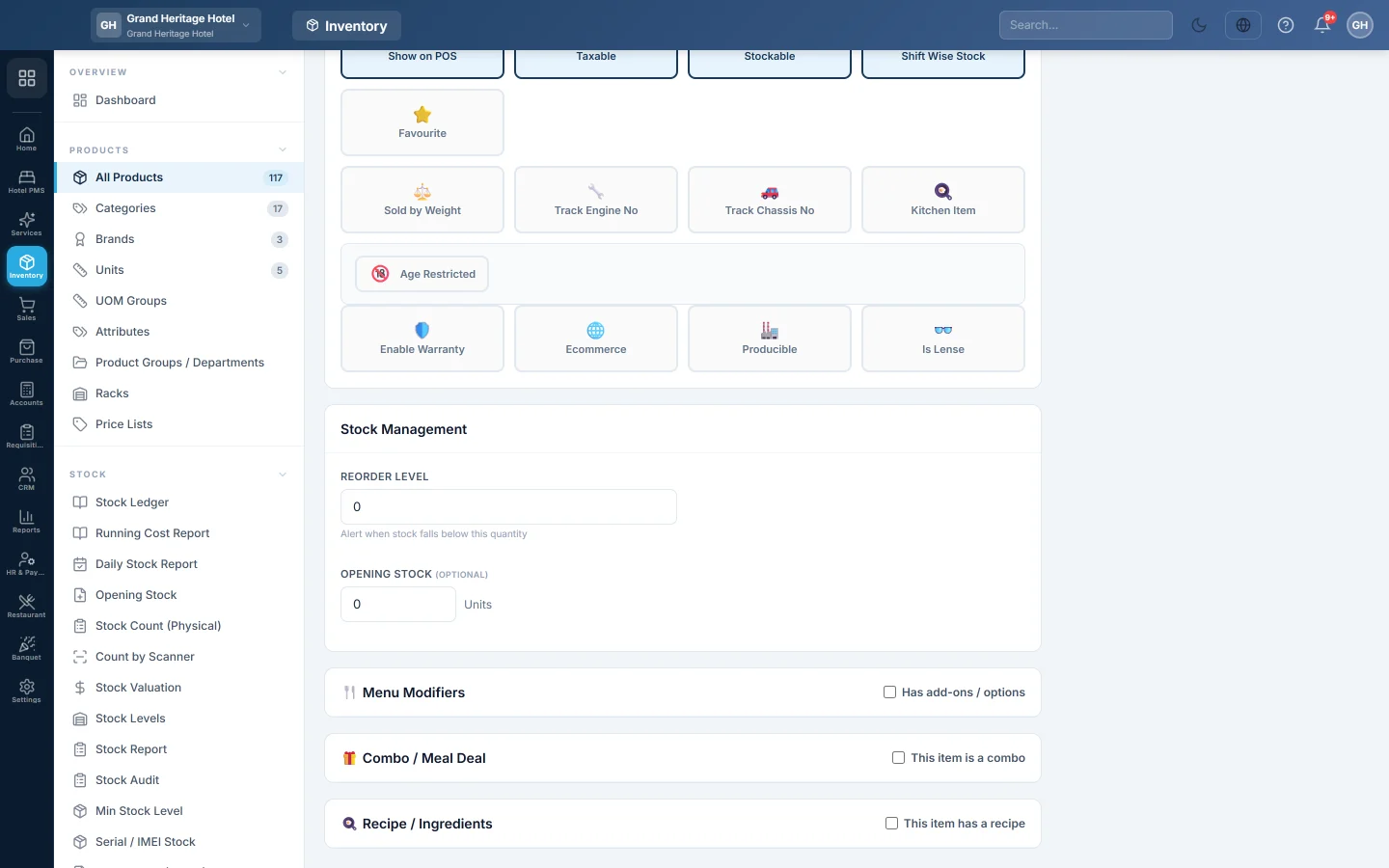
Open the dish from Restaurant → Quick Links → Menu Items (or Inventory → Products) and click edit. The 🍴 Menu Modifiers section is near the bottom of the form.
Add an option group
- Tick Has add-ons / options. An empty group appears.
- Type the Group name, for example Size.
- Choose how it is picked:
- Tick Required if the cashier must choose one, such as a size.
- Tick Allow multiple if more than one can be chosen, such as toppings. Then set Min and Max if you want a limit.
- In the first row, type the Option name, for example Large, and the extra price, for example 300. Leave 0 for a free choice.
- Tick Default on an option to have it chosen already when the picker opens.
- Click + Add option for each further choice.
- Click + Add modifier group for another group, for example Add-ons.
- Click Update & Publish to save the dish and its options.
Untick Active on an option to stop offering it without deleting it; it shows greyed out at the till. The bin removes a whole group, and ✕ removes one option.
Use options at the till
- Click the dish on the POS. The Choose options window opens.
- Pick an option in each group. Each group says what is needed, such as Required — pick 1 or Pick up to 3.
- Check the Add-ons total at the bottom.
- Click Add to Cart.
The bill shows the dish with + and its options, and the extra prices are added to the line. The KOT and the kitchen screen show the options under the dish. The waiter app and the call centre use the same window.
If a required group is left empty, the window says which group needs a choice.
Common questions
Can I sell Half and Full as one dish? Yes. Make a required Size group with Half at 0 and Full with the extra price. Or make two products if you count them separately in stock.
Can I stop one option for today? Untick its Active box and save. It shows greyed out in the window and cannot be picked until you tick it again.
I saved and my options are gone. The options save after the product. If your role lacks Manage Menu Modifiers, the product saves but its options do not, and no message is shown. Ask an administrator for the permission.
Is an option the same as a note? No. An option can carry a price. A note such as No onion is free text, see Item Notes.
Teşekkür ederiz. Hâlâ yardıma ihtiyacınız varsa info@eloerp.net adresine yazın.