Set up a branch in restaurant mode
Turn a branch or outlet into a restaurant till with dine-in, takeaway and delivery, then set up tables, kitchens, menu and staff roles in the right order.
The till works in one of two modes: retail, with cash, credit and installment sales, or restaurant, with dine-in, takeaway and delivery orders sent to the kitchen. This page sets a branch to restaurant mode and lists what to set up next.
Before you begin
- You need a role that can edit Branches and POS Settings.
- The Restaurant module must be on for your company. If Restaurant is missing from the top menu, ask your service provider.
Where to find it
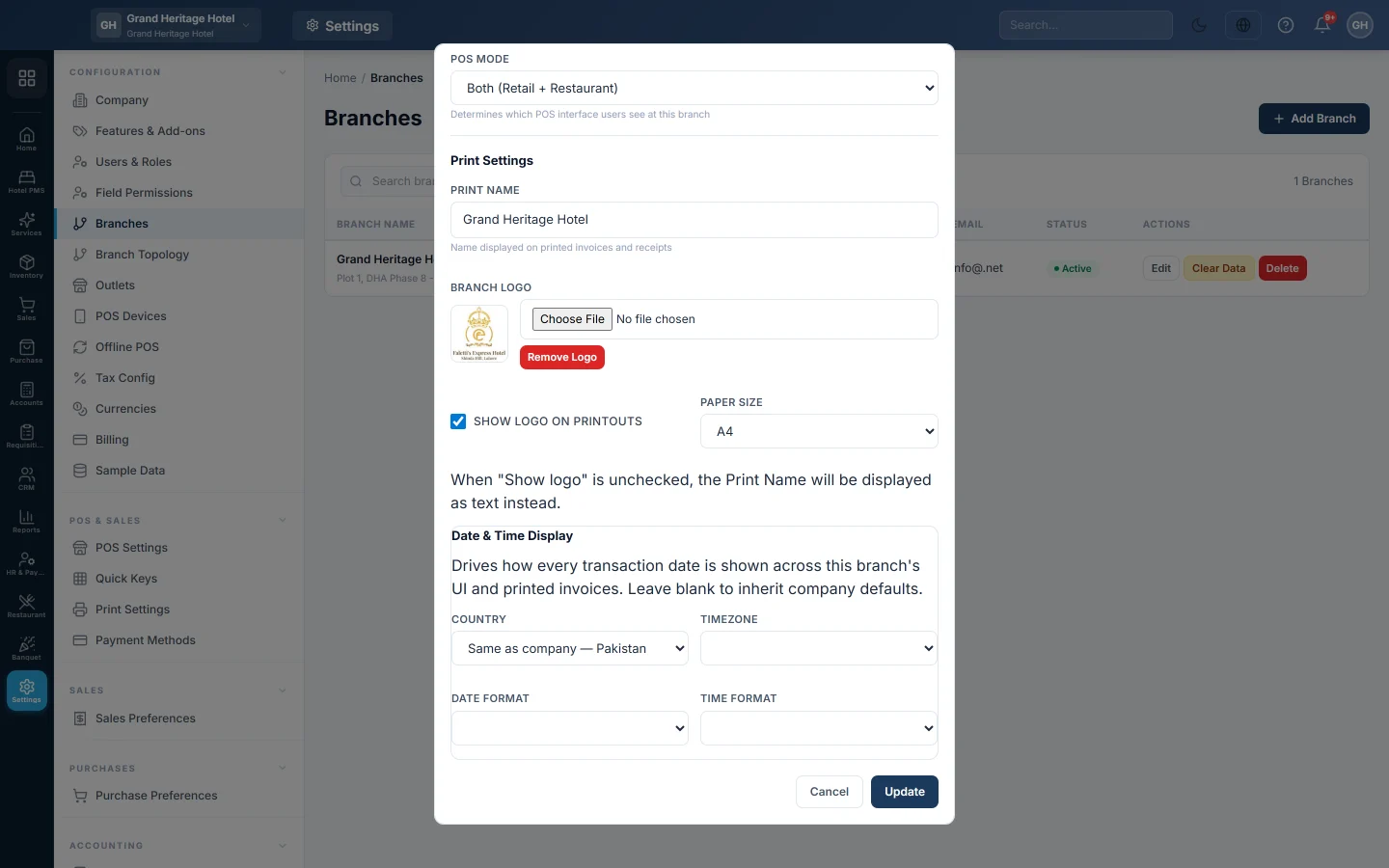
Open Settings → Configuration → Branches.
Set the branch to restaurant mode
- Click Edit on the branch.
- Under POS Mode, choose Restaurant POS. Choose Both (Retail + Restaurant) if the same counter also sells retail goods.
- Click Update.
The till of that branch now shows Dine In, Take Away, Delivery and Drive-Thru instead of Cash Sale and Credit Sale. With Both, the cashier switches between the two with the 🍽️ ⇄ button at the right of the bar.
Choose the order types
- Open Settings → Configuration → Features & Add-ons.
- Tick Dine In, Take Away and Home Delivery as you need them. Each one shows its button on the till.
- Click Save changes.
See Features & Add-ons. Drive-Thru always shows in restaurant mode.
Set the till options
Open POS Settings and check:
- Enable Table Management: on, a dine-in order gets the Table and Waiter chips and the Guests and Cover Charge fields.
- Enable KOT (Kitchen Order Ticket): on, the till shows Send to Kitchen. Off, kitchen tickets are still cut when the bill is paid.
- Number of KOT Prints: how many copies of each kitchen slip print.
- On return of a recipe item, put back: whether a returned dish restocks the dish or its ingredients.
Set up the rest, in this order
- Kitchens. Add a department for each kitchen or bar. See Kitchen Departments.
- Menu. Add your dishes as products, tick Kitchen Item and pick the department. See Menu Items. Add sizes and add-ons with Add options and add-ons to a menu item, and deals with Make a combo or meal deal.
- Recipes. To track ingredients and food cost, see Set up recipes and food cost.
- Tables. Add your dining areas and tables on Floor & Tables, and draw them on the Floor Plan if you like.
- Kitchen screens or printers. Open the Kitchen Display System on a kitchen screen, or the KOT Print Station on a PC next to the kitchen printer.
- Notes. Add the cooking notes the cashier picks from, such as Less spicy. See Item Notes.
- Staff. Give each person a role. See below.
- Optional. Service charge on Tips & Service Charge, time-based prices on Happy Hour, and delivery on Delivery Zones.
Give staff the right role
EloERP creates ready-made restaurant roles. Assign them in Users & Roles.
| Role | What the person gets |
|---|---|
| Waiter | Opens the waiter app at sign-in to seat tables, take orders and request the bill. Split Bill in the app also lets them take payment cheque by cheque, when a cashier shift is open or the waiter is a cash-register user. |
| Kitchen / KDS | Opens the kitchen display at sign-in, moves tickets on and can mark a dish as sold out. |
| Call Center | Opens the call centre at sign-in to book phone orders. |
| Rider | Sees only their own deliveries. |
Cashiers need a role with Access POS Terminal, as for retail.
Common questions
The till still shows Cash Sale and Credit Sale. The branch's POS Mode is still Retail POS, or your outlet's POS Type is Retail. Change it, then reload the till.
The Dine In button is missing. Tick Dine In in Features & Add-ons and save.
There is no Table chip on a dine-in order. Turn on Enable Table Management in POS Settings, and add tables on Floor & Tables.
Can one branch run retail and a restaurant? Yes. Choose Both (Retail + Restaurant), or use separate outlets for each.
شكرًا لك. إذا كنت لا تزال بحاجة إلى مساعدة، راسلنا على info@eloerp.net.