Take a return at the till
Take goods back at the counter against the original sale: pick the invoice, set the quantities, refund cash or credit the customer, and print the return.
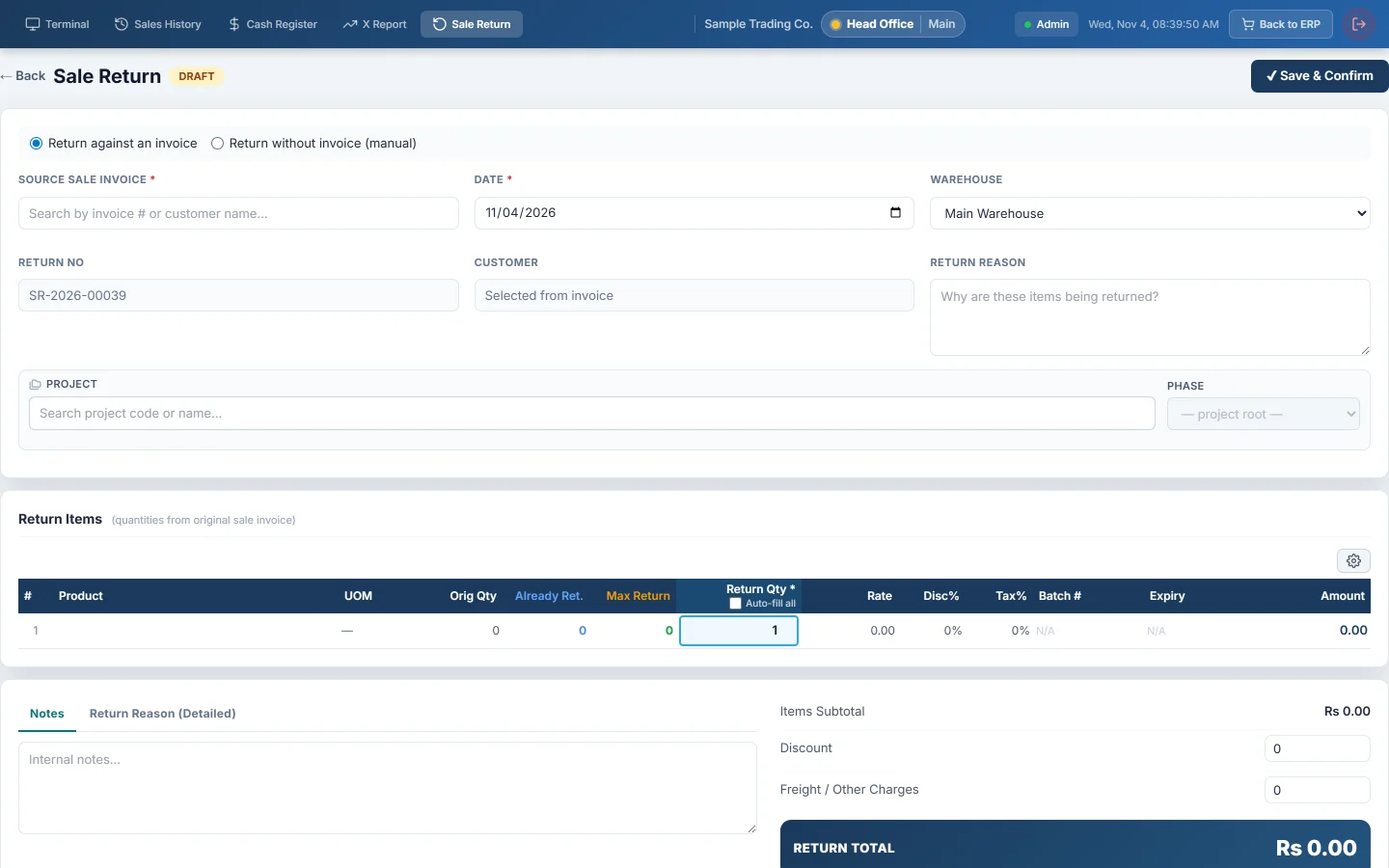
When a customer brings goods back, you take the return against the sale it came from. EloERP puts the items back in stock and refunds the money, or credits the customer's account. The full return screen is described in Sales Returns.
Before you begin
- Your role has Process POS Sale Return. Without it the Sale Return tab is hidden and the screen refuses you. See Users & Roles.
- Your shift is open, so a cash refund comes out of the right drawer. See Open and close a shift.
- Have the receipt or the invoice number to hand. You can also search by the customer's name.
Where to find it
There are three ways in from the till:
- Click Return in the bar above the product grid.
- Click the Sale Return tab at the top of the screen.
- Open the Sales History tab and click the return icon (Create sale return) on the sale. The invoice is filled in for you.
All three open the same Sale Return screen inside the till.
Take the return
- Leave Return against an invoice selected.
- In SOURCE SALE INVOICE, search by invoice number or customer name and pick the sale. The customer, warehouse and items fill in from it.
- Under Return Items, enter the quantity coming back on each line. You cannot return more than was sold.
- Type a short RETURN REASON, for example Damaged or Wrong size.
- Pick the Refund Method, for example Cash.
- Check the refund. A walk-in sale shows the Cash Refund Amount: the whole return total goes back through the method you picked.
- For a customer with an account, check Return Credit Amount. Type what you hand back now; the rest stays as credit on the customer's ledger. Leave it at 0 to credit the full amount and pay out nothing.
- Click Create to confirm the return now, or Save Draft to finish later. Some companies show Save & Confirm instead of Create.
- Click Print for the customer's copy.
Return goods without the invoice
If the receipt is lost, choose Return without invoice (manual), pick the customer (or Cash) and add the items yourself. Your role needs this right; otherwise the screen says "Return without invoice is disabled for your role."
Exchange an item
There is no separate exchange screen. Take the return for the item coming back, then ring the replacement as a new sale. If the customer has a ledger, credit the return to the account so the new sale can use it.
What happens in the books
When the return is confirmed, EloERP posts a sale return voucher:
- Sales Returns is debited with the goods value, and Sales Tax Payable with the tax given back.
- The customer's ledger is credited. For a walk-in sale, the account of the refund method is credited instead.
- A refund paid now is a payment from the refund method's account, such as Cash in Hand.
- The items go back into the warehouse and their cost moves from Cost of Goods Sold back to Inventory.
A cash refund lowers Expected Cash for your shift on the X-Report. A bank or card refund does not touch the drawer.
Common questions
The Return button opens a new screen. How do I get back to selling? Click the Terminal tab at the top. Your shift stays open.
The invoice does not appear in the search. Check the branch in the top bar, and that the sale was completed rather than held. Try the customer's name instead of the number.
The customer wants cash back but bought on credit. Type the cash you hand over in Return Credit Amount. The rest is credited to the account.
I confirmed the return with the wrong quantity. Open it from Sales History, under Sale Returns, and use Edit return. Saving re-posts the stock and the ledger.
Does the return count in my shift? Yes, when you take it while your shift is open. It shows under Returns and Sale Return Items This Shift on the X-Report and Z-Report.
Спасибо. Если помощь всё ещё нужна, напишите на info@eloerp.net.