Take a cash sale at the till
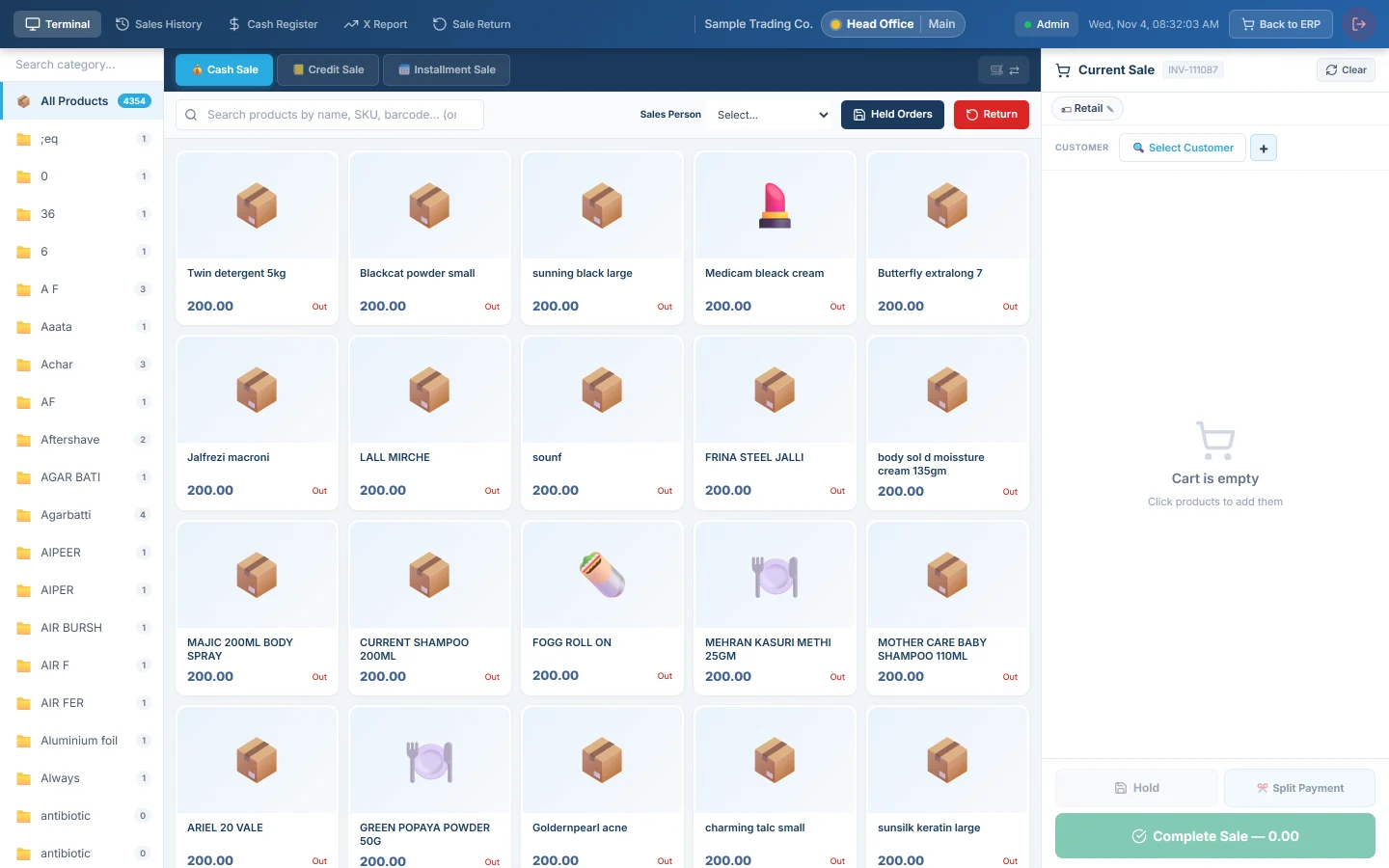
Scan or tap the items, give a discount, take cash or card (or split it), complete the sale and print the receipt on the POS Terminal.
This is the everyday sale at the counter: the customer pays now, you print the receipt and the drawer takes the cash. For the screen as a whole, see POS Terminal.
Before you begin
- Your shift is open, if your user has Enable Cash Register ticked. See Open and close a shift.
- The products are set to show on the POS and have a sale price, see All Products.
- Discounts need Apply Per-Line Discount at POS or Apply Invoice-Level Discount at POS on your role, see Users & Roles.
Where to find it
Open Sales → POS → POS Terminal, then make sure Cash Sale is selected above the product grid.
Add the items
- Press F2 to jump to the search box.
- Scan the barcode, or type the barcode or SKU and press Enter. The item goes straight onto the bill.
- To find an item by name, type part of the name and click its tile. You can also pick a category on the left.
- Scan or click the same item again to add one more.
- To change a quantity, type it in the box between − and +. To remove a line, click its bin icon.
Some items ask for more before they go on the bill:
- An item with variants opens a window to pick the size or colour; click Add to Cart.
- A batch item shows Pick batch; a serial-tracked item shows Serials with the count picked. Pick them before you complete the sale.
- An age-limited item asks "Have you checked the customer's age?". Click Yes — age verified or No — do not add.
- An item with several units has a unit list on its line, for example piece or carton.
Give a discount
- For one line, type the discount in Disc on that line. The button next to it switches between % and a fixed amount in Rs.
- For the whole bill, type it in Discount under the subtotal. Its button also switches between % and Rs.
- With loyalty points, tick Redeem Points to take the points off the bill. See Loyalty.
The fields appear only if your role may give that kind of discount. Your role can also cap the highest discount percent, see Users & Roles.
Take the payment
- Pick the Method button, for example Cash or Card. The first one is your default.
- For cash, type what the customer handed you in Cash Tendered. Leave it empty if they gave the exact amount.
- Read the Change and give it back.
- Click Complete Sale or press F12.
- The Sale Complete ✓ window opens and the receipt prints. Click New Sale for the next customer.
If the cash tendered is less than the total, EloERP stops with "Cash tendered … is less than the total …". Take the full amount, split the payment, or make it a credit sale.
Split the payment
Use this when the customer pays part in cash and part by card, for example.
- Click Split Payment.
- In each row, pick a method and type the amount. Two rows start filled with half each.
- Click + Add Payment Method for a third tender. With gift cards switched on, you can also type a code and click Apply, or click Store Credit.
- When the bar reads ✓ Fully allocated, click Complete Split Payment.
Add a customer to a cash sale
A cash sale does not need a customer. To put the customer's name on the receipt or earn loyalty points:
- Click Select Customer on the bill.
- Search by name, phone or email and click the customer, or click + New to add one.
What happens in the books
- A sales invoice is posted: Sales Revenue and Sales Tax Payable are credited and the goods leave stock at cost.
- The payment debits the account of the method you picked, such as Cash in Hand or the bank account behind Card.
- The sale belongs to your open shift. Cash sales raise Expected Cash on the X-Report.
Common questions
I pressed F12 and nothing happened. The bill is empty, or a check stopped the sale, such as a missing batch or serial. Read the message on screen.
A tile is greyed out. The item is out of stock and Allow Negative Stock is off in POS Settings, or it is off the menu for now.
The Change row is missing. Show Return Amount is off in POS Settings, or the method you picked is not a cash method.
Can I print a receipt before the customer pays? No. A receipt prints only after the sale is saved, so every receipt has a real invoice behind it.
Can I ring sales without internet? Yes, on the offline till, the POS app on a counter PC. See Sell on the offline till when the internet is down.
I made a mistake after completing the sale. Take the goods back with a return, see Take a return at the till, and ring the sale again.
Vielen Dank. Wenn Sie weitere Hilfe brauchen, schreiben Sie an info@eloerp.net.