Set up taxes
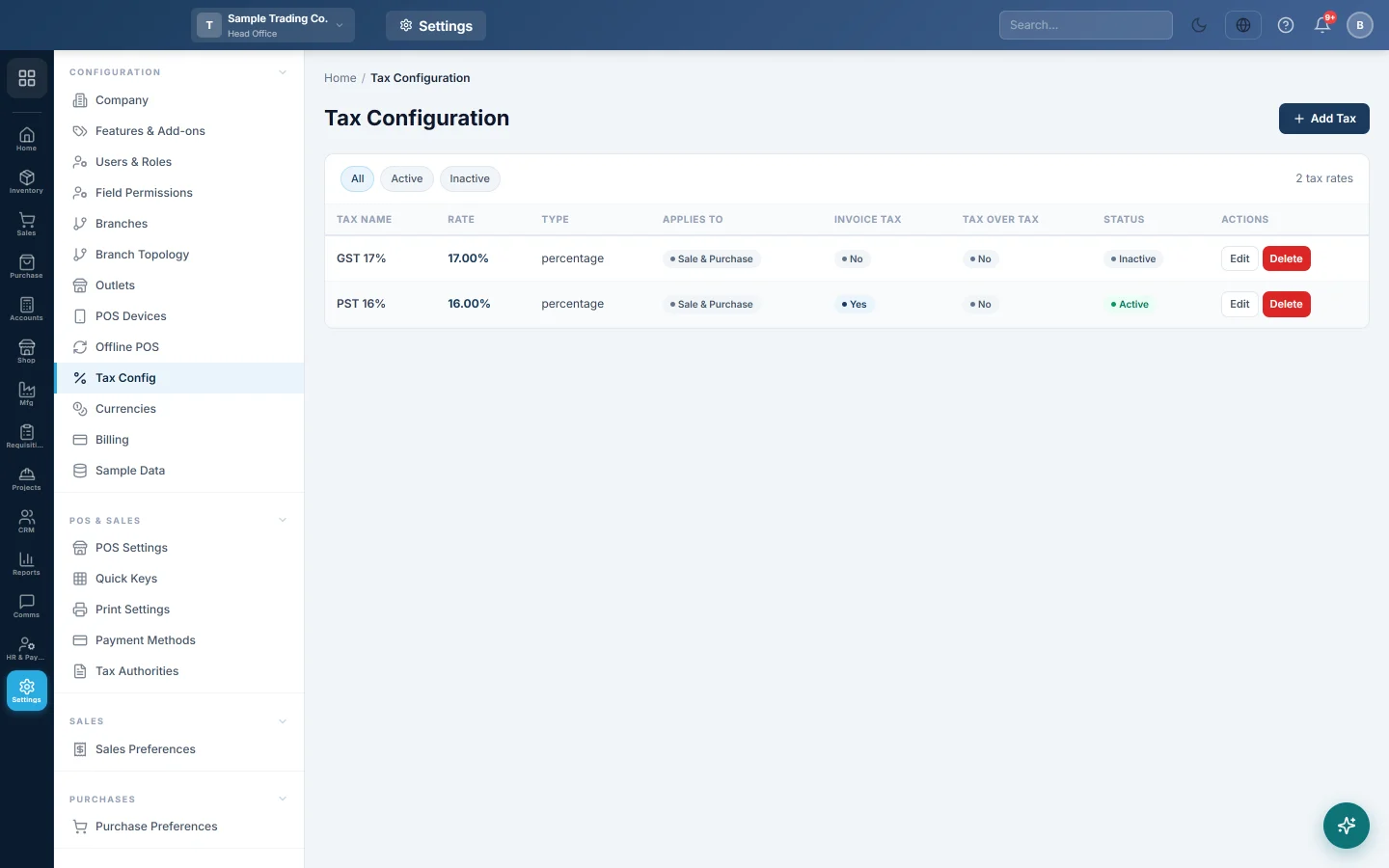
Add the sales tax, VAT or GST rates you charge and pay, choose where each one shows and which account it posts to.
Before your first sale, tell EloERP which taxes you charge. Each tax has a rate, a side (sale, purchase or both) and an account where the tax amount is posted.
Before you begin
- You need permission to open Settings → Tax Config. The owner has it by default.
- Check the branch in the top bar. A tax is saved in the branch you are working in, so add it in each branch that charges it.
- When you signed up, EloERP may already have added your country's standard rate (for example VAT 15%) as an invoice tax. Check the list before adding a second one.
Where to find it
Open Settings → Configuration → Tax Config.
Two kinds of tax
| Kind | How it works | Use it for |
|---|---|---|
| Item tax | Charged per line. You pick it on a product, and sale and purchase lines use it. | Different rates on different products. |
| Invoice tax | Charged once on the invoice total and shown in the invoice footer. | One rate on the whole bill. |
A tax is an invoice tax when Invoice Tax (shown in invoice footer) is ticked. Otherwise it is an item tax.
Add a tax
- Click Add Tax.
- Type the Tax Name, for example GST 17%. This name prints on invoices.
- Enter the Rate.
- In Type, choose Percentage (%) or Fixed Amount.
- Under Calculation Method, choose Exclusive (added on top) or Inclusive (included in price). Exclusive: Rs. 100 + 17% = Rs. 117. Inclusive: Rs. 100 already contains the tax.
- In Applies To, choose Sale & Purchase, Sale only or Purchase only.
- Search and pick the tax ledger. For a tax used on both sides you also see Purchase (input) tax ledger; leave it blank to post purchases to the sales ledger too.
- Tick Invoice Tax (shown in invoice footer) if the tax is charged on the whole bill. You can then also set Tax Over Tax (compound on previous taxes) and a Sort Order for the footer.
- Leave Status on Active and click Save.
Give a product its own tax
Item taxes are chosen on the product, not on this screen.
- Open the product in Inventory → Products → All Products and click Edit.
- Under Pricing, pick the tax in Tax. Only active item taxes are listed.
- Leave Tax Rate (%) empty to use the tax's rate, or type a different rate for this product.
- Click Update & Publish.
See All Products for the rest of the product form.
What happens in the books
When you save a sale, the tax amount is credited to the tax's sales (output) ledger. On a purchase, it is debited to the purchase (input) ledger, or to the sales ledger when no input ledger is set. Invoice taxes show as their own lines in the invoice footer, and new invoices start with every active invoice tax ticked.
Common questions
A tax I added does not show on my invoices. Check that it is Active and that Applies To includes that side. Item taxes appear on the product's lines; invoice taxes appear in the footer.
Can I stop charging a tax without deleting it? Yes. Edit it and set Status to Inactive. It disappears from every sale and purchase form, and old documents keep their tax.
The tax is missing in my other branch. Taxes are saved per branch. Switch branch in the top bar and add it there.
What is Tax Over Tax? A compound tax. It is worked out on the subtotal plus the invoice taxes above it in the footer.
My country uses e-invoicing. Set up the tax authority separately. See Tax Authorities and Tax Config.
Merci. Si vous avez encore besoin d’aide, écrivez à info@eloerp.net.