Close the day: shift and reports
Open the cash register in the morning, record cash in and out, count the drawer at closing, finalize the Z-Report and check the day's cash.
Each cashier's day is a shift on the cash register. You open it with the cash in the drawer, sell through the day, then count the drawer and close it. The Z-Report finalizes the shift and records any cash that is short or over.
Before you begin
- The cashier's user has Enable Cash Register ticked under Settings → Configuration → Users & Roles. Without it, sales are not tied to a shift.
- To post a shortage to the cashier, the user is linked to an employee on the same screen.
- Your role needs the X-Report, Z-Report and close-register permissions to see those screens.
Where to find it
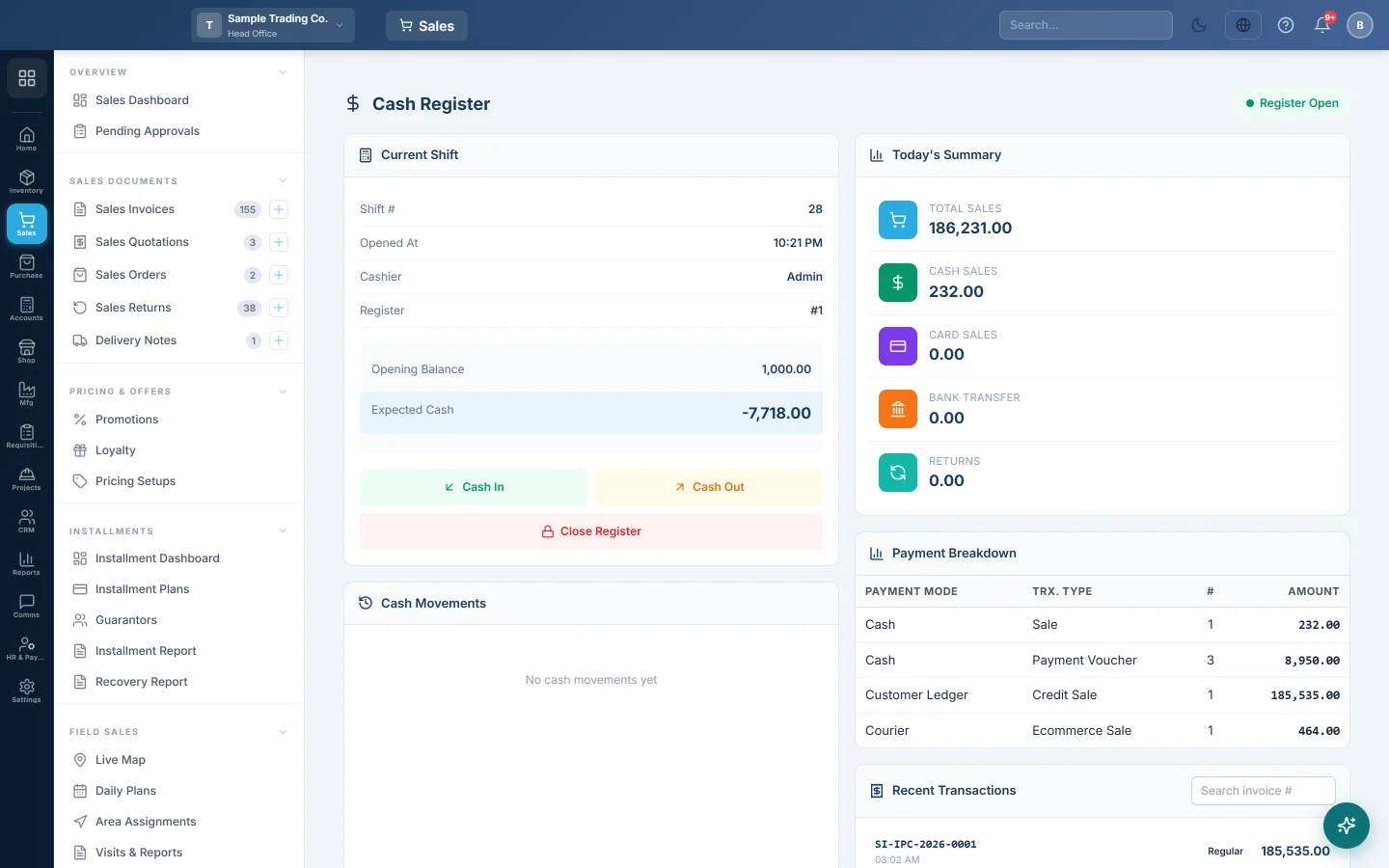
- Sales → POS → Cash Register: open and close the register, cash in and cash out.
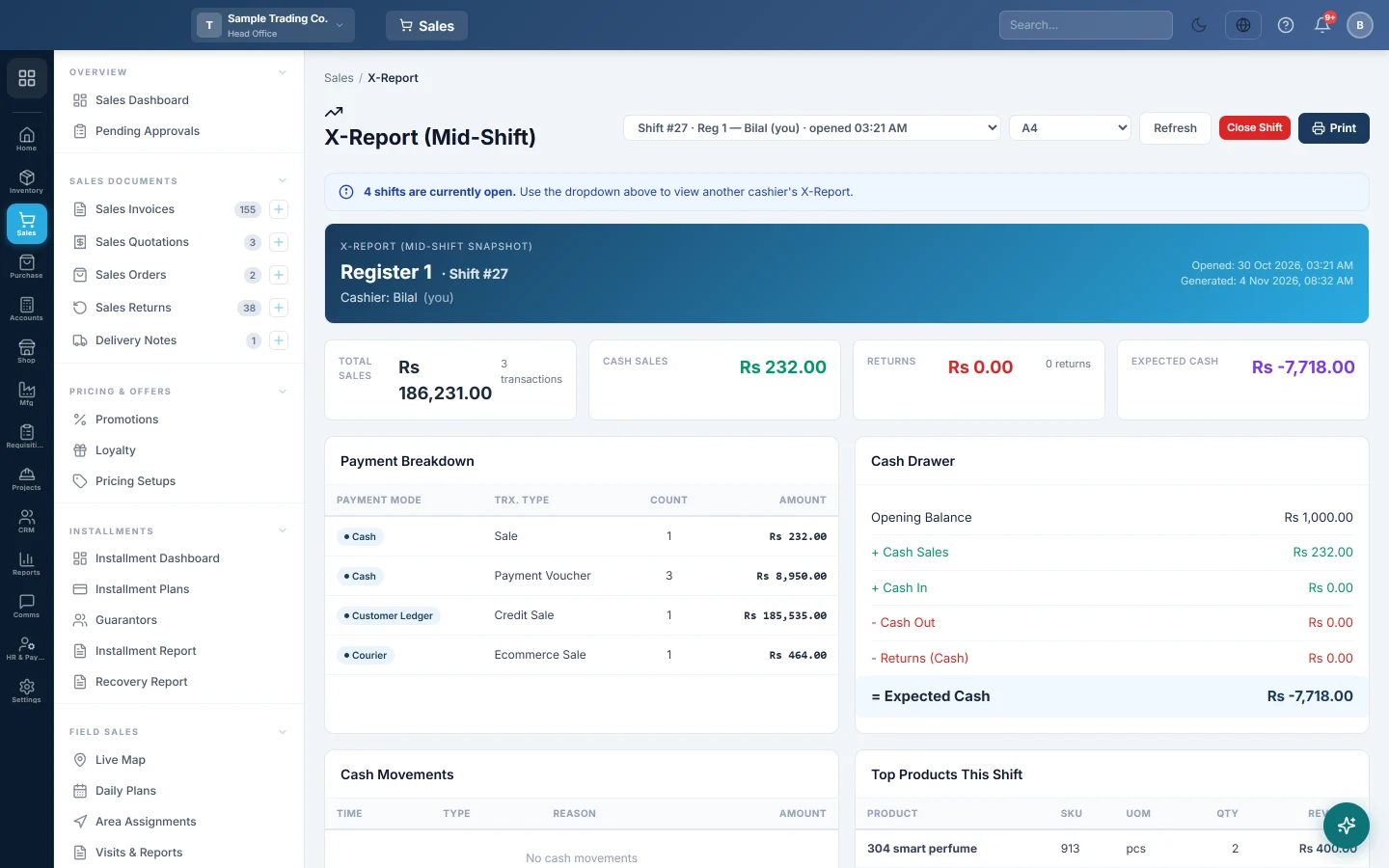
- Sales → POS → X-Report (Mid-Shift): the shift so far, without closing it.
- Sales → POS → Z-Report (End of Shift): finalize closed shifts.
- Accounts → Reports → Day Book: every cash transaction of the day.
Open the register
- Count the cash in the drawer before the first sale.
- Open Sales → POS → Cash Register, type the count in Opening Balance and click Open Register.
The POS Terminal asks for the same thing on its Open Cash Register screen, so a cashier can start there instead.
Record cash in and cash out
Use these whenever cash enters or leaves the drawer for a reason other than a sale:
- On the Cash Register screen, click Cash In or Cash Out.
- Enter the Amount and pick a Reason: for cash in, Float / Change, Loan from office, Correction or Other; for cash out, Petty Cash, Expense, Refund, Deposit to bank or Other.
- Click Add Cash or Remove Cash.
Each one shows under Cash Movements and changes the Expected Cash. Your accounts staff then post them to the right accounts from Accounts → Accounting → Cash movements to post.
Check the shift during the day
Open Sales → POS → X-Report (Mid-Shift). It shows Total Sales, Cash Sales, Returns, the Payment Breakdown and the Expected Cash in the drawer, without closing anything. Click Print for a paper copy. See X-Report (Mid-Shift).
Close the shift
- Count the cash in the drawer.
- Open Sales → POS → X-Report (Mid-Shift) and click Close Shift.
- In Close Shift — Cash Denomination, enter how many of each note and coin you counted.
- Click Close Shift. The message tells you to open the Z-Report to finalize.
You can also close from the Cash Register screen: click Close Register, type the Actual Cash Counted and click Close Register.
Finalize the Z-Report
- Open Sales → POS → Z-Report (End of Shift).
- In Shift History, find the shift marked Closed · Pending and click Finalize.
- Under Finalize Shift (Z-Close), enter the Counted Cash (actual cash in drawer), or click Enter by denomination to count note by note.
- Check Expected, Counted and Difference.
- If the cash is short or over, choose where it goes: Cashier's account, Cash Variance Suspense or Don't post.
- Click Finalize & Close Z-Report, then Print for a paper copy.
See Cash Register and Z-Report (End of Shift) for the details.
What happens in the books
- The sales themselves were posted as each one was completed, so closing a shift posts no sales.
- A difference posts a cash-variance entry between the cash account and the account you chose. With Don't post, the difference is only recorded on the Z-Report.
Check the day's cash
Open Accounts → Reports → Day Book, set From Date and To Date to today and click Generate. It lists every cash sale, purchase, receipt and payment with an Opening Balance and a Closing Balance. See Day Book.
Common questions
The Close Shift button is missing on the X-Report. There is no open shift for you. Open the register first, or ask a manager to look at the shift in the Z-Report.
Sales say "not linked to any register". They were made while no register was open. Open the register before the first sale so every sale belongs to a shift.
I chose Cashier's account but the shortage went to suspense. The cashier's user is not linked to an employee with a ledger, so it falls back to Cash Variance Suspense. Link the user to an employee under Settings → Configuration → Users & Roles.
The Z-Report says the shift is not fully synced. An offline till still has sales to send. Bring it online and wait, or ask a manager with the close-register permission to force it closed.
Can I close the register without finalizing? Yes. The shift stays in Shift History as Closed · Pending until someone finalizes it.
Merci. Si vous avez encore besoin d’aide, écrivez à info@eloerp.net.