Enter opening stock
Record the stock you already have on the day you start, per warehouse, at cost, typed in or imported from a file.
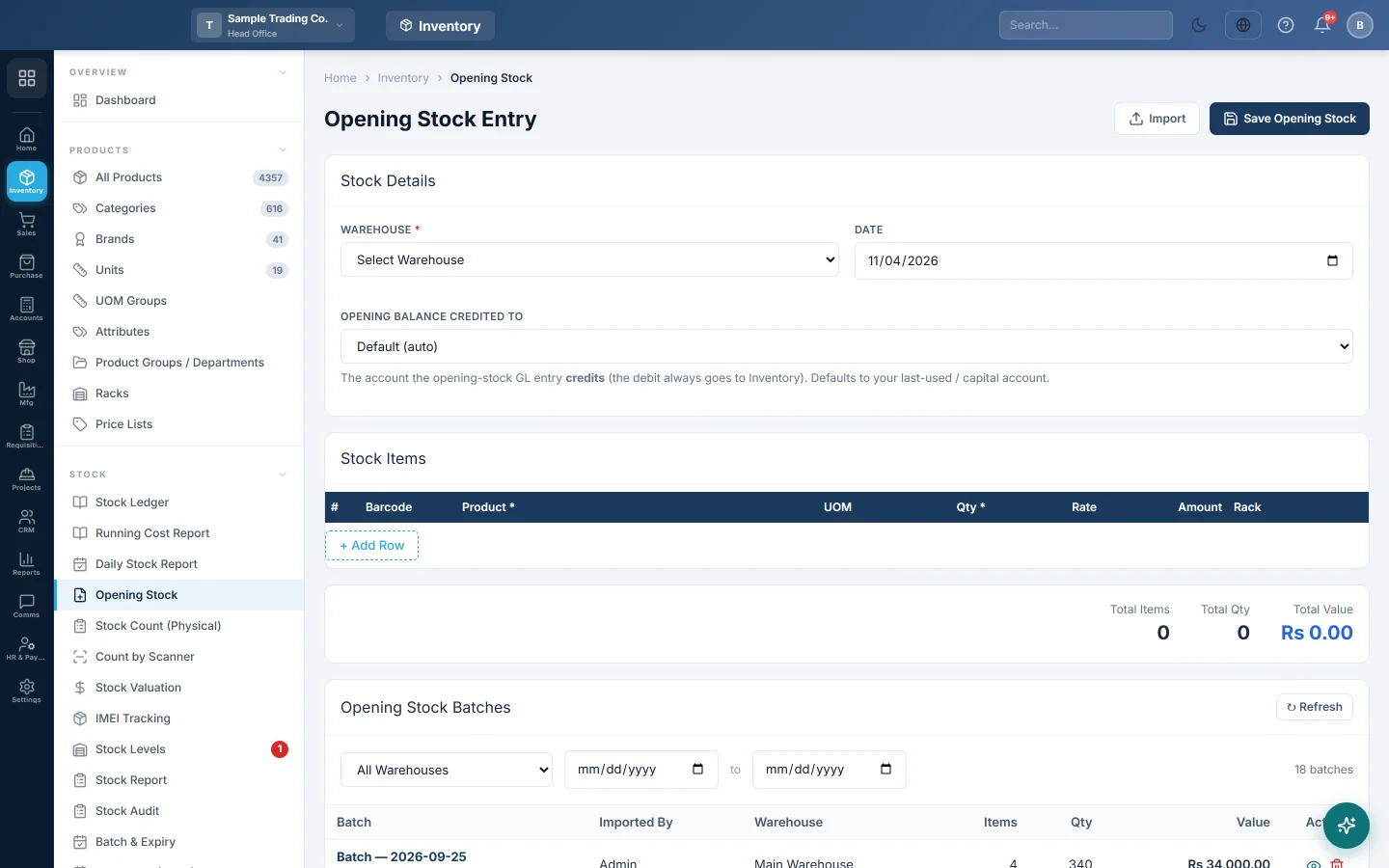
Opening stock is what is already on your shelves on the day you start using EloERP. Enter it once, per warehouse, so your first sales take stock from a real balance.
Before you begin
- Your products must exist. See Add your products.
- The warehouse must exist. Each branch starts with Main Warehouse; add more in Add branches and warehouses.
- Count your stock first, and note the cost price of each item.
- You need permission to open Inventory → Stock → Opening Stock. Deleting a saved batch needs the Manage Opening Stock permission.
Where to find it
Open Inventory → Stock → Opening Stock.
Enter stock by hand
- Under Stock Details, pick the Warehouse.
- Set the Date. Use the day before your first sale, so the stock is there when you start selling.
- Leave Opening balance credited to on Default (auto) unless your accountant names another account.
- In the Stock Items grid, scan a barcode or search the Product.
- Enter the Qty. The Rate fills in from the product's cost price; change it if needed.
- For batch or expiry products, fill Batch # and Expiry. For serial or IMEI products, click Serials and enter each unit.
- Pick a Rack if you use them.
- Click + Add Row for the next item.
- Check Total Items, Total Qty and Total Value, then click Save Opening Stock.
Import stock from a file
- Click Import.
- Click Download template. Fill one row per item: barcode is required, then qty and rate.
- For batch products, add one row per batch with batch_number and expiry_date. For serial products, add one row per unit with imei, serial_no, engine_no or chassis_no.
- Click Choose file to import and pick your .xlsx or .csv file.
- The rows load into the grid. Any barcodes not found are listed so you can add those products.
- Pick the Warehouse, check the rows and click Save Opening Stock.
Check or undo what you saved
Every save appears under Opening Stock Batches with the date, the user, the warehouse, the quantity and the value.
- Click the eye icon to see the items in a batch.
- Click the bin icon to delete a batch. This reverses its stock and its accounting entry, and cannot be undone.
What happens in the books
Each save posts one entry: Inventory is debited with the total value, and the account in Opening balance credited to is credited. By default that is your opening balance equity or capital account. The entry also appears in Opening Balances.
Common questions
Which date should I use? The day before you start trading in EloERP. The stock and its accounting entry are dated on that day.
Can I enter a negative quantity? Yes. Use it only for an item you have already oversold.
I have several warehouses. Save one batch per warehouse. Pick the warehouse, enter its items, save, then repeat.
Can I enter opening stock on the product form instead? Only for simple products, and it goes to your branch's first warehouse. Batch, expiry and serial products must use this screen.
Some products are missing from the import. Their barcodes did not match any product or variant. Add the products, or fix the barcodes, and import those rows again.
See Opening Stock for the full screen.
Merci. Si vous avez encore besoin d’aide, écrivez à info@eloerp.net.