Feedback
See the star ratings and comments guests leave after ordering by QR, your satisfaction score, and mark each one reviewed with a note.
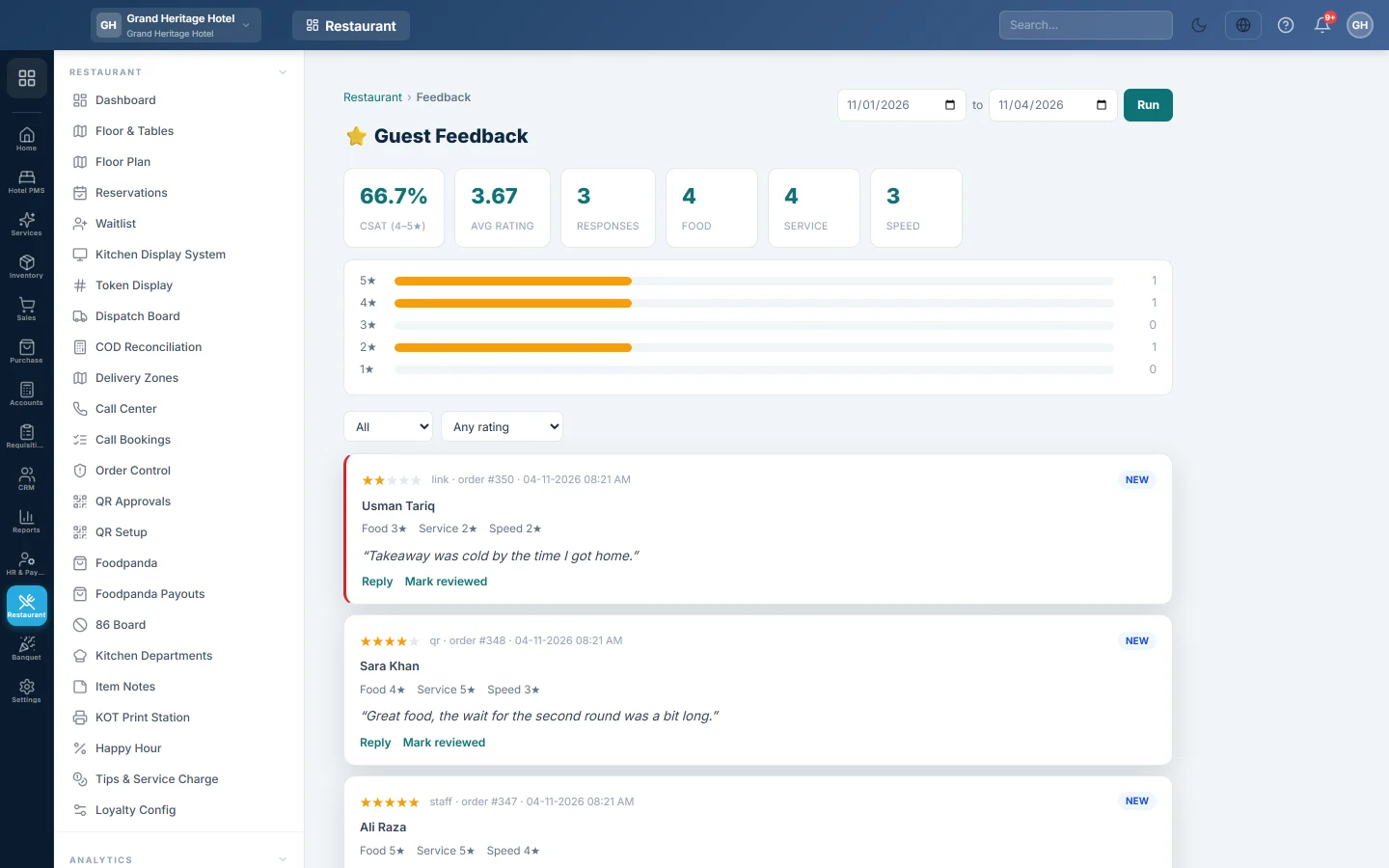
Guest Feedback collects the star ratings and comments guests leave on their phone after a QR order. It shows your satisfaction score for a date range and lets you work through each comment.
Before you begin
- Your role needs View Guest Feedback. To reply or mark feedback reviewed it also needs Respond to & Manage Feedback. See Users & Roles.
- Feedback comes from QR ordering, so QR ordering must be set up. See QR Setup.
Where to find it
Open Restaurant → Analytics → Feedback.
How guests leave feedback
After a guest places a QR order, their tracking page asks How was your experience?
- The guest taps one to five stars.
- They can type a comment in Tell us more (optional).
- They tap Submit rating and see a thank-you.
The rating is linked to their order when their phone still has the order open.
Read the summary
- Set the dates at the top. The range starts on the first of this month.
- Click Run.
| Figure | What it shows |
|---|---|
| CSAT (4–5★) | The share of ratings that are 4 or 5 stars. |
| Avg rating | The average overall rating. |
| Responses | How many ratings came in. |
| Food, Service, Speed | Average ratings for each part, when given. The guest page asks only for the overall rating, so these usually show —. |
Below the figures, a bar for each star level shows how many ratings it got.
Work through the comments
Each card shows the stars, where it came from (qr for the QR page), the order number, the time, the status and the comment. Cards with 1 or 2 stars are marked red.
- Use the first filter to show All, New or Reviewed.
- Use Any rating, ≤ 2★ (unhappy) or ≤ 3★ to find unhappy guests first.
To deal with a card:
- Click Reply.
- Type what you did, for example Called the guest and offered a free dessert.
- Click Save.
The note shows on the card as Reply: and the card is marked reviewed. Click Edit reply to change it. To close a card without a note, click Mark reviewed.
Common questions
No feedback shows. Guests rate from the QR tracking page only. If you do not use QR ordering, no ratings come in.
Can staff enter feedback from a comment card? Not on this screen yet.
Can I see feedback for one branch? Not yet. The list and the score cover the whole company.
شكرًا لك. إذا كنت لا تزال بحاجة إلى مساعدة، راسلنا على info@eloerp.net.