QR Approvals
Check each order guests place by scanning a QR code, approve it to the kitchen or reject items, and answer guests who call a waiter or ask for the bill.
When guests order from a QR code, their order waits here until a staff member checks it. Approve it and it goes to the kitchen; reject anything the kitchen cannot make. Guest calls for a waiter or the bill also show here.
Before you begin
- QR ordering must be switched on for your company. Your service provider turns on QR table ordering. Until then the QR menu items are hidden and guests who scan see "Menu unavailable".
- Set up QR ordering and your QR codes first. See QR Setup.
- Your role needs Approve QR Guest Orders. See Users & Roles.
- Orders wait here only when Approval mode is Staff must approve each order in QR Setup. In auto mode they go straight to the kitchen.
Where to find it
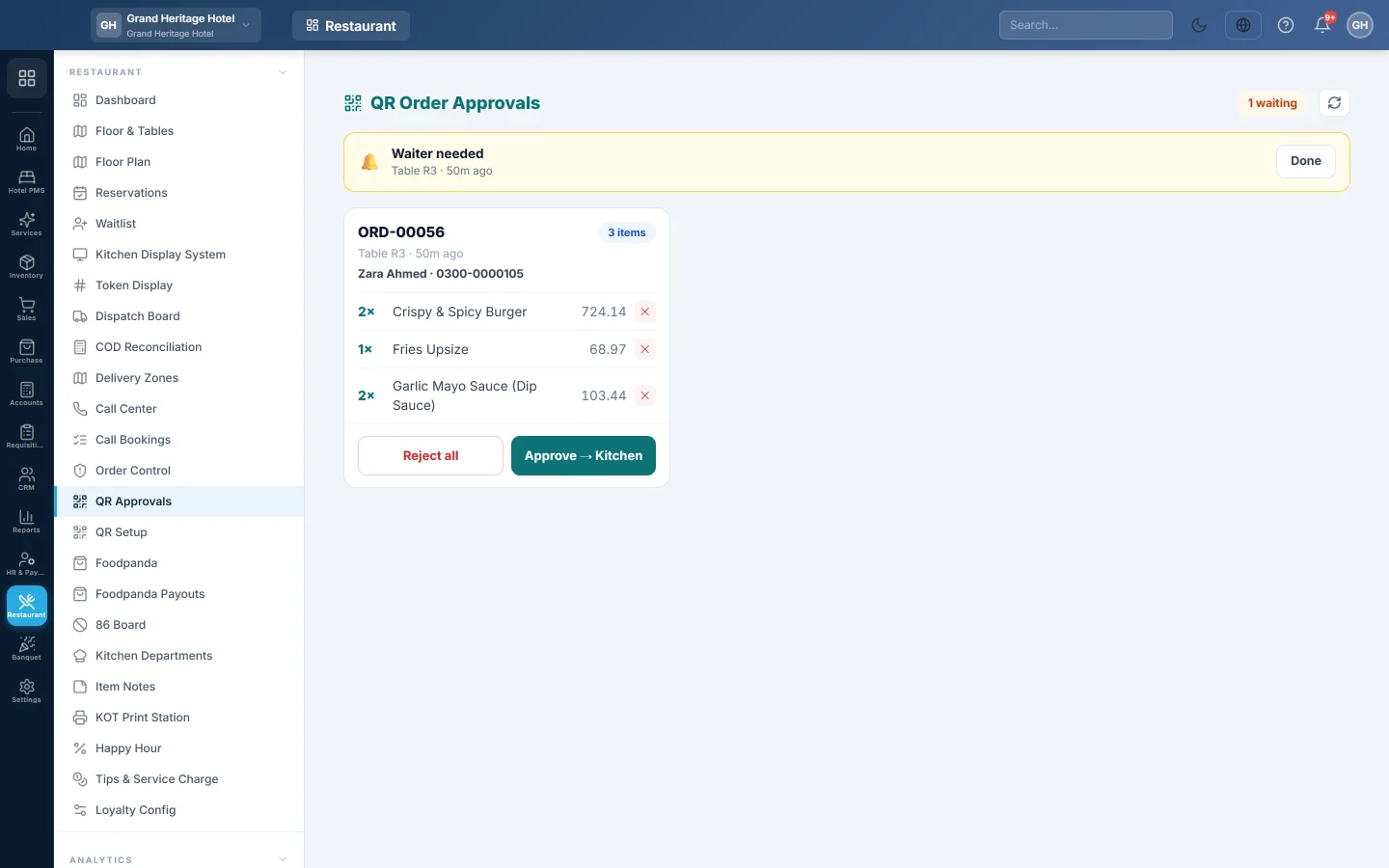
Open Restaurant → Restaurant → QR Approvals. The screen checks for new orders every few seconds. The badge at the top shows how many orders are waiting; the refresh button reloads at once.
Read an order card
Each card is one guest order:
- The order number, then the table (for example Table 5), or Takeaway or Delivery, and how long ago it came in.
- The guest's name and phone when they gave them. A delivery order also shows the address.
- Each item with its quantity, the guest's note and the line amount.
Only the items still waiting for approval are on the card. When guests at a table order a second round, the new items appear as a new card for the same order.
Approve an order
- Check the items with the guest or the kitchen.
- Click ✕ on any item the kitchen cannot make. That item is removed from the order.
- Click Approve → Kitchen.
The order is confirmed and the approved items are sent to the kitchen as a KOT, the same way as a till order. They show on the Kitchen Display System and print where your kitchen prints. A delivery order also goes to the Dispatch Board with the guest's address.
Reject an order
- Click Reject all.
- Confirm.
All waiting items are rejected. If every item on the order is now rejected, the order is cancelled. The guest's tracking page shows the items as removed.
Answer a waiter call or a bill request
Guests can press 🔔 Call waiter or 🧾 Request bill on their phone. The request appears at the top of this screen as Waiter needed or Bill requested, with the table and the time.
- Go to the table.
- Click Done to clear the request.
A bill request also marks the table's order as bill requested, so it is flagged on the till and in the waiter app.
Settle the bill
A QR order is an open order like any other table order. Settle it at the till when the guest pays. See POS Terminal and Floor Plan.
Common questions
A guest says they ordered, but nothing is here. Check Approval mode in QR Setup. In auto mode orders skip this screen and go straight to the kitchen. Also check that the guest pressed Place order and saw the tracking page.
Two guests at one table ordered separately. Are there two bills? No. Orders from the same table join the table's running order, even one a waiter opened. The table has one bill.
Do happy-hour prices apply to QR orders? Yes. The guest sees the discounted price and the saving. See Happy Hour.
Why does a request say "QR guest" instead of a table? The guest scanned a takeaway or delivery code, or a code that is not tied to a table. Their order card shows Takeaway or Delivery.
Does the guest pay online? Not yet. Guests pay at the counter, at the table or on delivery.
شكرًا لك. إذا كنت لا تزال بحاجة إلى مساعدة، راسلنا على info@eloerp.net.