Document Templates
Change the design of the guest folio, registration card, booking confirmation and payment receipt, with a live preview and a version history you can roll back.
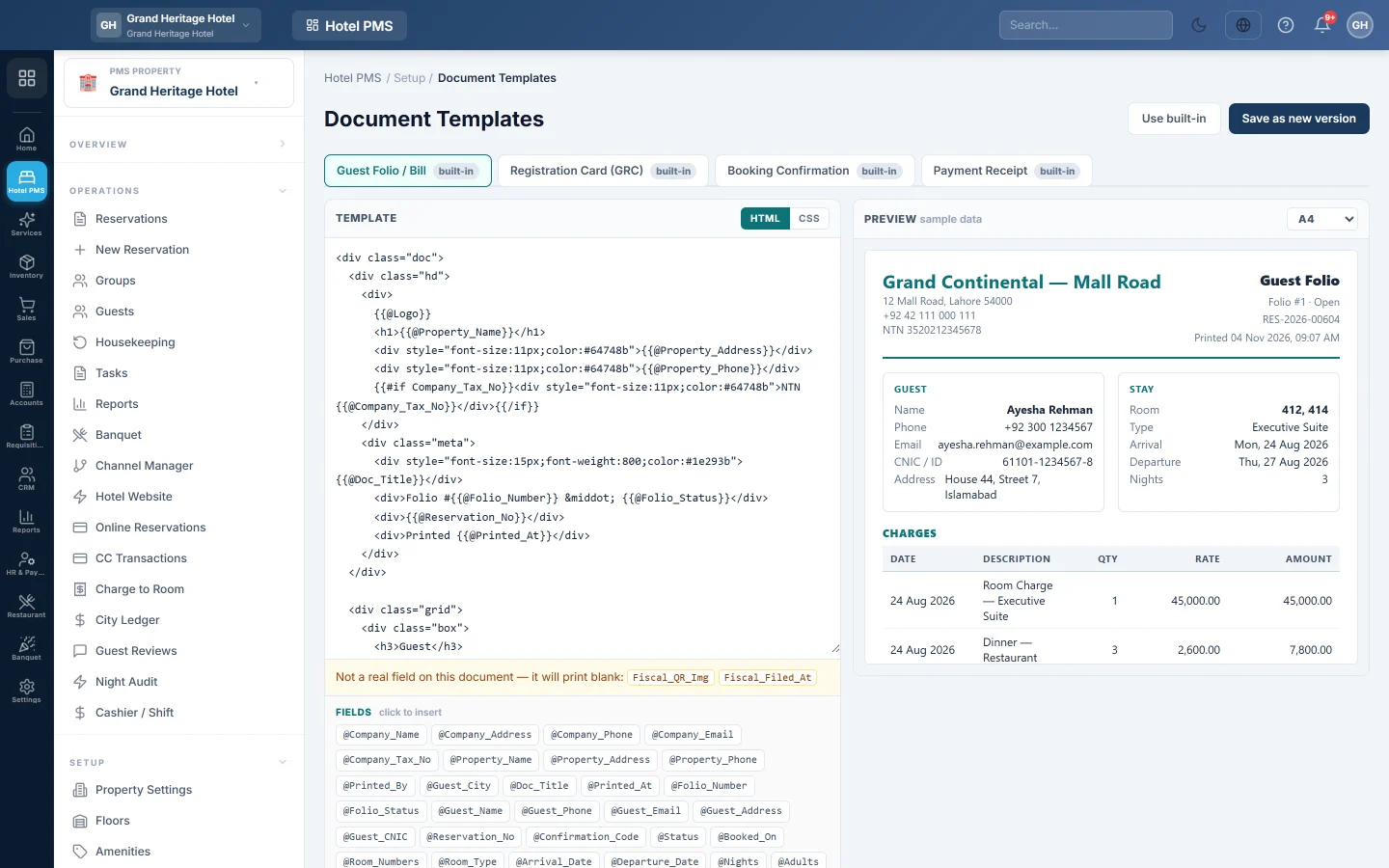
Document Templates lets you change how four hotel documents look: the Guest Folio / Bill, the Registration Card (GRC), the Booking Confirmation and the Payment Receipt. Each one prints from a built-in design until you save your own.
Before you begin
- You need some HTML and CSS to edit a template. If you only want your logo and address on the documents, the built-in designs already show them.
- Your role needs the document template permissions. See Users & Roles.
Where to find it
Open Hotel → Setup → Document Templates.
Change a document
- Click the document's tab at the top. built-in means it still uses the standard design; v2 and so on means your own version is live.
- Edit the HTML in the Template box, and the styles under CSS.
- To add a field, put the cursor where it goes and click the field under Fields, for example a guest name or arrival date token. Tokens look like
{{@Guest_Name}}. - For lists such as folio lines, click insert loop under Inside, then add the line fields inside the loop.
- Check the Preview. It uses sample data. Pick A4, A5 or 80mm paper to see each size.
- Click Save as new version and type an optional note.
If the template has a mistake, the box This template can't be saved yet: lists what to fix. A token that is not a real field shows under Not a real field on this document — it will print blank:.
Add your logo
Add the {{@Logo}} field where the logo should go. It prints the hotel's logo, or the branch or company logo when the hotel has none. Your own templates do not get the logo unless you add this field.
Go back to an earlier version
Saving never overwrites. Under Version history, click Make live on any earlier version. To go back to the standard design, click Use built-in.
Where the templates are used
Your live template is used when the desk prints a folio, a registration card, a confirmation or a receipt from the reservation, and for the booking confirmation that is emailed to guests.
Common questions
My changes do not show on the print. Check you clicked Save as new version and that the new version is marked Live.
The logo disappeared after I saved my own design. Add {{@Logo}} to your template.
Can I break my documents? A template with errors cannot be saved, and Use built-in always brings back the standard design.
Where do I set the logo itself? In Print Settings or on your company profile.
Gracias. Si todavía necesita ayuda, escriba a info@eloerp.net.