Floors
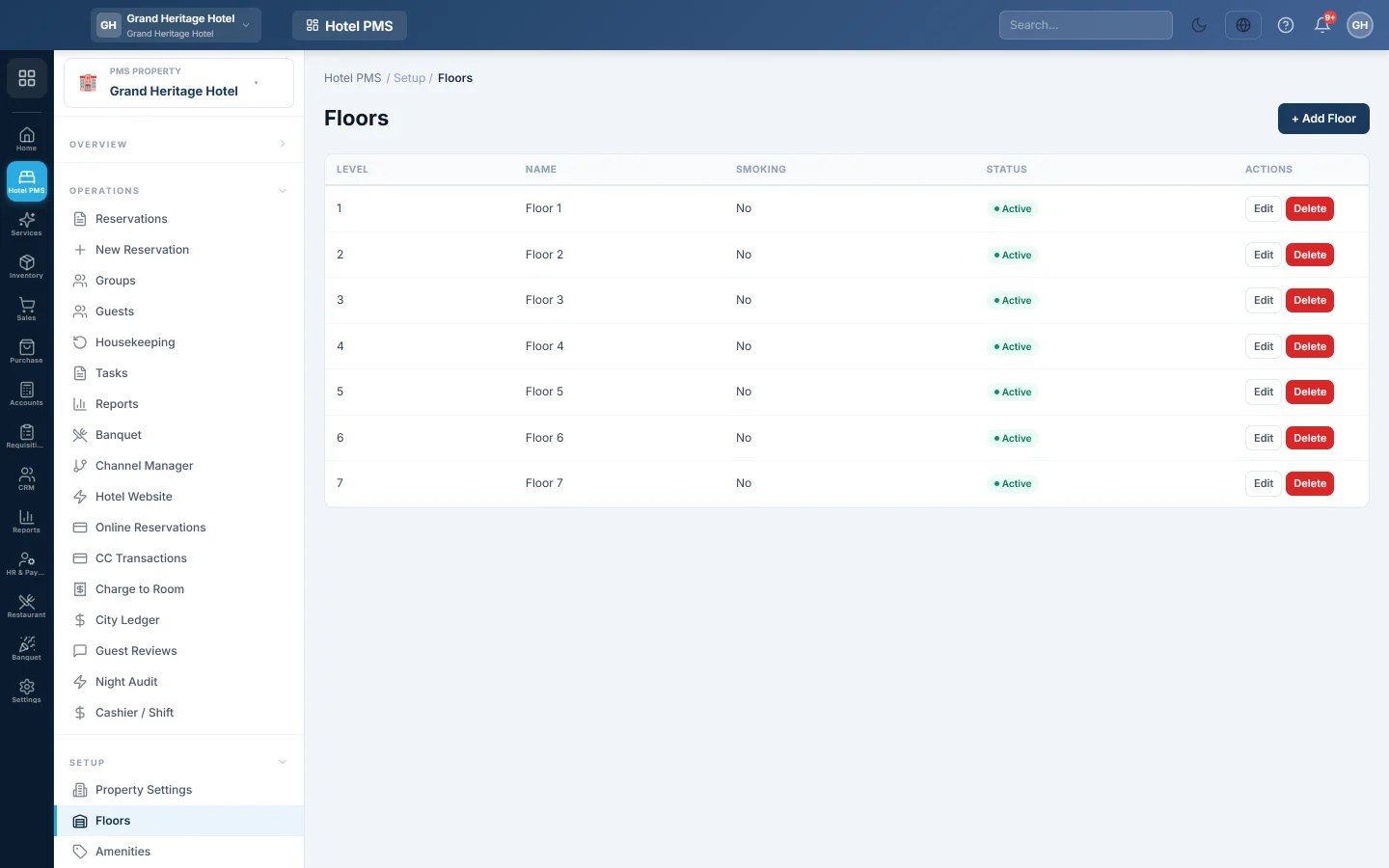
List the floors of your hotel, from basement to rooftop, so rooms can be grouped by floor on the front desk and housekeeping screens.
Floors are the levels of your building. Each room can sit on a floor, so the front desk and housekeeping can find rooms by floor and filter lists by it.
Before you begin
- Check your property details first, see Property Settings.
- Floors belong to the hotel picked in the PMS Property box in the side menu.
Where to find it
Open Hotel → Setup → Floors.
Add a floor
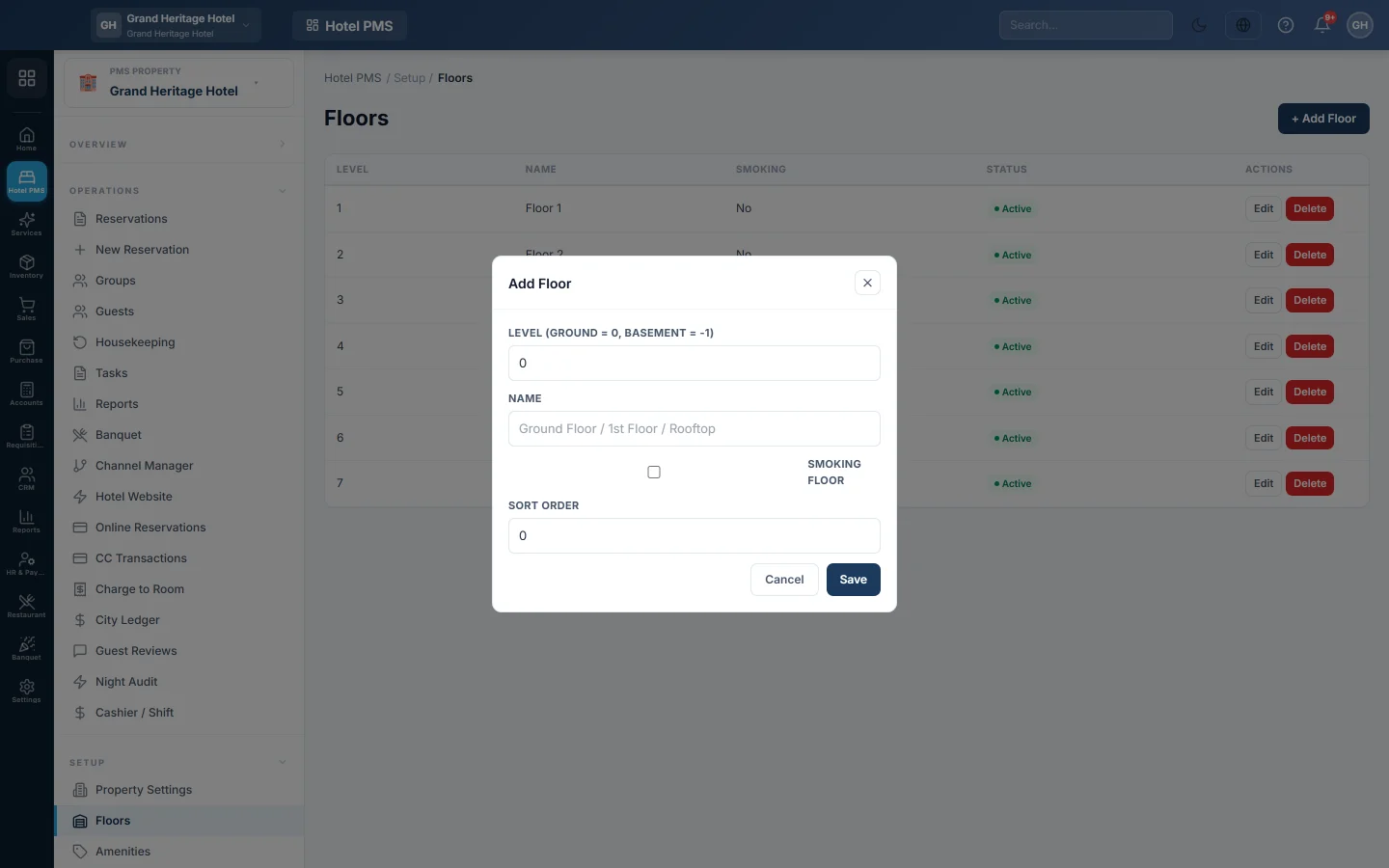
- Click + Add Floor.
- Enter the Level. Use 0 for the ground floor and -1 for a basement. Levels run from -5 to 200.
- Enter a Name, for example Ground Floor, 1st Floor or Rooftop.
- Tick Smoking floor if smoking is allowed on the whole floor.
- Set a Sort Order if you want floors listed in a different order.
- Click Save.
The list is sorted by level, lowest first.
Edit, hide or delete a floor
- Click Edit to change a floor. The edit window also has an Active tick box; clear it to mark the floor Inactive.
- Click Delete and confirm to remove a floor. A floor that still has rooms cannot be deleted; EloERP shows Cannot delete: floor has rooms. Move the rooms to another floor on Rooms first.
Common questions
Do I have to use floors? No. A room's floor is optional. Floors help when you have many rooms and want to group them.
Can I mark single rooms as smoking instead? Yes. Each room has its own Smoking allowed tick box on Rooms.
What comes after floors? Add amenities and room types. See Set up your hotel: rooms and rates.
Gracias. Si todavía necesita ayuda, escriba a info@eloerp.net.