Backup & Restore
Make a backup copy of your company's data whenever you want, download it to keep safely, and ask support to restore it if you ever need to.
Backup & Restore makes a copy of your company's data that you can download and keep. Make one before a big change, such as a year-end close or a large import, and keep copies somewhere safe away from the server.
Before you begin
- You need a role with the permission to view and manage backups.
- A backup holds your company's own data only. It never contains another company's data.
Where to find it
Open Settings → System → Backup & Restore.
Create a backup
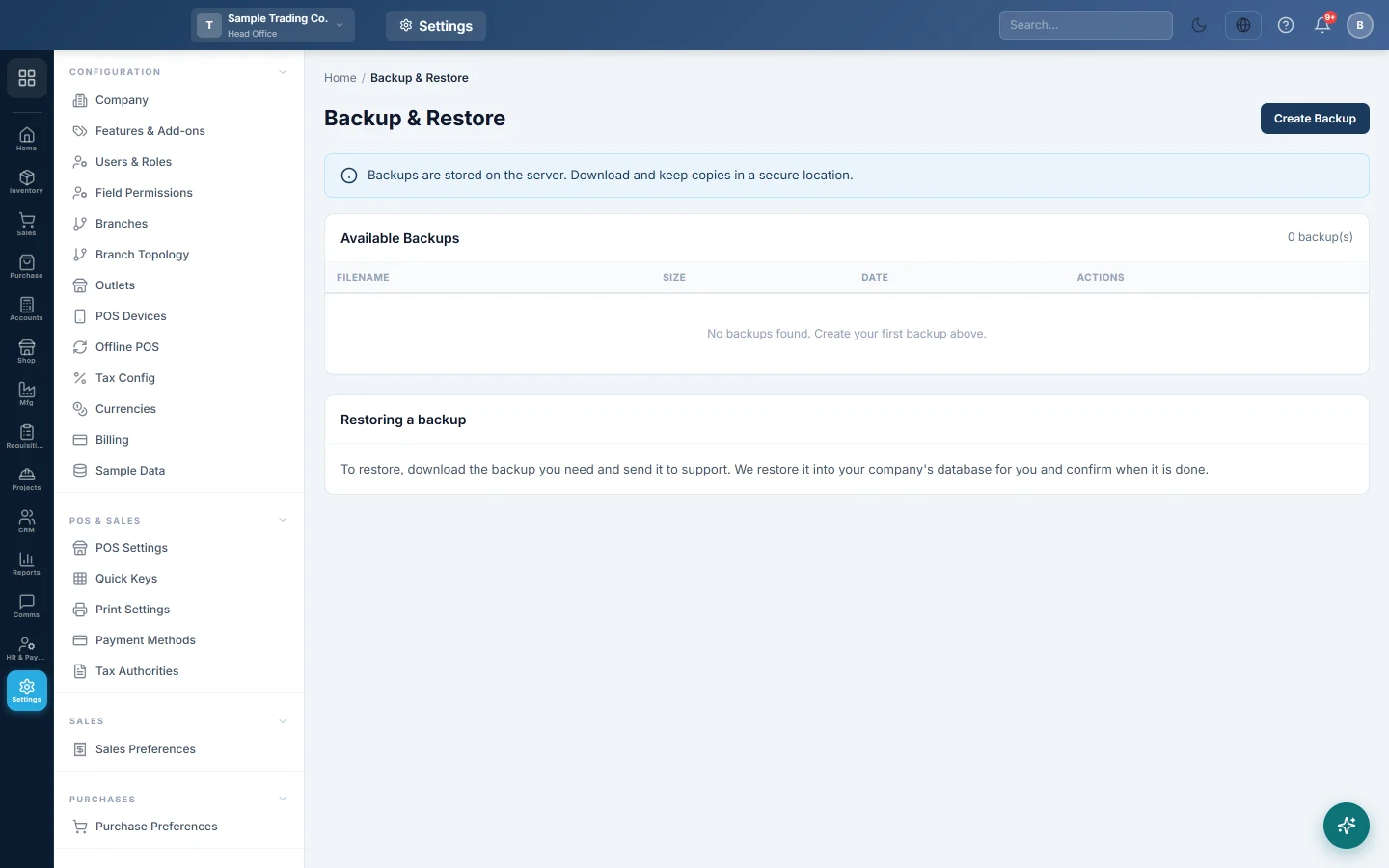
- Click Create Backup. The button shows Creating Backup... while it works.
- Wait for the message Backup created successfully.
- The new file appears under Available Backups, with its Filename, Size and Date.
Download a backup
- Find the backup under Available Backups.
- Click Download.
- Save the file in a secure place, such as an encrypted drive or your own cloud storage.
Delete an old backup
- Click Delete on the backup.
- Confirm.
The file is removed from the server. Copies you downloaded are not affected.
Restore a backup
You cannot restore a backup yourself from this page, for safety. To restore:
- Download the backup you need.
- Send it to your service provider's support team.
- They restore it into your company's database and confirm when it is done.
Common questions
How often should I make a backup? Before any big change, and regularly, for example weekly. Keep a few recent copies.
The page says Backup failed. Try again a little later. If it keeps failing, contact support.
Does the backup include uploaded files, such as logos and attachments? No. The backup file holds your company's data, such as documents, ledgers and settings. Uploaded files are kept separately on the server.
Can I open the backup file myself? It is a database file meant for restoring. Use reports and exports in EloERP to read your data.
Спасибо. Если помощь всё ещё нужна, напишите на info@eloerp.net.