Security
Protect your own account with two-factor sign-in, sign out devices you no longer use, manage your API keys and see recent security activity.
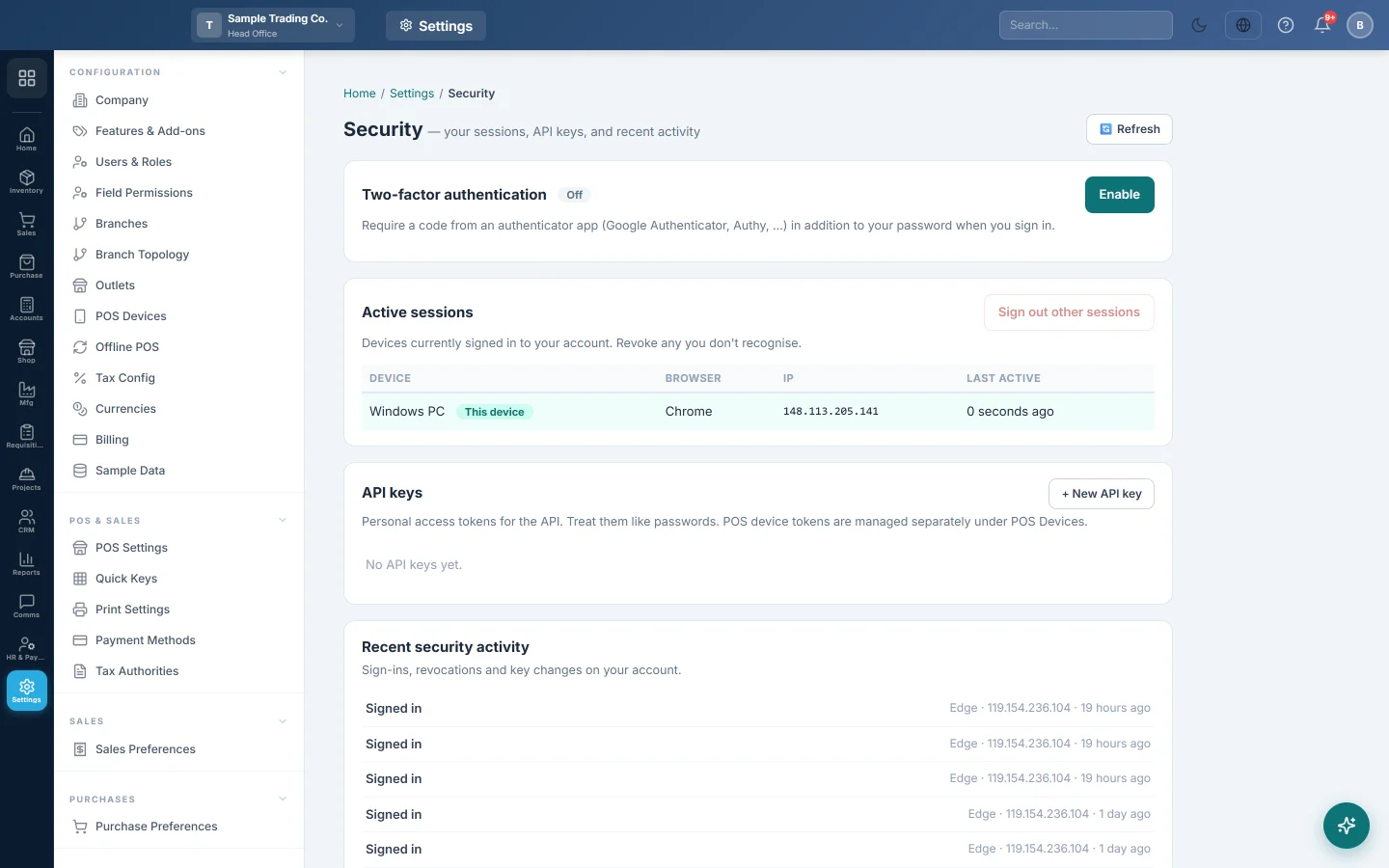
The Security page looks after your own account: two-factor sign-in, the devices where you are signed in, your API keys and your recent security activity. Each user manages their own.
Before you begin
- Install an authenticator app on your phone, such as Google Authenticator or Authy, before you turn on two-factor sign-in.
- Have your account password ready.
Where to find it
Open Settings → System → Security.
Turn on two-factor authentication
- Under Two-factor authentication, click Enable.
- Type your account password under Confirm your password to begin and click Continue.
- 1 — Add this key to your authenticator app: copy the key into your app, or scan the code.
- 2 — Save these recovery codes somewhere safe: click Copy all codes and store them away from your phone.
- 3 — Enter the current 6-digit code to finish: type the code your app shows.
- Click Turn on.
The page then says Two-factor is protecting your account. From now on you sign in with your password and a code from the app.
Get new recovery codes
- Click Regenerate recovery codes.
- Copy the new codes and click Done. The old codes stop working.
Turn off two-factor authentication
- Click Turn off.
- Type your password or a current 6-digit code under Password or code.
- Confirm.
Sign out other devices
The Active sessions list shows each browser where you are signed in, with the Device, Browser and Last active time. Your current one is marked This device.
- To sign out one device, click Sign out on its row.
- To sign out everywhere else, click Sign out other sessions.
Do this if you signed in on a shared computer or lost a device.
Create an API key
API keys let another program, such as an integration, use the API as you.
- Under API keys, click + New API key.
- Type a Name, for example Zapier integration.
- Click Create key.
- Copy the key and store it safely.
To stop a key working, click Revoke on its row. POS device tokens are not listed here; they are managed under POS Devices.
Check recent security activity
Recent security activity lists your sign-ins, revoked sessions and key changes. If you see a sign-in you do not recognise, sign out other sessions and change your password.
Common questions
I lost my phone with the authenticator app. Sign in with one of your recovery codes, then turn two-factor off and on again with your new phone.
I lost my recovery codes too. Ask your administrator or service provider to reset your sign-in.
Can I turn on two-factor for other users? No. Each user turns it on from their own Security page.
Where is the company-wide log of who changed what? In the Audit Log.
Спасибо. Если помощь всё ещё нужна, напишите на info@eloerp.net.