My alerts
Choose which of your company's alerts reach you, and whether you also get them by email or WhatsApp.
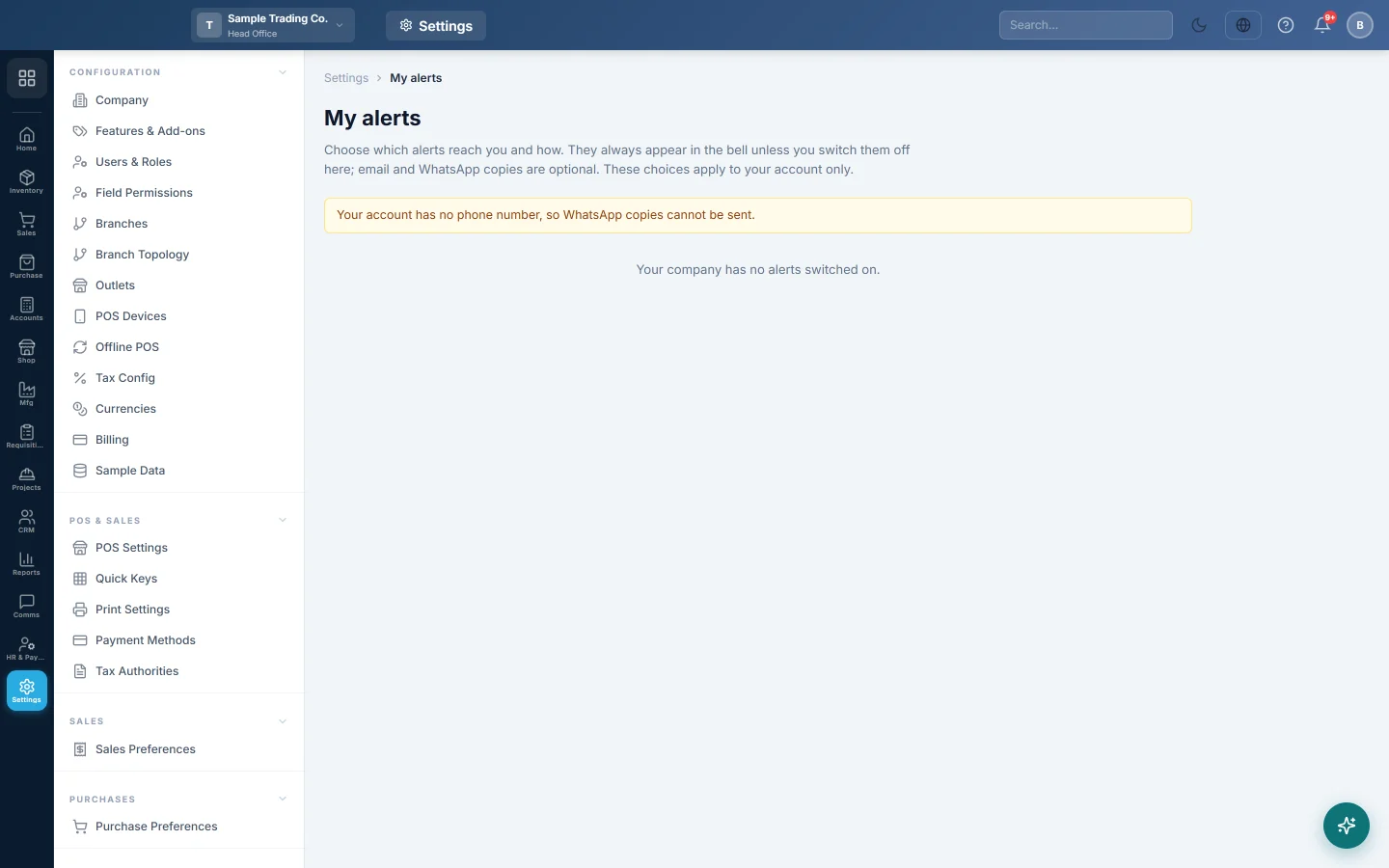
My alerts lets you decide how the company's alerts reach you. Every alert you are meant to receive shows in your bell; here you can switch one off, or ask for an email or WhatsApp copy too. Your choices apply to your account only.
Before you begin
- Your company must have switched alerts on. See Alerts. Otherwise the page says Your company has no alerts switched on.
- For email copies, your user needs an email address. For WhatsApp copies, your company needs WhatsApp set up and your profile needs a phone number.
Where to find it
Open Settings → Notifications → My alerts.
Choose how each alert reaches you
- Find the alert in the Alert column.
- Untick Bell to stop it reaching you.
- Tick Email to also get it by email.
- Tick WhatsApp to also get it on WhatsApp.
Your choices save as you change them.
| Column | What it does |
|---|---|
| Bell | The alert shows in the bell in the top bar. On unless you switch it off. |
| A copy is emailed to you as well. | |
| A copy is sent to your phone on WhatsApp as well. |
Common questions
The Email column is greyed out. Your account has no email address. Ask your administrator to add one in Users & Roles.
The WhatsApp column is greyed out. Your account has no phone number, or WhatsApp is not set up for your company. Add your phone number on your profile (your initials in the top bar), or ask your administrator to set up WhatsApp.
An alert is missing from my list. It is switched off for the company, or your role does not cover that work.
Does muting an alert stop it for everyone? No. It only stops it for you.
شكرًا لك. إذا كنت لا تزال بحاجة إلى مساعدة، راسلنا على info@eloerp.net.