POS Settings
How the POS till behaves for every cashier in the branch, from stock and discounts to receipts, kitchen tickets, cash counting, register mode and installment sales on the offline till.
POS Settings decides how the POS till works for your cashiers: what stock they can sell, which discounts they may give, what the receipt says and how the cash drawer is shared. The same settings reach the web POS and the offline till.
Before you begin
- You need a role that can open POS Settings (the POS settings view permission) and edit them to save.
- Check the branch in the top bar. A branch that runs independently saves its own POS settings; otherwise the settings are company-wide.
- Set up your warehouses and payment methods first: Warehouses and Payment Methods.
Where to find it
Open Settings → POS & Sales → POS Settings.
Change a setting
- Click a switch to turn it on or off, or pick a value from a list.
- Click Save Settings at the top of the page.
- Wait for the message POS settings saved successfully!
A switch does nothing on the till until it is saved. While anything is unsaved, a bar across the page says You have unsaved changes. They do not take effect on the till until you save. Click Save Settings on the bar, or Discard to go back to the saved settings. If you try to leave the page or close the tab with unsaved changes, you are asked first.
Reset reloads the saved settings and throws away changes you have not saved. A till picks up the new settings the next time it loads them; an offline till takes them with its next sync.
Till Layout & Hardware
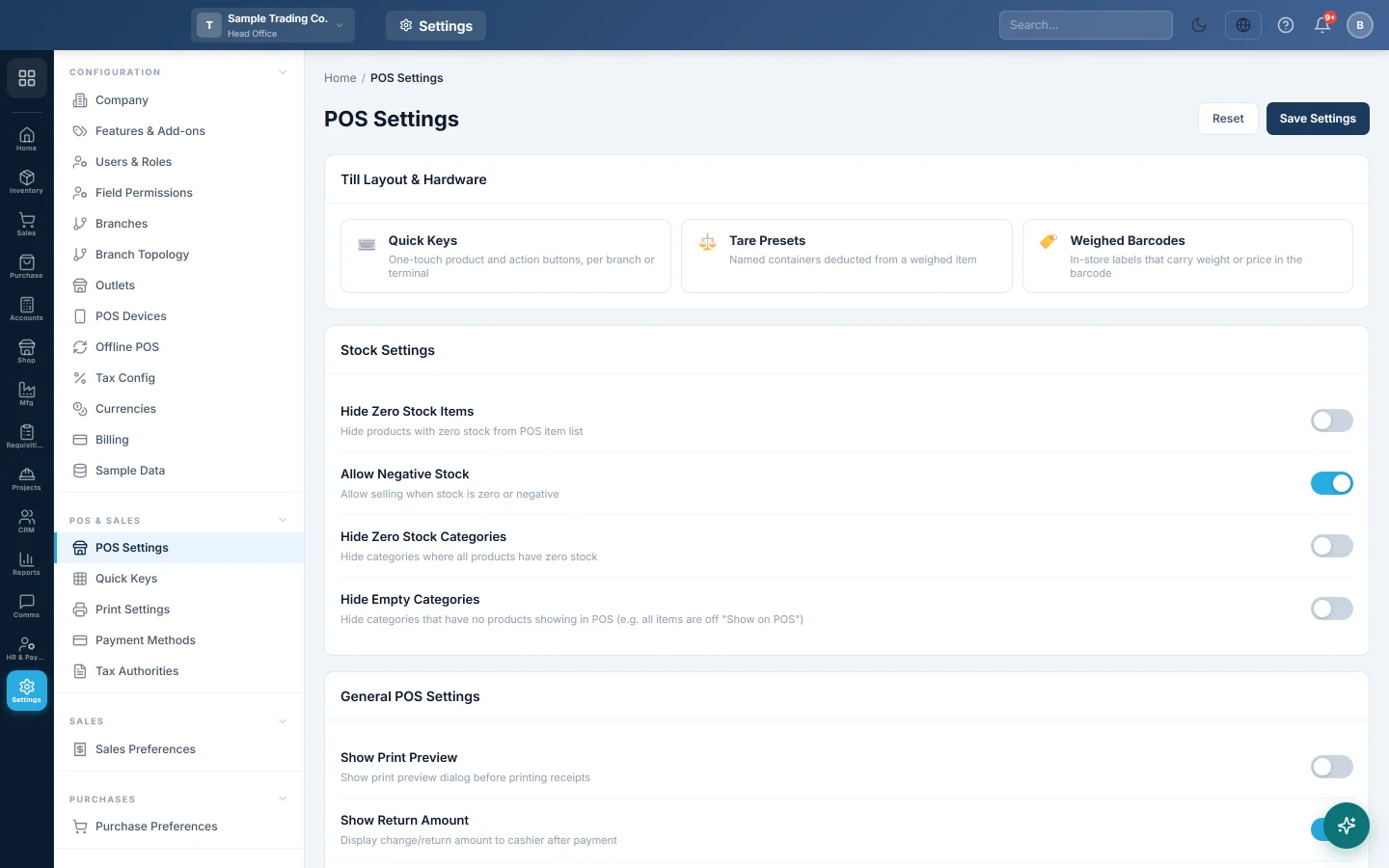
The first card links to the bigger set-up screens: Quick Keys (one-touch product and action buttons, see Quick Keys), Tare Presets (named containers deducted from a weighed item) and Weighed Barcodes (in-store labels that carry weight or price in the barcode).
Stock Settings
| Option | What it changes at the till |
|---|---|
| Hide Zero Stock Items | Products with no stock disappear from the till's item list. |
| Allow Negative Stock | Cashiers can sell an item even when its stock is zero or below. Off, the cart can never hold more than the stock, however the item is added. See Stock limits at the till. |
| Hide Zero Stock Categories | Hides a category tab when every product in it has no stock. |
| Hide Empty Categories | Hides a category tab with no products showing on the till, for example when every item in it is off Show on POS. |
General POS Settings
| Option | What it changes at the till |
|---|---|
| Show Print Preview | Shows a preview before the receipt prints. |
| Show Return Amount | Shows the cashier the change to give back after payment. |
| Show Return on Invoice Print | Prints the cash received and the change returned on cash-sale receipts. |
| Quick order on the till | Adds a Quick order button to the POS. The cashier types or says the order, for example "2 atta, 1 cooking oil", and clear items go straight to the cart. Off by default. See Quick order: type or say the order. |
| Installment sales on the offline till | Lets the offline till ring installment sales. See the section below. |
| Allow Per-Item Discount | Off hides the line discount box in the cart, online and offline, and the server refuses a line discount. |
| Allow Whole-Invoice Discount | Off hides the invoice discount row, online and offline, and the server refuses a bill discount. |
| Default Warehouse | The warehouse POS sales take stock from. If it belongs to another branch, the till uses the current branch's first warehouse. |
| Default Payment Method | The method already selected when the cashier reaches checkout. |
| Order Ready Time (minutes) | The preparation time the kitchen display counts against. |
Installment sales on the offline till
Turn on Installment sales on the offline till when cashiers must sell on installments even while the internet is down. It is off for every company until you switch it on.
- Turn on Installment sales on the offline till.
- Click Save Settings.
- Let each offline till sync once, so it receives the new setting.
How it works:
- The cashier rings the installment sale on the offline till as usual, with the same rules the web POS uses (number of installments, frequency, first due date, minimum down payment).
- The installment plan is created when the sale uploads to the server, not at the moment of sale.
- Collections, returns and voids of installment sales stay online. Do them on the web screens once you are connected.
- Installment sales are offered on retail tills only.
See Installment Plans for following up the plan after it is created.
Print & KOT Settings
| Option | What it changes |
|---|---|
| Number of KOT Prints | How many kitchen tickets print per order. Receipt copies are set in Print Settings under Copies & Duplicates. |
| Invoice Size | The paper used for POS receipts: A4, A5, Thermal 80mm or Thermal 58mm. A branch paper size set on the branch wins. |
| Payment Methods Display | Boxes (one-tap buttons) or Dropdown. Use Dropdown when you have many methods so they do not fill the cart. |
| Enable KOT (Kitchen Order Ticket) | Prints kitchen tickets for food and kitchen items. |
| Barcode Scanning Behavior | Where the cursor goes after a scan on sale and purchase forms: Next Row for continuous scanning, or Qty Tab to stop on the quantity. |
Table Management
Turn on Enable Table Management for restaurants and cafes that take dine-in orders by table. The till then shows the table and waiter pickers for dine-in orders.
Sale Return Stock
On return of a recipe item, put back decides what goes back into stock when a recipe item is returned:
- Finished item (default): the sold item goes back into stock. Right for packaged goods.
- Raw materials: the recipe's ingredients are credited back, in proportion to the quantity returned. Right for made-to-order dishes that were never cooked.
It applies online and on the offline POS.
Cash Denomination Notes
These are the notes and coins a cashier counts at shift close, on the X-Report and Z-Report screens.
- Click + Add.
- Type the value of the note or coin, for example 5000.
- Click × next to a value to remove it.
- Click Save Settings. The values are saved largest first.
If you leave the list empty, the usual notes of your currency are used.
Register Mode
| Mode | How cash registers work |
|---|---|
| Shift-Locked (Default) | Each cashier opens their own register. Only that cashier can use it until the shift is closed. Several cashiers can run separate shifts at once. |
| Shared Register | One register per branch, shared by all cashiers. The shift belongs to the register, not to a cashier. Best for a small shop with one cash drawer. |
Receipt Content
Type the Receipt Header (shown at the top of the till receipt) and the Receipt Footer (shown at the bottom), then click Save Settings. Press Enter to start a new line.
Common questions
I changed a setting but the till still behaves the old way. Check that you clicked Save Settings: an unsaved change never reaches the till. Then reload the POS page. An offline till takes new settings at its next sync, so check it is online.
Can a cashier still give a discount after I turned discounts off? No. The discount box is hidden, and the server refuses the discount even on a sale that was rung offline.
The offline till does not offer installments. Check that Installment sales on the offline till is on and saved, that the till has synced since, and that it is a retail till.
A customer wants to pay an installment while we are offline. Collections stay online. Take the payment when the connection is back, or on a computer that is online.
Why does each branch show different POS settings? A branch that runs independently keeps its own POS settings. Other branches share the company-wide settings.
Where do I set how many receipt copies print? In Print Settings, under Copies & Duplicates. Number of KOT Prints here is for kitchen tickets only.
Спасибо. Если помощь всё ещё нужна, напишите на info@eloerp.net.