Statutory & Tax Slabs
The payroll rules for the whole company, including the working week, how a day's pay is worked out, late fines, overtime, EOBI, PESSI or SESSI, provident fund, gratuity and income tax slabs.
This page holds the rules every payroll run follows: which days you work, what one day's pay is worth, how lateness and overtime are treated, and the rates for EOBI, social security, provident fund and income tax. Review it once before your first payroll.
Before you begin
- Only users allowed to manage payroll settings can change these. See Users & Roles.
- To email payslips, set up email under Settings → Notification Channels. See Notification Channels.
Where to find it
Open HR & Payroll → Payroll → Statutory & Tax Slabs. Click Save settings after changing anything except the tax slabs, which have their own button.
Working week and pay basis
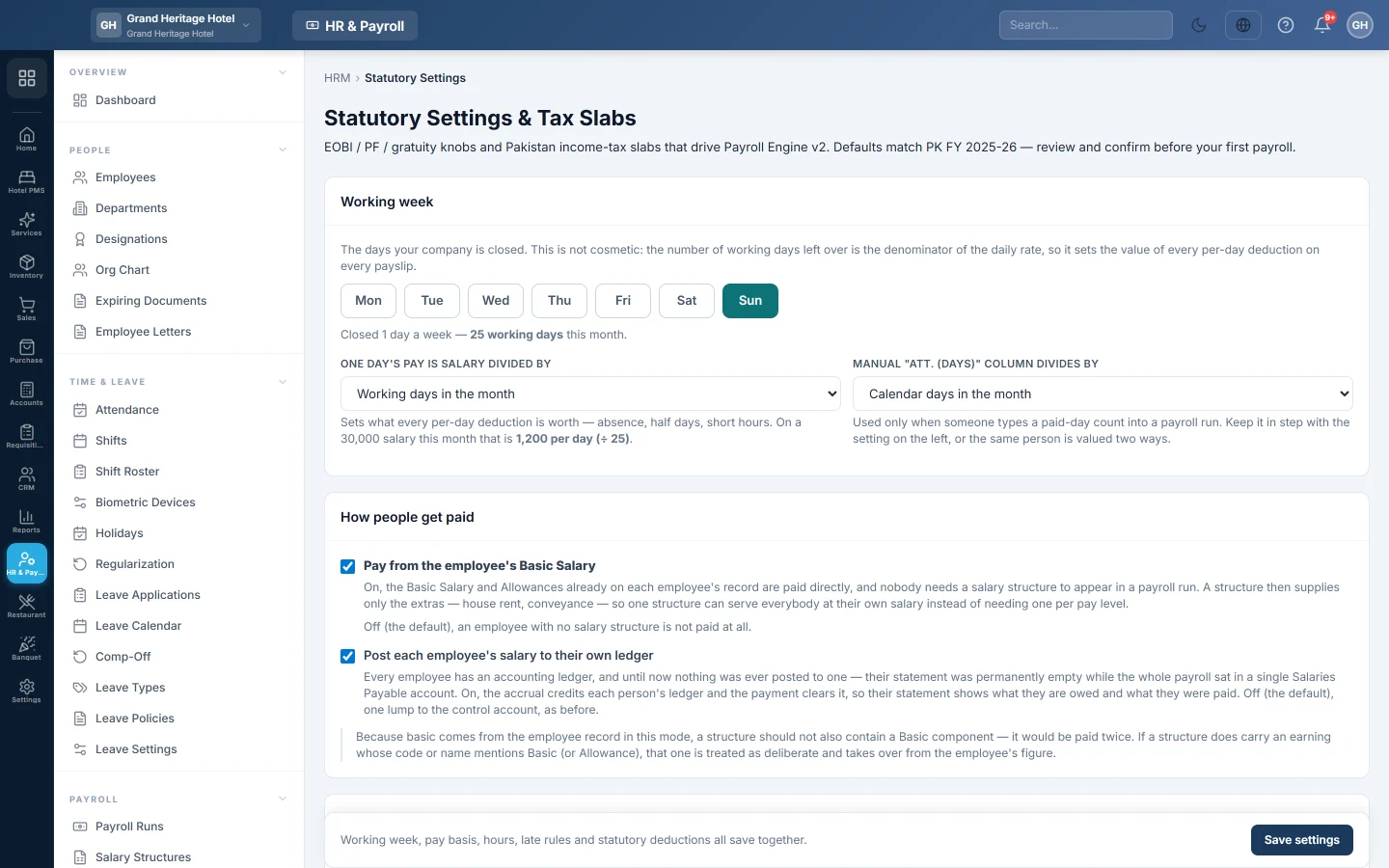
- Under Working week, click the days your company is closed, for example Sunday.
- Under One day's pay is salary divided by, choose Working days in the month, Calendar days in the month, 30 (fixed) or 26 (fixed).
The working days left over decide what every absence or half day costs. For example, Rs 30,000 ÷ 26 working days = Rs 1,153.85 a day.
How people get paid
- Pay from the employee's Basic Salary: on, each person is paid the Basic Salary and Allowances on their employee record, and a structure only adds extras. Off (the default), an employee with no salary structure is not paid.
- Post each employee's salary to their own ledger: on, net pay is credited to each person's own ledger and the payment clears it, so their ledger statement shows what they were owed and paid. Off, all net pay sits in Salaries Payable.
Pay slip
- Show the attendance summary on the pay slip: prints required and worked hours, leave, half days, days deducted and the daily rate.
- Email the pay slip when a payment is recorded: sends each employee their slip as a PDF when they are paid in full. Off, slips go only when someone clicks Email Slip.
Late arrival and early leaving
For Late arrival and Early leaving separately, set the Grace (minutes), how many are Free per month, the Occurrences per deduction (3 means three lates make one fine) and Charge as an Amount or Percent. Both rules are off until you tick Enabled.
EOBI, provident fund and income tax
| Setting | What it does |
|---|---|
| EOBI | Tick Enabled and set the Ceiling wage, Employee rate % and Employer rate %. Both shares are worked out on pay up to the ceiling. |
| Provident Fund | Optional employee and employer percentages. |
| Income Tax | Tick Auto-apply WHT and choose the FY (for tax slabs). |
| Payroll Controls | Require approval before posting payroll to accounts (maker-checker) makes a second person approve a finalized run. |
| Gratuity | Days per year of service and Eligibility (months), used in the final settlement. |
Provincial social security
Tick Enabled for PESSI (Punjab) or SESSI (Sindh), the scheme of your province of registration. Set the Ceiling wage (0 = none) and the rates. The employee rate is usually 0.
Hours and overtime rules
For staff paid against a number of hours a day, such as a remote team on a time tracker:
- Tick Use hours-based attendance rules.
- Set Contracted hours per day and Half day at or below.
- Set Deduct one day for every (hours of shortfall) and what happens to Left-over hours.
- Under How overtime is paid, pick your rule. Set Shortest overtime paid (minutes a day), the Rate multiplier (1.5 = time and a half), and the Most per day and Most per month.
- Under Work on a day off, choose Nothing extra, Pay an extra day's wage for each day off worked or Pay the hours worked on a day off, and the Day-off rate multiplier. See Pay for work on a day off.
Nothing changes on a payslip until you switch these on.
Income tax slabs
- Under Income Tax Slabs, check the slabs for the tax year. They start as the published salaried-person slabs.
- To change them, edit the Lower bound, Upper bound, Fixed amount and Rate %. Leave the upper bound of the top slab blank. Click Add slab for another.
- Click Save slabs (override).
Each month, EloERP turns the month's taxable pay into a yearly figure, applies the slab and divides the yearly tax by 12. For example, Rs 210,000 a month is Rs 2,520,000 a year. In a slab of Rs 116,000 + 23% above Rs 2,200,000, the tax is Rs 189,600 a year, or Rs 15,800 a month.
What happens in the books
These settings post nothing themselves. When a run is posted, the employer's EOBI, PESSI or SESSI and provident fund shares go to expense accounts. Tax and contributions withheld wait in payable accounts until you deposit them. See Payroll Runs.
Common questions
Why does an absence cost a different amount each month? With Working days in the month, the number of working days changes from month to month. Choose 30 (fixed) or 26 (fixed) for a steady daily rate.
I changed a rate. Does it change last month's payroll? No. It applies the next time Apply Tax/EOBI/OT is pressed on a draft run.
Can we turn on both PESSI and SESSI? You can, but a company normally pays only its own province's scheme. The page warns you if both are on.
Why was tax not deducted? Auto-apply WHT is off, the earnings are not marked Taxable on Salary Components, or the yearly pay is below the first taxable slab.
Vielen Dank. Wenn Sie weitere Hilfe brauchen, schreiben Sie an info@eloerp.net.